
Add a chat region to a page
By the end of this lesson, an APEX page has a working chat region. The first message has no contract.
What you build in this course
Section titled “What you build in this course”You build a chat page. An engineer opens one service contract, asks the desk a question about it, and gets an answer from your own tables.
The agent already exists. This course is about the part in front of it: the region, what it sends, what it stores, and what it lets a user see.
By the end you have a chat region that answers about one contract and no other, that keeps each user’s conversation private, and that you can debug when it goes quiet.
Before you start
Section titled “Before you start”You need UC AI 26.3 or later, installed and able to reach a model. If a call works, you are ready. If it does not, the installation guide covers the network and key setup.
The plug-in package calls execute_agent with p_run_context, which is new in
26.3, so it does not compile on an older version.
You also need the plug-in itself. It is attached to the latest UC AI release.
Run the setup script once:
sql your_user/your_password@your_db @00_setup.sqlIt ends with a report. Every line must pass before you go on. To remove
everything again later, run 00_teardown.sql from the same directory.
Tables : 6 of 6Package : validTools : 4 of 4Agent SC_DESK: activeSetup OK. Start lesson 1.Install the plug-in
Section titled “Install the plug-in”-
Create the table
Section titled “Create the table”Run
ai_tables.sqlfrom the plug-in files. It createsuc_ai_chat_messages, which holds every message of every conversation. -
Install the package
Section titled “Install the package”Run
uc_ai_chat.pksand thenuc_ai_chat.pkb. The package body calls UC AI, so UC AI must be installed first. -
Import the plug-in
Section titled “Import the plug-in”Import the plug-in file into your APEX application, the same way you import any other component.
Add the region
Section titled “Add the region”-
Create the region
Section titled “Create the region”Create a new region on your page. Set its type to UC AI Chat.
-
Name the agent
Section titled “Name the agent”Open the Agent group of the region attributes and set Agent Code to
SC_DESK.This is the only attribute you must fill in. The rest have defaults.
-
Give the agent its values
Section titled “Give the agent its values”The desk expects three values on the first message: who is asking, what the date is, and the question. Set Agent Input Mapping to:
{"engineer_name": "&APP_USER.","today": "&P10_TODAY.","question": "#USER_MESSAGE#"}&APP_USER.is the APEX user.#USER_MESSAGE#is what the user typed. Both are put into the JSON safely, so a quote in a question cannot break it. -
Add the date item
Section titled “Add the date item”&P10_TODAY.needs a value. Create a hidden page itemP10_TODAY, then add a computation on it with the point Before Header and this expression:to_char(sysdate, 'YYYY-MM-DD')
Send the first message
Section titled “Send the first message”Run the page and ask the desk a question about the contract:
Which invoices on this contract still have an uncredited amount?
Response without a contract ID
Section titled “Response without a contract ID”I can’t list invoices because this conversation isn’t bound to a service contract.
Your wording will differ. What must match is the data, and the checks below.
The turn finished. The model called the tool, the tool refused, and the model explained the refusal.
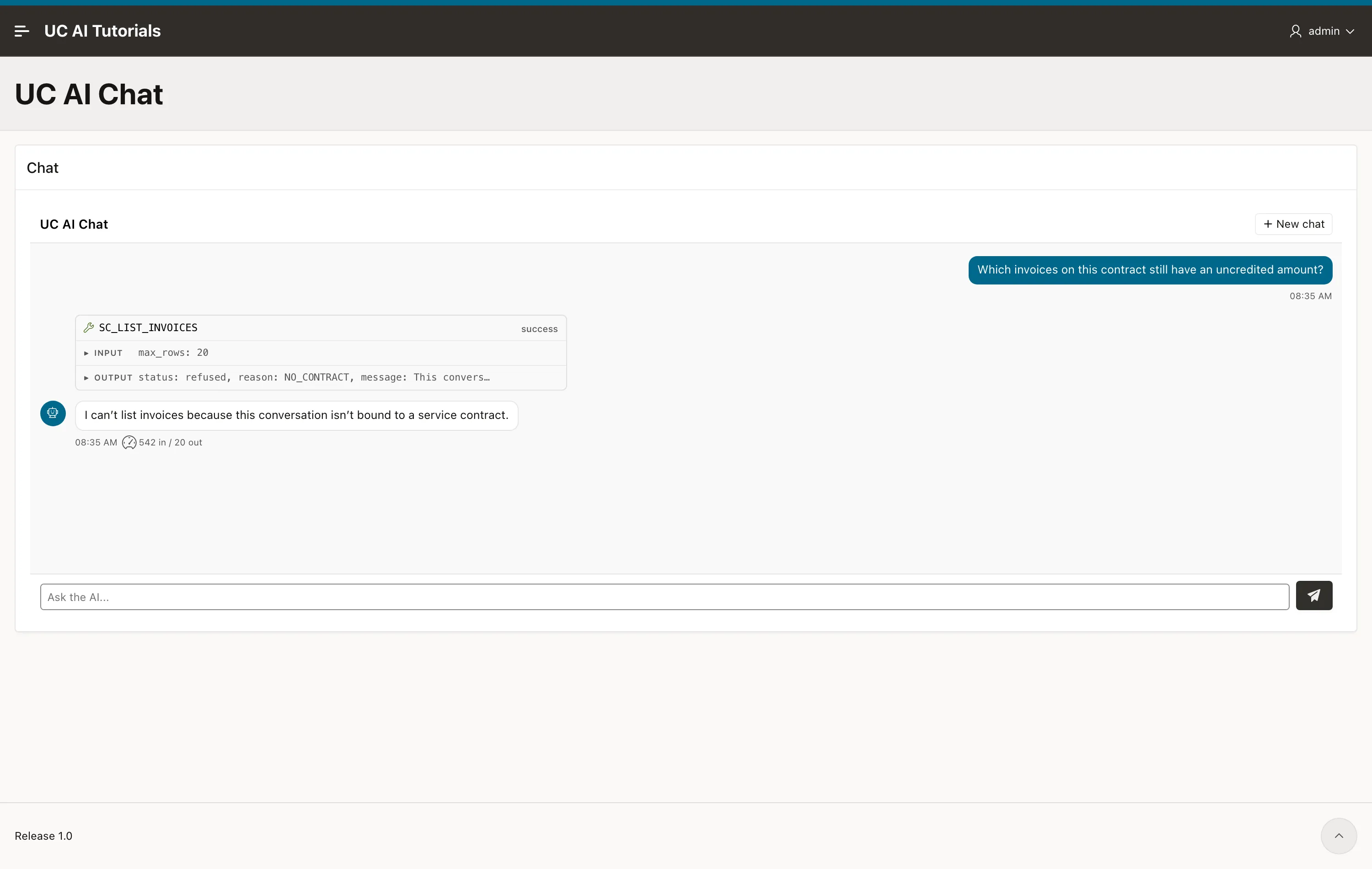
The tool result:
{ "status": "refused", "reason": "NO_CONTRACT", "message": "This conversation is not bound to a service contract, so I cannot list its invoices."}The tools of this desk have no contract parameter. The model cannot name a contract, because there is nothing to name it in. The contract comes from the application, and so far the application has not given one.
That is what the next lesson adds.
Check it yourself
Section titled “Check it yourself”The answer text will differ on your run. What must match is the sequence of rows the plug-in stored:
select role, turn_status, tool_name, input_tokens, output_tokens from uc_ai_chat_messages order by id desc fetch first 4 rows only;ROLE TURN_STATUS TOOL_NAME INPUT_TOKENS OUTPUT_TOKENSassistant 542 20tool_result SC_LIST_INVOICEStool_call SC_LIST_INVOICESuser doneFour rows for one message. The user row carries the status of the whole turn,
and done means the turn finished. A refusal is a result, not an error.
Key takeaways
Section titled “Key takeaways”- One attribute makes a chat region work: Agent Code.
- The plug-in stores every part of a turn in
uc_ai_chat_messages, one row for each: the question, each tool call, each tool result, and the answer. &P10_TODAY.needs a computation, because the plug-in reads page items on the server:to_char(sysdate, 'YYYY-MM-DD').
Full reference: the APEX Chat plug-in guide lists every region attribute with its type and default.