
Working with documents
Everything on this page is available both in the application and as a PL/SQL call. The application is described first; the API equivalent follows each section.
Uploading
Section titled “Uploading”Upload from the toolbar of the folder you want the file in, or drop files onto the file list. Multiple files at once is fine.
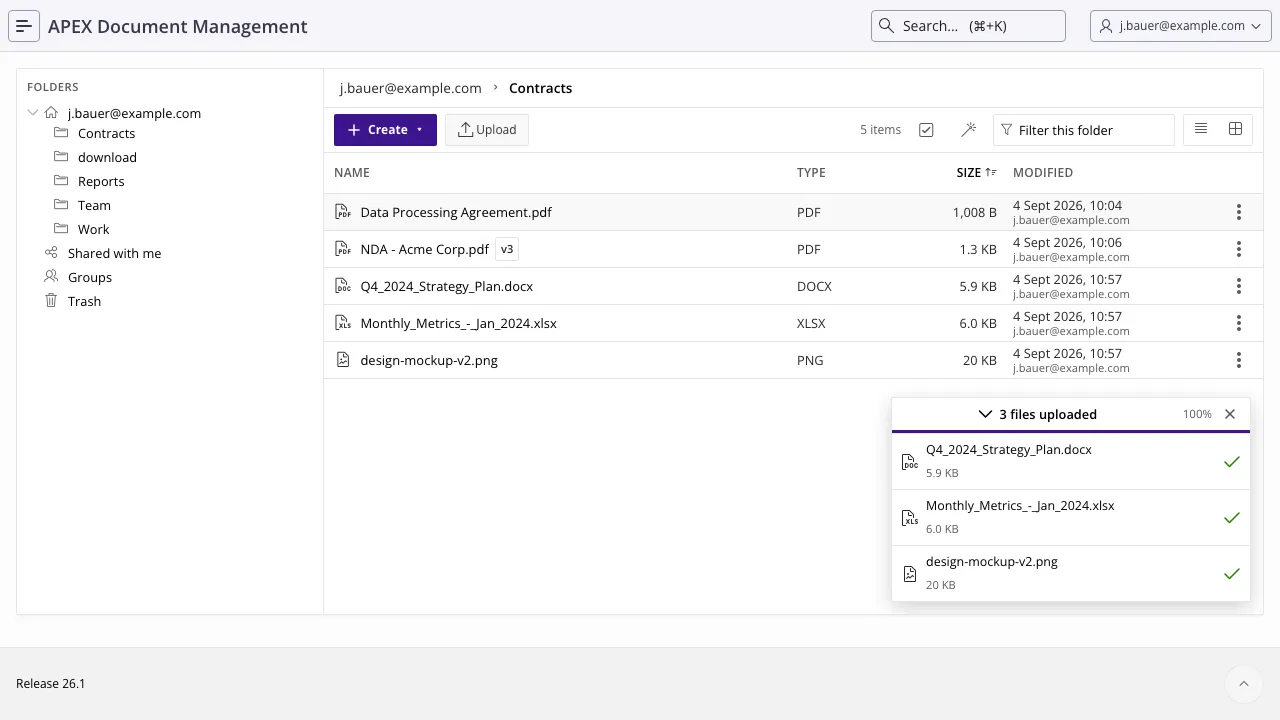
Two things decide what happens next:
- A name that is already taken in that folder does not overwrite. It adds a new version of the existing document.
FS_UPLOAD_MAX_FILE_BYTESis checked before any content is transferred, so an oversized file is refused immediately rather than after the upload appears to have worked.
Trashed documents do not occupy their name — a name in use by a document in the trash is free for a new upload.
Renaming and moving
Section titled “Renaming and moving”Rename and move are on the row menu of any document, and both are permission-checked against the target: moving a file needs edit rights on the destination folder, not just on the file.
A rename keeps the document id, so shares, tags, comments and audit history all follow the new name. Nothing you handed out stops working because a file was renamed.
→ adm_document_api.rename_document, adm_document_api.move_document
Version history
Section titled “Version history”Every upload onto an existing name adds a version; the newest is current, and downloads and previews resolve to it. Open Version History from the row menu of a document to see them all, with who uploaded each and when.
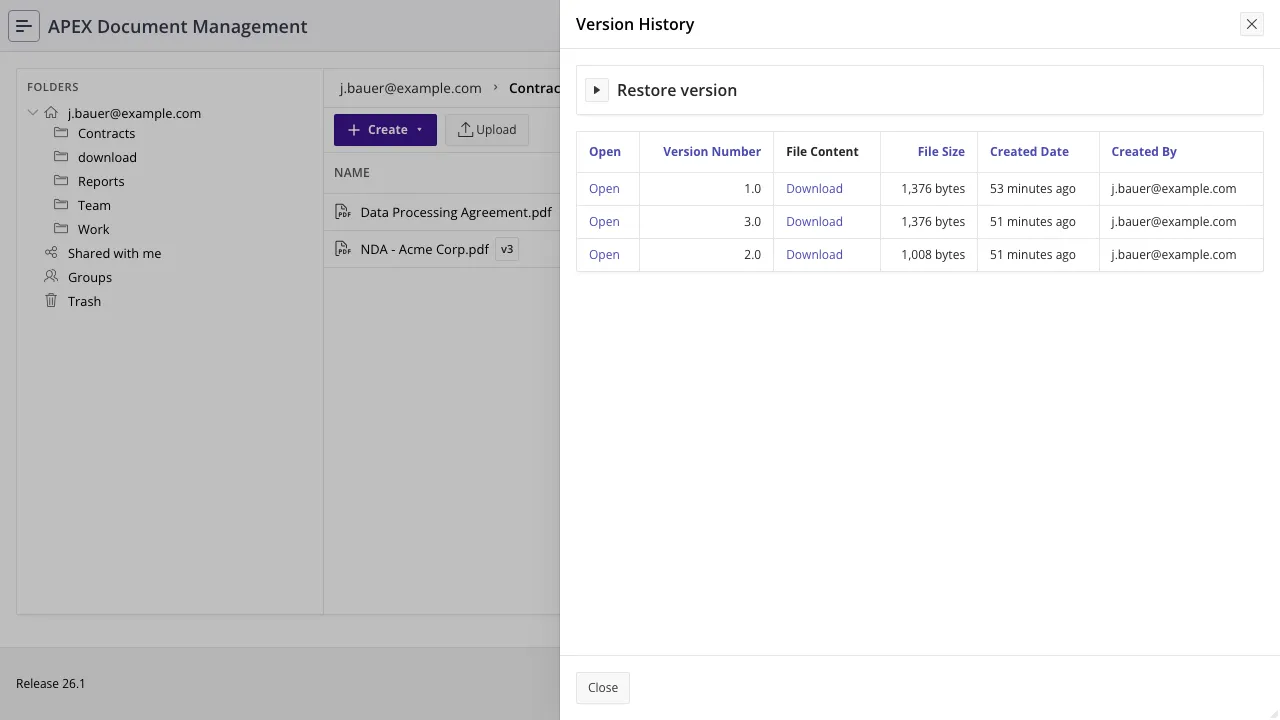
From there you can:
| Action | What happens |
|---|---|
| Preview | Open an old version read-only, without changing anything. |
| Compare | Open two versions side by side, each in the appropriate viewer — Office, PDF, or HTML/Markdown. |
| Restore | Take an old version’s content and add it as a new version. The history is never rewritten, so a restore is itself undoable. |
| Delete a version | Remove one version’s content permanently. The current version cannot be deleted this way — trash the document instead. |
→ adm_document_api.restore_document_version, adm_document_api.delete_document_version
Comments
Section titled “Comments”Comments are attached to a document, optionally to a specific version — which is what makes “fixed the figures on page 3” mean something six versions later.
→ adm_document_api.add_comment
For structured, machine-readable metadata rather than prose, use
annotations (key/value on a
document or folder) or tags
(key/value, searchable and facetable). Annotations with keys starting file. are reserved for
extracted file metadata.
File details
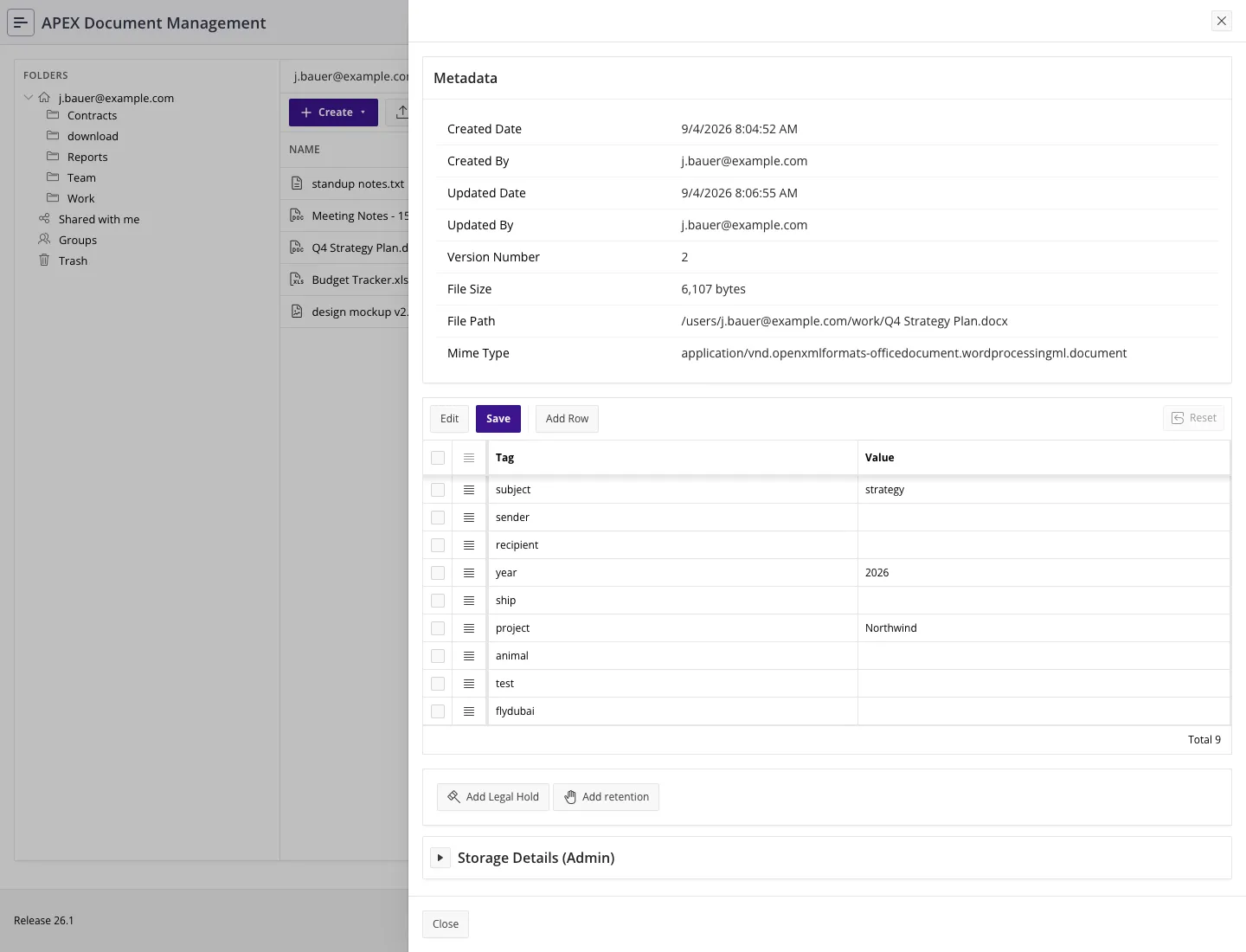
Section titled “File details”The details drawer shows the technical facts about a document: size, mime type, current version, owner, created and modified timestamps, checksum, extracted metadata, tags and where it is stored. The audit history of one file is reachable from it.
Deleting, and getting it back
Section titled “Deleting, and getting it back”Deletion is two-stage.
-
Trash. Deleting moves the document into the trash folder of the user who deleted it. It disappears from its folder, but nothing is lost and the name it occupied is free again.
-
Restore, or wait. From the trash a document can be restored to where it came from. If the original folder is gone, the restore falls back to a valid location and the name is adjusted with a
_restoredsuffix rather than colliding. -
Permanent deletion. The daily job permanently deletes documents that have been in the trash for longer than
CLEAN_TRASH_DAYS(30 by default). An administrator can also delete permanently straight away.
→ adm_document_api.trash_document, restore_document, permanently_delete_document ·
Jobs and maintenance
Downloading
Section titled “Downloading”Downloading a single document is on the row menu. Selecting several files and downloading them streams a zip straight to the browser without storing anything. Zipping into the repository is a different operation: it creates a zip document inside ADM that is versioned, audited and permission-checked like any other file.
Files larger than DOWNLOAD_FILE_THRESHOLD (50 MB by default) offer a download instead of trying to
render a preview in the browser.