APEX Project Eye 26.1 brings AI into Translation Manager, so you can translate multilingual applications faster while keeping full control over every translatable string. By connecting your preferred AI provider, APE turns repetitive translation work into a guided, all in one app workflow.
Enabling AI in APE 26.1
To start using AI-powered translations, first enable the AI Feature for your APE environment. In Administration, turn on the AI Features configuration option to unlock AI settings and features.
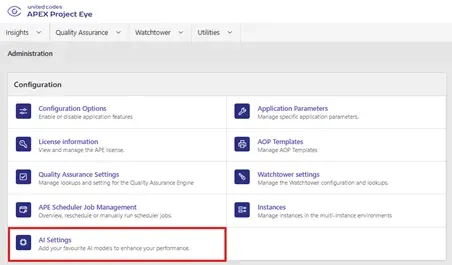
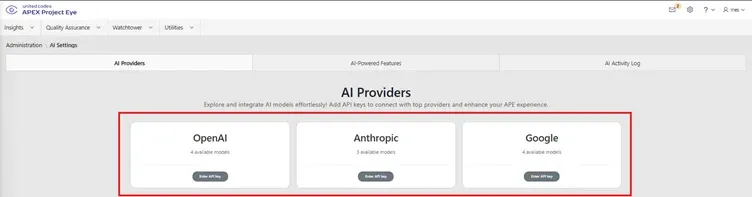
Next, under the AI Providers section in AI Settings, add API keys to configure one of the following AI providers: OpenAI, Anthropic, or Google.
Enter your API key and validate it; when validation succeeds, you can optionally browse and add AI models, then click Apply Changes to save your setup.
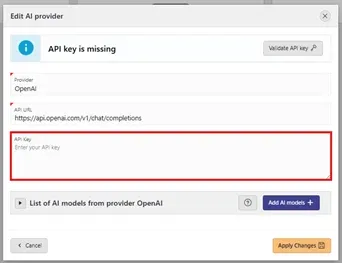
Configuring the Generate Translations feature
Once your AI provider’s API key is successfully validated, you can configure the Generate Translations AI feature.
Go to AI Settings → AI-Powered Features and select the Generate Translations card to pick the provider, choose the model, and adjust its parameters for this feature if necessary.
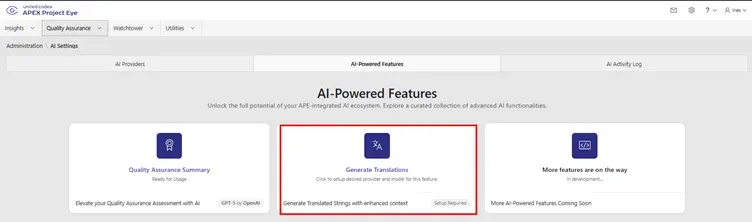
Settings are saved per provider and per feature, so you can tune the model you want to use for translations independently from other AI-powered capabilities in APE.
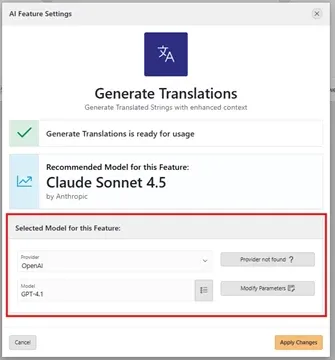
For translations, you can also control whether reasoning is enabled and how “hard” the model should think, balancing depth of analysis with token usage, cost, and speed.
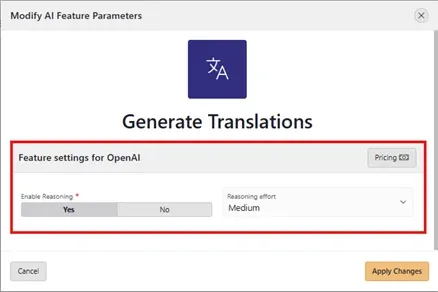
Once configured, APE will use the selected model to generate translations of your translatable strings from the source language to your chosen target languages.
Using AI in APE Translation Manager
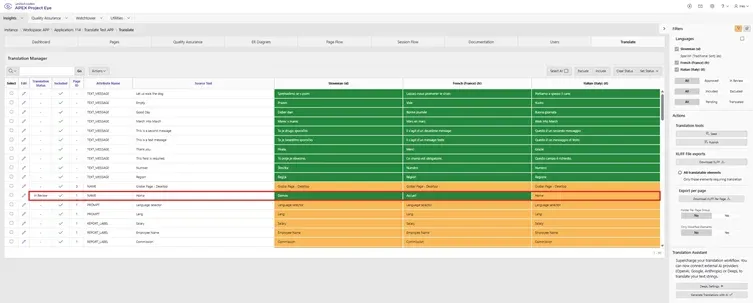
You manage translations in Translation Manager, available on the Translate tab of the Application Dashboard for multilingual applications.

Translation Manager can integrate with DeepL (introduced in earlier APE releases) as well as your configured AI provider, so you can choose DeepL, AI, or a combination of both depending on your translation requirements and workflow.
Because the AI provider is already configured, the Translation Assistant shows that AI is ready to use with a tick.
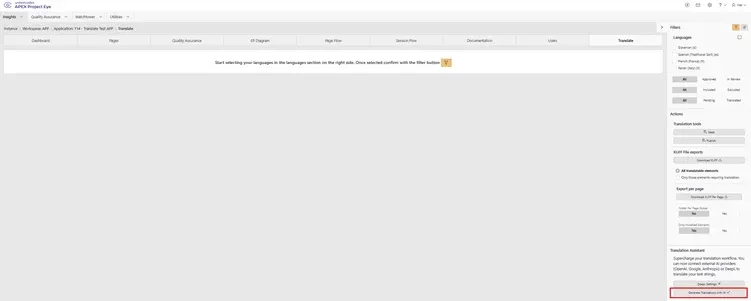
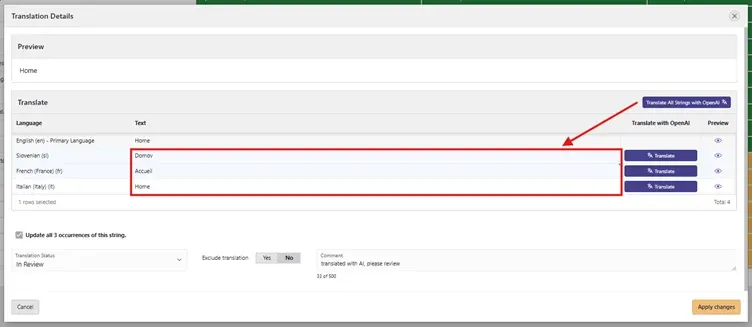
When you edit a string, Translation Manager opens a detail dialog where you can trigger AI directly using Translate all strings with AI to translate the selected string into all chosen target languages in one step.
Alternatively, you can click Translate on an individual row to translate only into a specific target language.
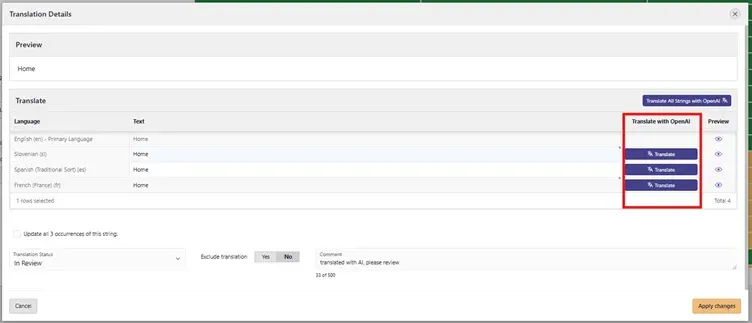
If you are happy with the result, you can apply it to all occurrences of the string or fine‑tune the text manually before saving, while also updating translation status and comments as part of your review process.