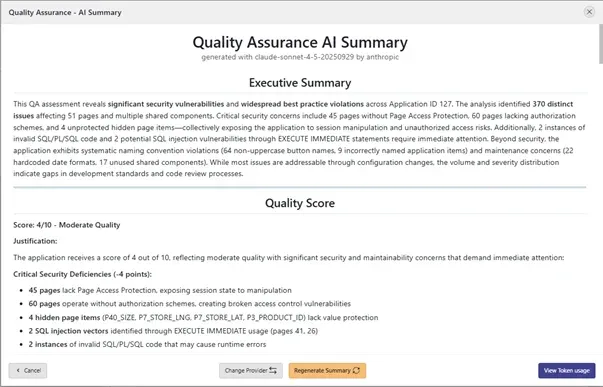
Reviewing hundreds of QA findings can be overwhelming, especially when you just want to know where to start. With APEX Project Eye 26.1, AI-powered QA Summaries turn complex assessments into clear, prioritized insights so you can focus on the issues that matter most.
Enabling AI in APE 26.1
To begin using the AI-powered capabilities in APEX Project Eye 26.1, first enable them. In Administration, turn on the AI Features configuration option to make AI settings and features available in your APE environment.
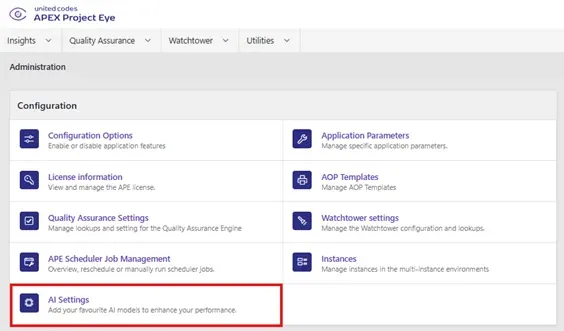
Next, under the AI Providers section in AI Settings, add API keys to configure one of the following AI providers: OpenAI, Anthropic, or Google.
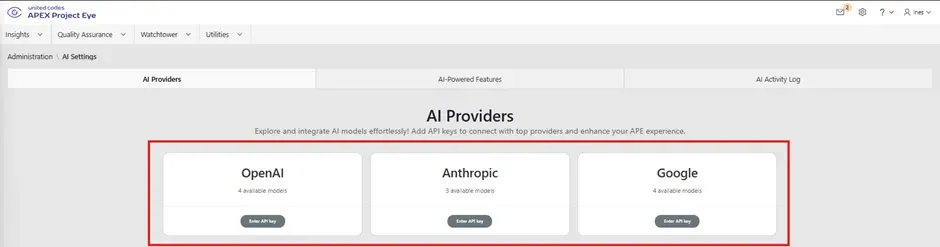
Enter and validate your API key, and then click Apply Changes to save your configuration.
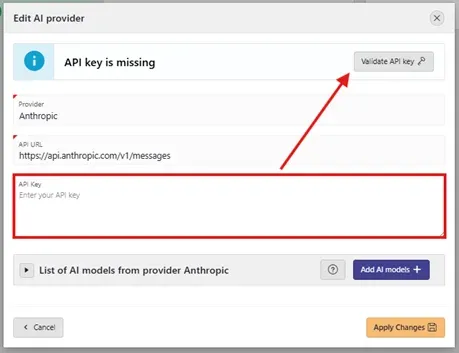
Optionally, you can also browse and add AI models from your provider. APEX Project Eye 26.1 lists the latest released models. We will add new ones in a subsequent release as they become available. Once you are satisfied with your setup, click Apply Changes.
Configuring the QA Summary AI feature
Once your AI provider’s API key is successfully validated, you can configure the Quality Assurance Summary feature.
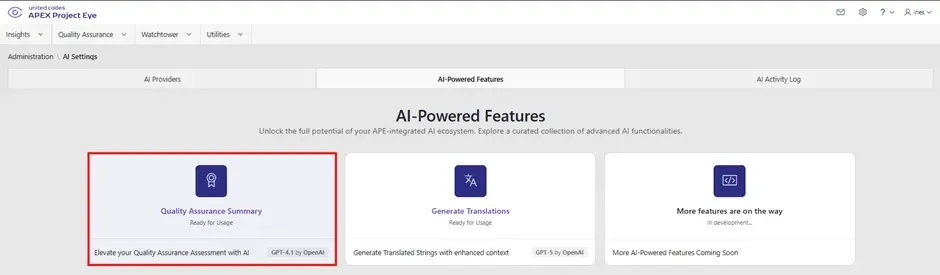
Go to AI Settings → AI-Powered Features and select the Quality Assurance Summary card to choose the provider, pick the model, and adjust its parameters for this feature if necessary.
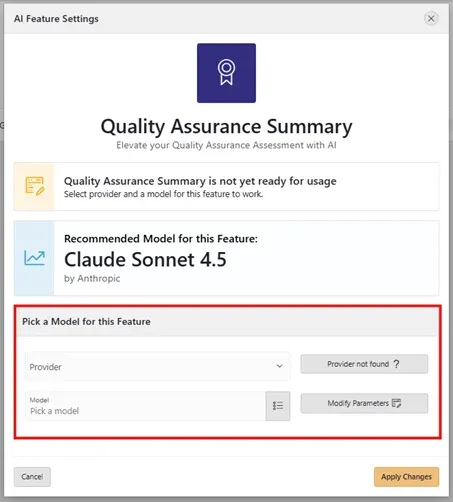
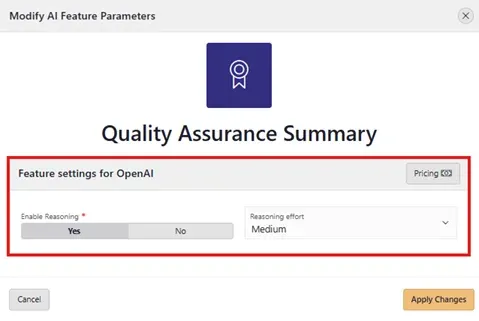
For QA Summary, you can decide whether to enable reasoning and how “hard” the model should think; higher reasoning effort can yield deeper analysis, but uses more tokens and may increase cost and time to get a response.
These settings are saved per provider and per feature, giving you flexibility to tune QA Summary independently from other AI-powered capabilities in APE.
Once configured, APE will use your selected provider and model to generate summaries for QA assessments.
Running Quality Assessments
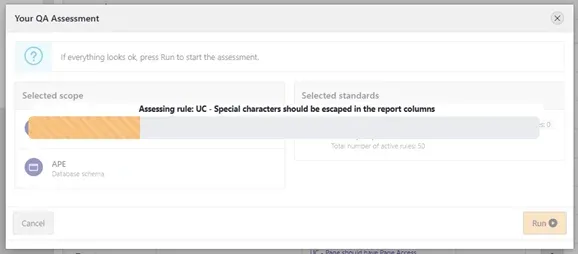
Before running Quality Assessments, define the scope and standards you want to evaluate. APE lets you run assessments on different scope levels: Workspace, Application, Page Group, Page, and Database Schema, and you can even combine multiple levels if needed.
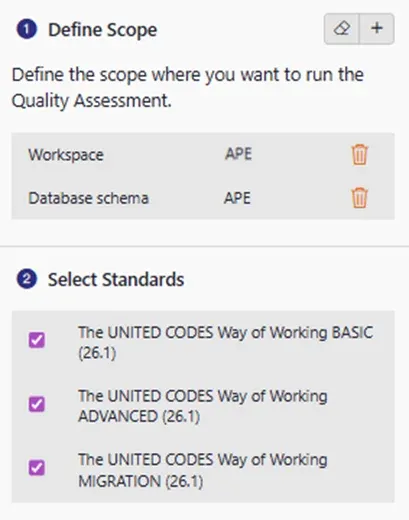
After selecting the scope and standards, start the assessment and let APE process it.
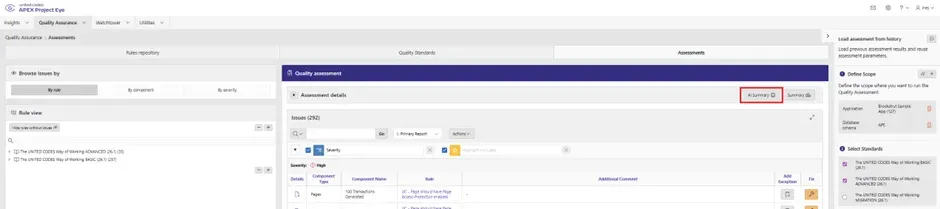
When the assessment is complete, an AI Summary button appears on the Quality Assessment page, allowing you to generate an AI-powered summary for the current run.
What the AI QA Summary provides
The AI-powered QA Summary is designed to act like a concise QA consultant for your APEX applications.
For each assessment, it typically includes:
- A short executive summary of the performed QA, tailored to the selected scope.
- A Quality Assurance score on a scale from 1 to 10.
- A list of quick wins you can implement right away.
- Actionable recommendations on how to resolve issues and improve overall quality.
The goal is to give you an immediate understanding of the state of your workspace/ application / page group / page or database schema, and highlight where to focus your efforts first, instead of manually scanning through every single finding.
You can also review token usage and, if needed, switch the AI provider and regenerate the summary to compare results or test different models.