
APEX Chat Plug-in
The APEX Chat plug-in is an Oracle APEX region plug-in. It gives a UC AI agent a chat interface. You set one attribute, the agent code, and the region works.
The plug-in does the parts that are difficult to build: it runs the agent in a background job, it polls for the answer, and it keeps the conversation.
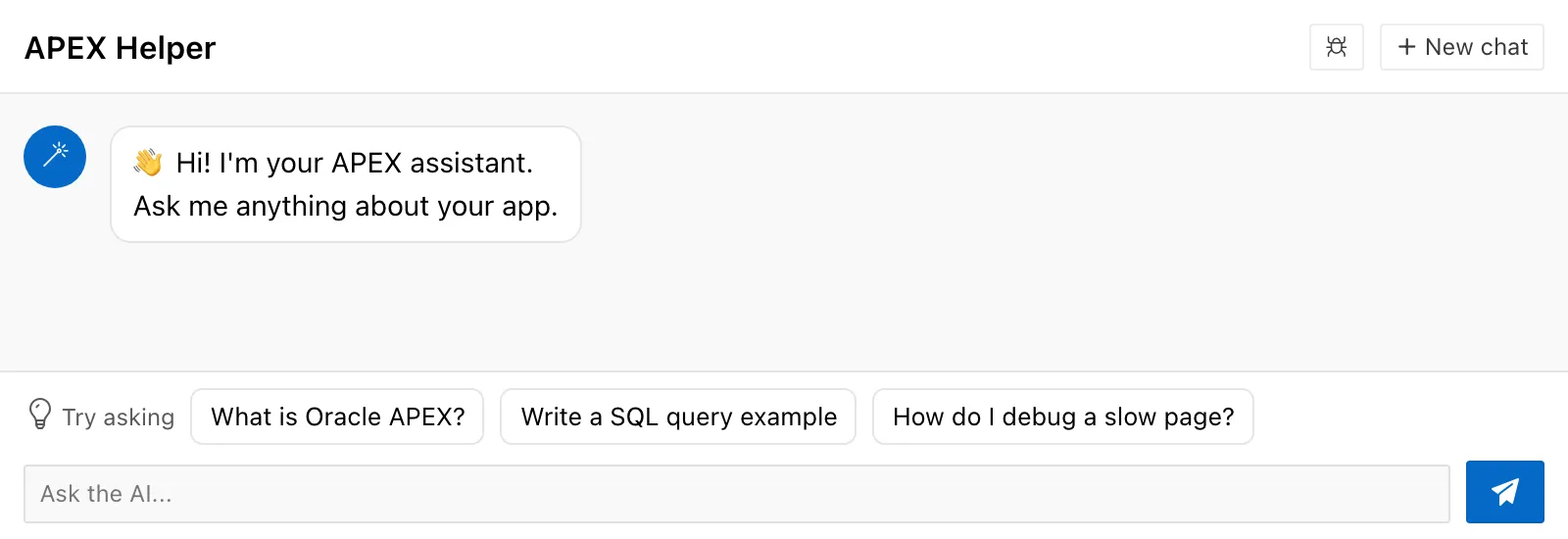
Why the agent needs a background job
Section titled “Why the agent needs a background job”A run takes seconds. An agent with tools takes longer. A page submit that waits five seconds blocks the user, and a gateway can stop the request before the model answers.
The plug-in never makes the page wait. One message goes through these steps:
- The browser sends the message. The plug-in writes a row and starts a
dbms_schedulerjob. The request returns at once. - The job calls
uc_ai_agents_api.execute_agentand writes the answer, the tool calls, and the reasoning to the same table. - The browser polls every 2 seconds. It stops when the turn is complete.
Put an Agent in APEX builds a working region on an agent in six lessons, and it covers the parts this page lists as attributes.
Before you start
Section titled “Before you start”You need these three things:
- UC AI 26.3 or later in the database schema. The package of the plug-in
calls
execute_agentwith the parameterp_run_context, which is new in this version. On an older version the package body does not compile. - An agent with the status
active. See Profile agents. - Permission to create a
dbms_schedulerjob in the schema.
Install the plug-in
Section titled “Install the plug-in”-
Create the table
Section titled “Create the table”Run
ai_tables.sql. This script createsuc_ai_chat_messages, which holds every message of every conversation.If the table exists from an earlier version, run the
alter tableblocks at the end of the same script instead. -
Install the packages
Section titled “Install the packages”Run
uc_ai_chat.pksand thenuc_ai_chat.pkb. The package body callsuc_ai_agents_api, so UC AI must be installed first. -
Import the plug-in
Section titled “Import the plug-in”Import
region_type_plugin_com_united_codes_uc_ai_chat.sqlinto your APEX application. The file is a normal APEX component export. -
Optional: show the tool progress
Section titled “Optional: show the tool progress”Run
uc_ai_chat_hook.pksand thenuc_ai_chat_hook.pkb. With this package, the chat shows the name of the tool that runs now.If UC AI is in a different schema, grant
executeon the hook package to that schema. Without the grant the plug-in leaves this feature off.
Add a chat region to a page
Section titled “Add a chat region to a page”-
Create a region
Section titled “Create a region”Create a new region and set its type to UC AI Chat.
-
Set the agent
Section titled “Set the agent”Set Agent Code to the code of your agent. This attribute is the only required one.
-
Run the page
Section titled “Run the page”The region shows the welcome message and the message box. Send a message.
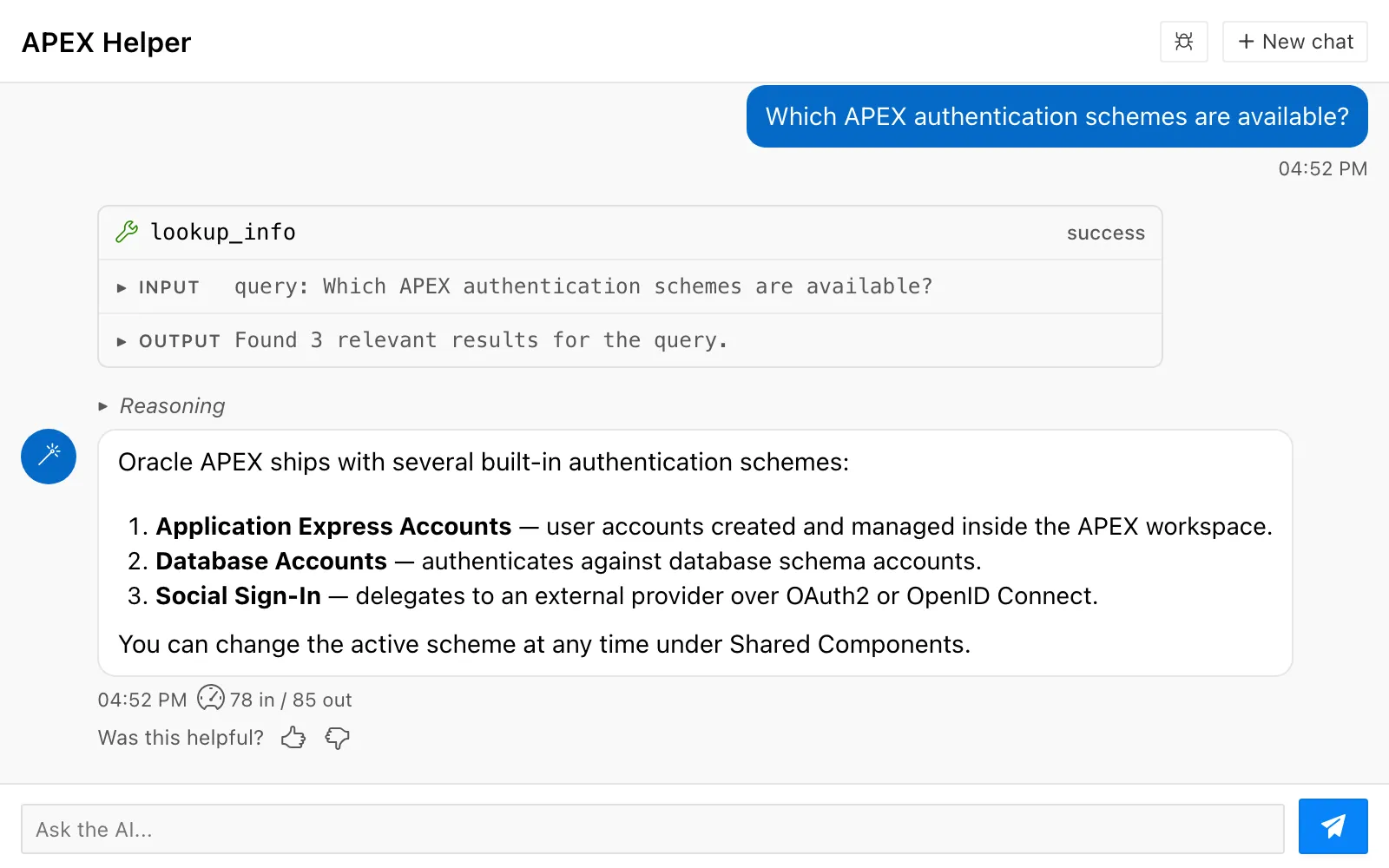
The region above has the tool calls, the reasoning, the token counts, and the feedback buttons on. Debug Config controls the first three. Collect Feedback controls the buttons, and it is off by default. The feedback row has a line of its own below the answer and stays on screen. The user does not have to move the pointer on the message to find it. The question goes away after the user clicks a thumb. A thumbs down also opens a box for an optional comment.
While the agent runs, the region shows an indicator. The indicator can also give the name of the tool that runs now.
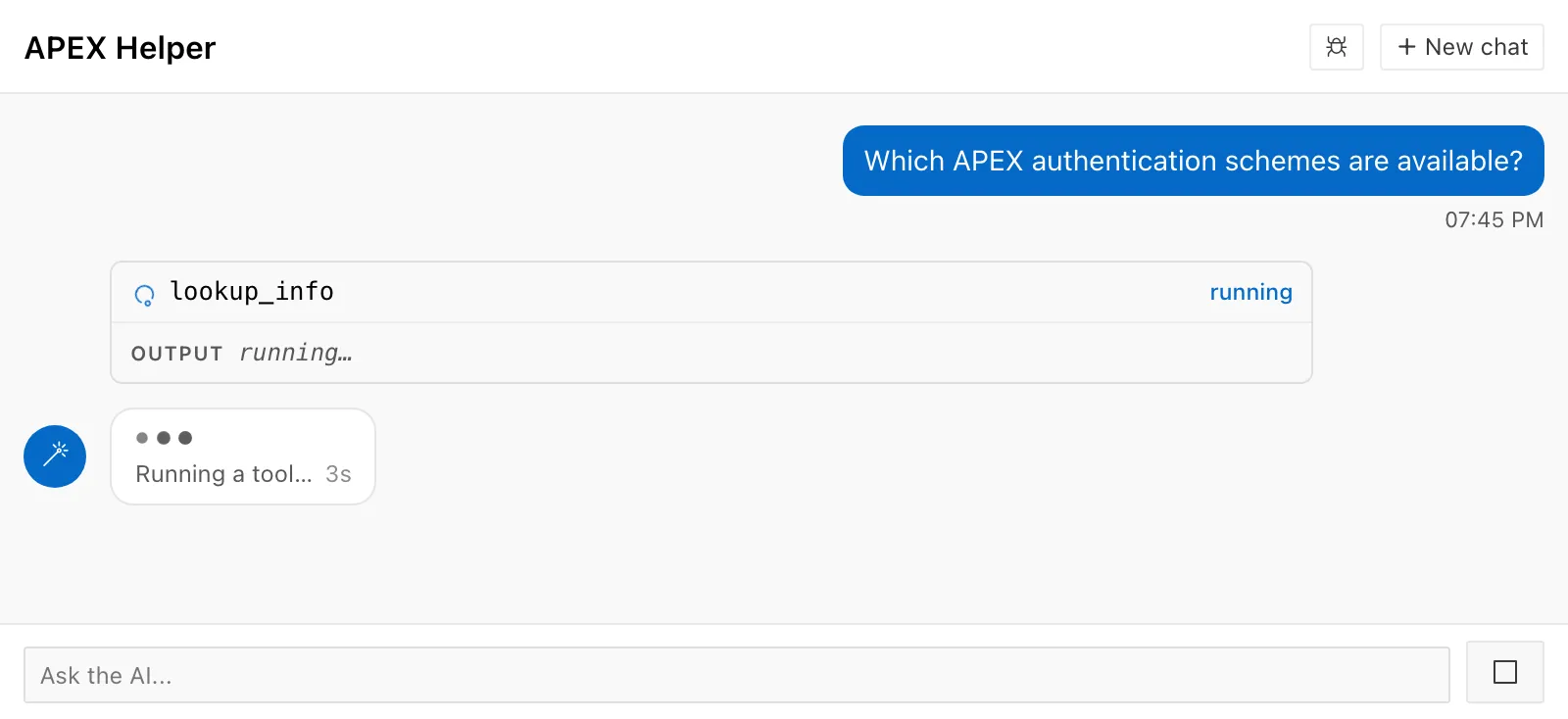
The send button becomes a Stop button while the agent runs. A stop before the job starts costs no tokens.
Region attributes
Section titled “Region attributes”The plug-in has 18 attributes. Agent Code is the only one that you must fill in. Six more attributes are required, but each one has a default value.
| Attribute | Type | Default | What it does |
|---|---|---|---|
| Agent Code | Text | — | The code of the agent. This attribute is required. |
| Agent Version | Number | active version | Locks the region to one version of the agent. Use it to hold a known-good version while you write a new one. |
| Agent Input Mapping | Textarea | {"message": "#USER_MESSAGE#"} | A JSON template for the input parameters of the first message. &ITEM. gives the value of a page item. #USER_MESSAGE# gives the text of the user. Later messages of the same conversation use the history instead. |
| Session Init Code | PL/SQL | — | PL/SQL that runs in the background job, before the agent. The job has no APEX session, so anything the agent needs must start here. |
The scheduler job has no APEX session of its own. As a result, UC AI records the
database user and the audience db. To give the run the real APEX user, attach a
session in Session Init Code:
apex_session.attach( p_app_id => :APP_ID, p_page_id => :APP_PAGE_ID, p_session_id => :APP_SESSION);This step is necessary for every guardrail with the scope user, each_user,
app, apex_session, public, or authenticated. Without it, only a global
guardrail with the audience any governs a chat turn.
Run context
Section titled “Run context”| Attribute | Type | Default | What it does |
|---|---|---|---|
| Agent Run Context | Textarea | — | A JSON object that binds the conversation to one record. Every tool of the run gets these values under the key _ctx. |
| Run Context Drift | Select List | ignore | What the plug-in does when the values change during a conversation. |
The run context is the way to make a chat region talk about one contract, one case, or one tenant. The model cannot read these values and cannot change them.
{ "contract_id": "&P10_CONTRACT_ID.", "tenant_id": "&APP_USER."}Leave the bound value out of the parameters of the tool. The handler then reads
_ctx and there is one place the value can come from.
UC AI binds the run context on the first turn of a conversation. A later turn can add a key. A later turn cannot change a key. This rule protects the conversation: the messages, and any memory files, belong to the first binding.
A page item can change while the chat is open. Run Context Drift decides what happens then:
| Value | What happens |
|---|---|
error | The plug-in refuses the turn. A notice tells the user to start a new chat. Nothing is lost without a decision from the user. |
new_session | The plug-in starts a new conversation with the new values. This value is correct for a page about one record. The old messages are gone. |
ignore | The plug-in keeps the first binding and ignores the change. |
Conversation
Section titled “Conversation”| Attribute | Type | Default | What it does |
|---|---|---|---|
| Session Item | Page Item | — | A page item that holds the session ID. The chat continues this conversation after a page submit. Leave it empty for a conversation that starts again on every page load. |
| Suggested Prompts | Textarea | — | Example questions, one for each line. They show as buttons above the message box, with the label “Try asking”, while the conversation is empty. A click sends the question immediately. Each button shows the full question. |
| Auto Generate Title | Checkbox | N | Names the conversation after the first answer, with the language model of the browser. |
| Collect Feedback | Checkbox | N | Shows a row with the question “Was this helpful?” and two thumb buttons below the newest answer. |
Auto Generate Title uses the on-device model of the browser (Chrome 148 or later). No text goes to a server and the run costs no tokens. The plug-in never starts the download of the model. If the model is not available, the region keeps the configured Header Title.
The title goes to uc_ai_agent_sessions.title. The rating goes to
uc_ai_agent_sessions.feedback_rating, with feedback_comment and
feedback_at. uc_ai_agents_api.list_sessions returns all four columns, so one
query gives you the conversations with a negative rating.
Appearance
Section titled “Appearance”| Attribute | Type | Default | What it does |
|---|---|---|---|
| Display Mode | Select List | region | region puts the chat in the page. dialog shows a small button that opens the chat in a dialog. |
| Header Title | Text | UC AI Chat | The title in the header of the chat. |
| Welcome Message | Textarea | Ask me anything... | The first message of the assistant, while the conversation is empty. |
| Avatar Icon | Icon | fa-robot | The icon of the assistant, and the icon of the button in dialog mode. |
| Min Height | Text | 450px | The minimum height of the region. |
| Thinking Animation | Select List | dots | The animation during a run: dots, braille, plasma, or matrix. |
| Thinking Detail | Select List | status | How much the indicator says: off, status, or tools. |
With display_mode set to dialog, the region becomes a small button. A click
on the button opens the chat above the page.
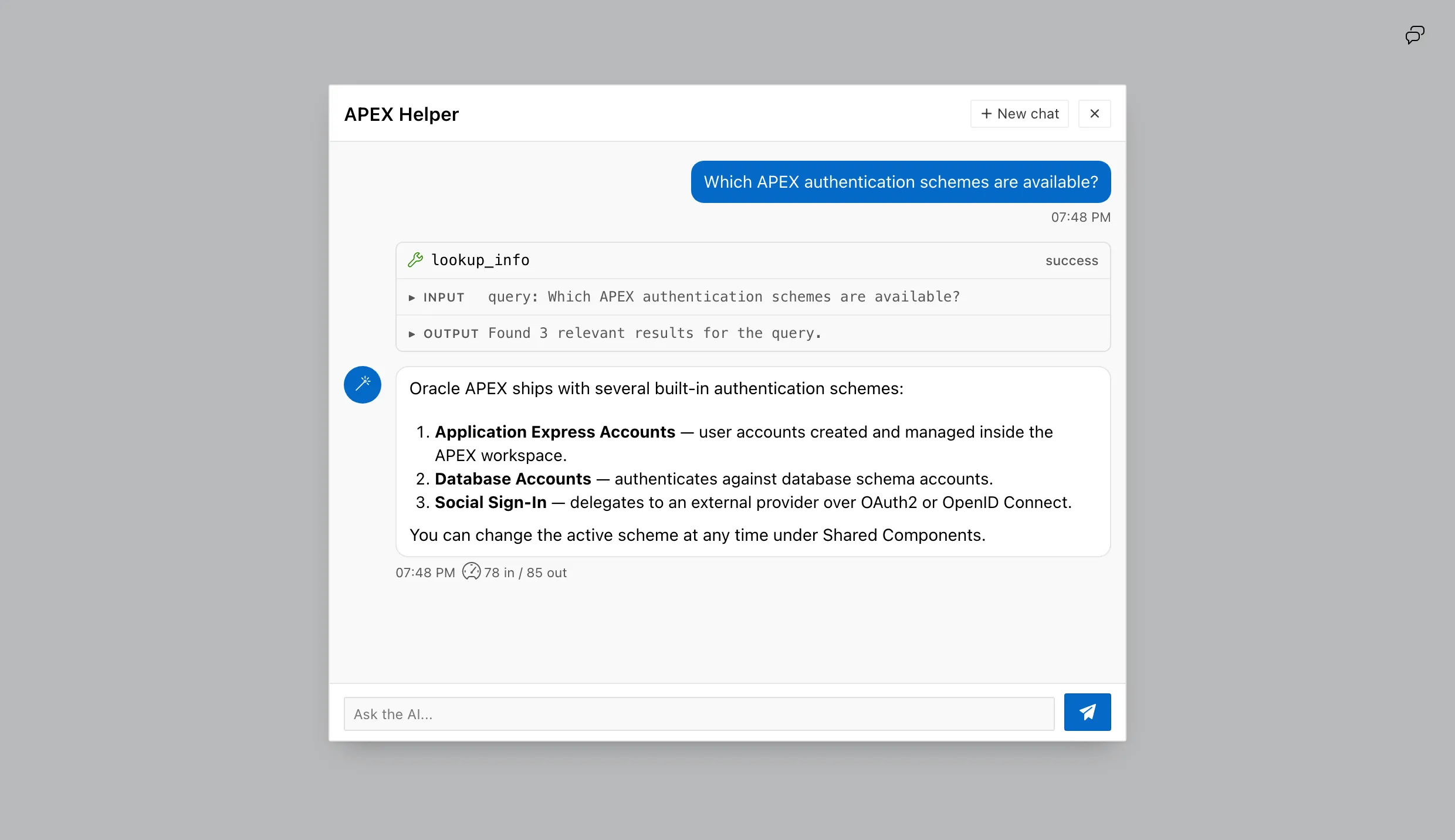
Thinking Detail controls one line of text under the animation. The value
status gives Thinking… and the elapsed seconds. The value tools also tells
a tool run apart from a model run, with Running a tool….
The indicator never gives the name of the tool. The tool row above it already carries the name, so a name here is the same text two times.
To keep tool names away from the user, use Debug Config. With show_tools
off, no tool row reaches the browser at all. A tool name is an internal
identifier and can tell a user more about your system than you want.
The value off removes the text for the eye only. A screen reader gets the
announcement at every level, because a visual preference must not remove the only
signal that a run is active.
The attributes above control the chat. The frame around it is an ordinary APEX region, and the region template decides that frame. The chat has a header, padding and a scroll area of its own. A region with the default template repeats all three.
To give the chat the whole region, set the region template to Standard and turn on these template options:
- Remove Header — the chat has a header of its own.
- No Padding — the messages then reach the edges of the region.
- Scroll Body — the conversation scrolls inside the region, and the page stays where it is.
The screenshots on this page use all three.
Developer
Section titled “Developer”| Attribute | Type | Default | What it does |
|---|---|---|---|
| Debug Config | PL/SQL Function Body | reasoning, tools, and metadata are on | A function that returns JSON. The JSON decides which parts the user sees. |
The function returns up to five flags:
show_reasoning— the reasoning of the model, above each answer.show_tools— each tool call, with its arguments, its result, and its status.show_metadata— the token counts next to each answer.show_debug— a panel with the details of the run.show_errors— the text of an error, instead of a general message.
Every flag is false when the attribute is empty, when the function raises an
error, or when the JSON is not valid.
The flags work on the server. When a flag is false, the plug-in removes those
rows and fields from the response. The hidden content never reaches the browser,
so a modified client cannot show it.
Because this attribute is a function, one region can show different things to different people:
if apex_authorization.is_authorized('ADMIN_AUTH') then return '{ "show_reasoning": true, "show_tools": true, "show_debug": true }';else return '{}';end if;Guardrails
Section titled “Guardrails”The plug-in makes the verdicts of the UC AI Pro guardrails visible. Without the Pro packages, this feature does nothing.
| Notice | When it shows |
|---|---|
| Approaching | A limit is past its warn threshold. The user can close the notice. |
| Reached | A hard limit refused the turn. The notice also shows on the failed answer. |
The plug-in never enforces a limit. The database guardrail stays the only enforcer. The notices give no figure, no percentage, and no name of a limit.
Security
Section titled “Security”- The region decides which agent runs. The plug-in compares the agent code in the request against the region’s own attribute and refuses a request that names a different agent. Without this check, a user of the application can make the region run any agent in the schema.
- One user owns one conversation. After the first message, only the user who sent it can read the conversation or add to it.
- The answer is sanitized. The plug-in shows the answer as Markdown. It removes dangerous HTML before the browser gets it.
- Errors stay in the database. A failure of the background job writes the
full error to the APEX debug log. The user gets a general message, unless
show_errorsis on.
Version history
Section titled “Version history”The current plug-in needs UC AI 26.3, because the package body calls
p_run_context. This table gives the version that introduced each feature:
| Feature | UC AI version |
|---|---|
| Chat region, tools, reasoning | 26.1 |
| Auto Generate Title, Collect Feedback, Agent Run Context, Run Context Drift | 26.3 |