
Editors Toolbar
The well configured rich text editor toolbar meeting end-users expectations is first step to laverege work efficiency. The plug-in exposes dozen of options to configure the toolbar including:
- customizing what buttons are available for the end-user
- responsive toolbar layout depending on the browser width
- configuring what fonts can be used to create rich text document
- configuring what font sizes can be used to create rich text document
- configuring what pararagraph styles can be used to create rich text document
- configuring different layouts depending on document nature
- and much more
The editor’s toolbar can be highly customized using JavaScript Code, APEX dynamic actions interface, and some features can be dependent on application PL/SQL logic.
Responsive
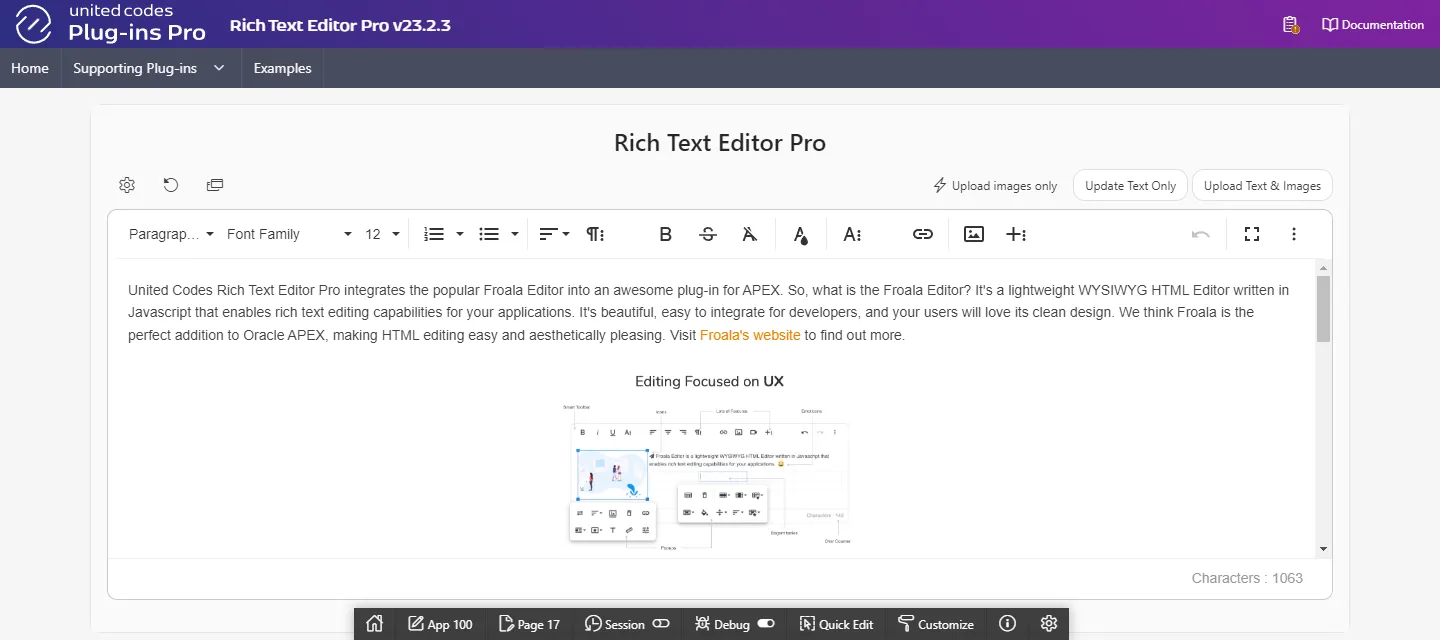
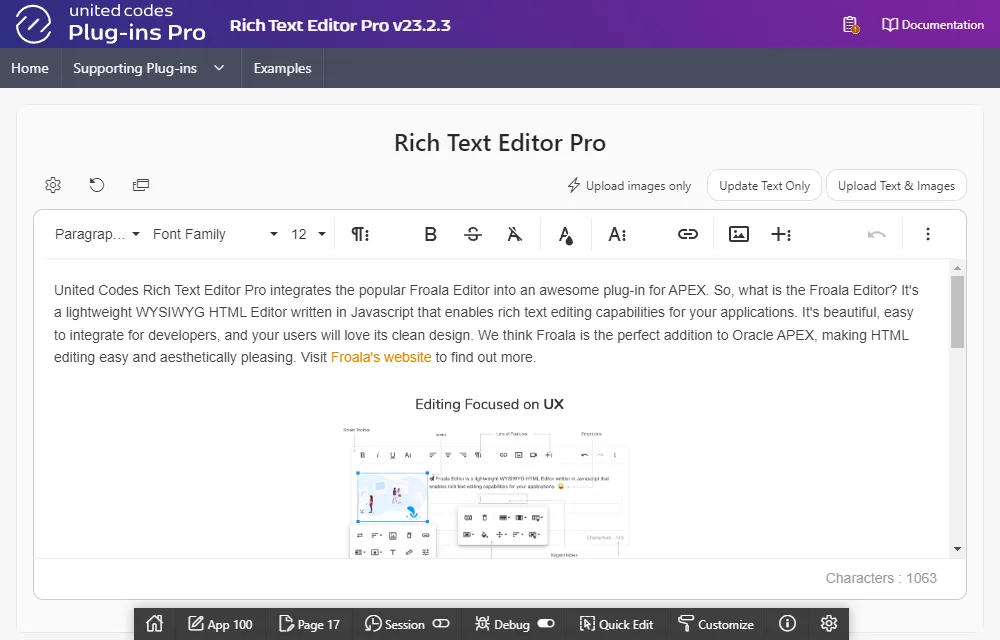
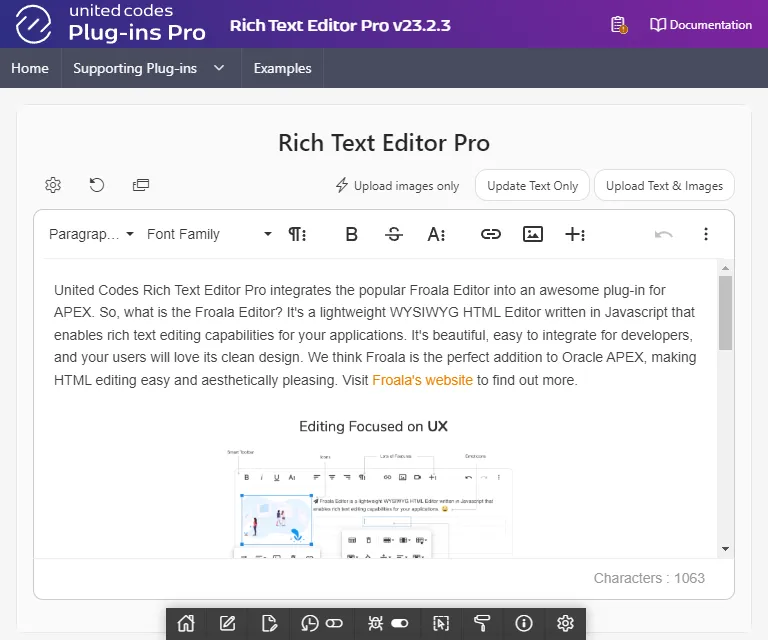
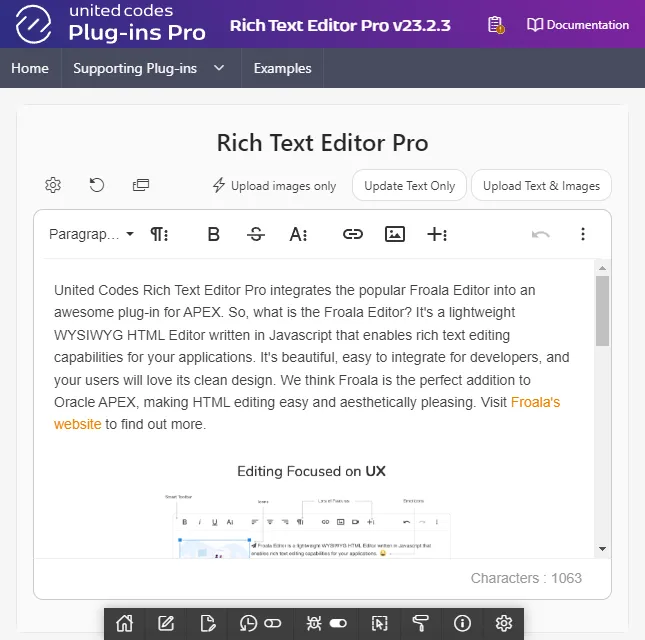
Section titled “Responsive”The toolbar layout is very flexible and it’s up to developer what rich text editor functionalities are available to the end-user. The toolbar supports reponsive design dependent on the browser current width by exposing 4 stages:
- browser width greater than 1200px
- browser width smaller than 1200px but larger than 922px
- browser width smaller than 922px but larger than 768px
- browser width smaller than 768px
:::tip Learn more
See example code in toolbar customination guides for responsive layout.
:::
Groups and presets
Section titled “Groups and presets”The toolbar buttons can be grouped into four optional groups paragrahp, text, rich and misc, aligned to left and right. Each toolbar groups support hidding not fitting buttons.
The plug-in attribute toolbar allows defining toolbar buttons using predefined presets basic, intermediate and full. The summary below presents each group highlighted, and buttons available for each preset.

| Button ID | Basic | Intermediate | Full |
|---|---|---|---|
| paragraphFormat | :x: | :heavy_check_mark: | :heavy_check_mark: |
| fontFamily | :x: | :heavy_check_mark: | :heavy_check_mark: |
| fontSize | :x: | :heavy_check_mark: | :heavy_check_mark: |
| formatOL | :heavy_check_mark: | :heavy_check_mark: | :heavy_check_mark: |
| formatUL | :heavy_check_mark: | :heavy_check_mark: | :heavy_check_mark: |
| align | :x: | :heavy_check_mark: | :heavy_check_mark: |
| lineHeight | :x: | :heavy_check_mark: | :heavy_check_mark: |
| outdent | :x: | :heavy_check_mark: | :heavy_check_mark: |
| indent | :x: | :heavy_check_mark: | :heavy_check_mark: |
| quote | :x: | :x: | :heavy_check_mark: |
| paragraphStyle | :x: | :x: | :heavy_check_mark: |

| Button ID | Basic | Intermediate | Full |
|---|---|---|---|
| bold | :heavy_check_mark: | :heavy_check_mark: | :heavy_check_mark: |
| strikeThrough | :x: | :x: | :heavy_check_mark: |
| clearFormatting | :heavy_check_mark: | :heavy_check_mark: | :heavy_check_mark: |
| textColor | :x: | :heavy_check_mark: | :heavy_check_mark: |
| backgroundColor | :x: | :heavy_check_mark: | :heavy_check_mark: |
| underline | :x: | :heavy_check_mark: | :heavy_check_mark: |
| italic | :heavy_check_mark: | :heavy_check_mark: | :heavy_check_mark: |
| superscript | :x: | :x: | :heavy_check_mark: |
| subscript | :x: | :x: | :heavy_check_mark: |
| inlineClass | :x: | :x: | :heavy_check_mark: |
| inlineStyle | :x: | :x: | :heavy_check_mark: |

| Button ID | Basic | Intermediate | Full |
|---|---|---|---|
| insertLink | :heavy_check_mark: | :heavy_check_mark: | :heavy_check_mark: |
| insertImage | :heavy_check_mark: | :heavy_check_mark: | :heavy_check_mark: |
| insertTable | :x: | :heavy_check_mark: | :heavy_check_mark: |
| insertHR | :x: | :heavy_check_mark: | :heavy_check_mark: |
| specialCharacters | :x: | :x: | :heavy_check_mark: |
| fontAwesome | :x: | :x: | :heavy_check_mark: |
| emoticons | :x: | :x: | :heavy_check_mark: |
| insertVideo | :x: | :heavy_check_mark: | :heavy_check_mark: |

| Button | Basic | Intermediate | Full |
|---|---|---|---|
| undo | :heavy_check_mark: | :heavy_check_mark: | :heavy_check_mark: |
| fullscreen | :heavy_check_mark: | :heavy_check_mark: | :heavy_check_mark: |
| redo | :heavy_check_mark: | :heavy_check_mark: | :heavy_check_mark: |
| :heavy_check_mark: | :heavy_check_mark: | :heavy_check_mark: | |
| getPDF | :x: | :x: | :heavy_check_mark: |
| selectAll | :x: | :heavy_check_mark: | :heavy_check_mark: |
| html | :heavy_check_mark: | :heavy_check_mark: | :heavy_check_mark: |
| help | :heavy_check_mark: | :heavy_check_mark: | :heavy_check_mark: |
Layouts
Section titled “Layouts”The toolbar layout is not fixed, and it’s up to a developer how toolbar looks and what features it exposes. For example, the plug-in toolbar can mimic Google Gmail, where toolbar is positioned bottom.

Or it can resemble Google Documents giving end-user the feeling he is working with a document.

Or the whole editor can be integrated into application region, with toolbar poping out on end-user demand.

:::tip Example layouts
Explore example layouts with ready to copy code here.
:::
Dependable on user’s roles
Section titled “Dependable on user’s roles”The editor’s toolbar can be customized using Oracle APEX Authorization Schemes. This core APEX feature can be applied to dynamic actions customizing plug-in and using page item attribute Initialization PL/SQL Code with custom PL/SQL code.
:::tip learn more
Learn more about utilizing authorization schemes in concept Action Control List.
:::
Dependable on PL/SQL logic
Section titled “Dependable on PL/SQL logic”The editor’s toolbar can be customized using PL/SQL logic defined in dynamic action attribute server-side condition or using the plug-in attribute Initialization PL/SQL code and the plug-in PL/SQL procedure toolbar_init_group.
:::tip learn more
The example PL/SQL creating responsive toolbar is described in toolbar PL/SQL customization guidelines.
:::
Customizations
Section titled “Customizations”JavaScript
Section titled “JavaScript”The Froala JavaScript API exposes more than 200 options to configure the plug-in including toolbar options. The plug-in customization guidelines covers some of the options with example code ready to copy and paste. These options can be set using the plug-in page item attribute Initialization JavaScript Code, or using the supporting dynamic action plug-in.
:::tip learn more
The guidelines document covers the toolbar’s customizations using JavaScript Code.
:::
Dynamic actions
Section titled “Dynamic actions”The toolbar buttons can be customized using the supporting dynamic action plug-ins Change Toolbar and Initialization JavaScript Code. A dynamic action can be implemented on same page, or using APEX global page.
:::tip dynamic action attributes
Using a dynamic action attributes server-side condition and authorization scheme allows flexible plug-in configuration dependent on page logic, user’s role or PL/SQL code.
:::