Text Formatting
Options listed below can must be set using the plug-in page item attribute Initialization JavaScript Code, see an example below.
function( pOptions ){
  pOptions.optionName = optionValue;
  return pOptions;
}
Font family
fontFamily
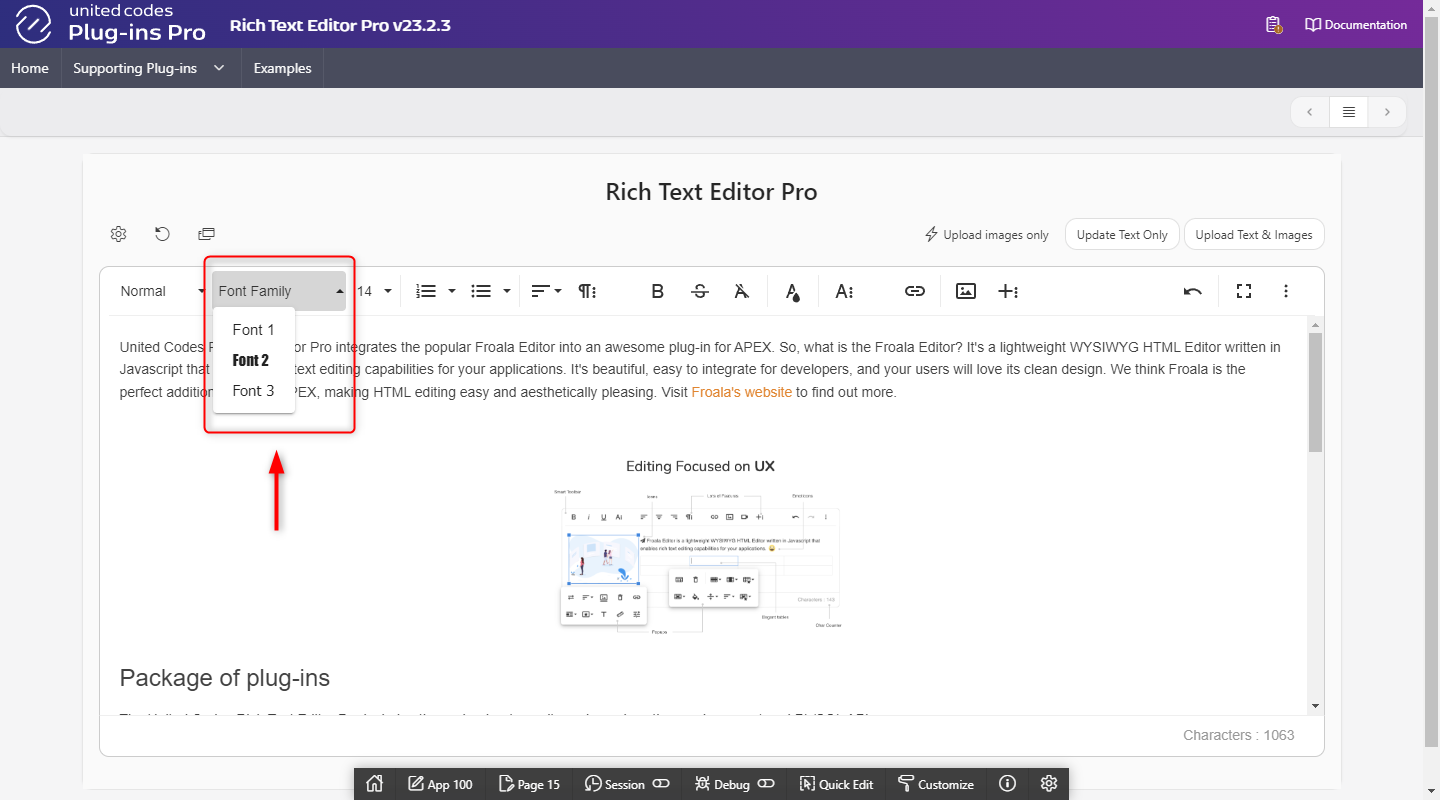
The option fontFamily defines available fonts for a document.
- Initialization JavaScript Code
- Preview
function( pOptions ){
  pOptions.fontFamily = {
    'Arial,Helvetica,sans-serif': 'Font 1',
    'Impact,Charcoal,sans-serif': 'Font 2',
    'Tahoma,Geneva,sans-serif': 'Font 3'
  };

  return pOptions;
}
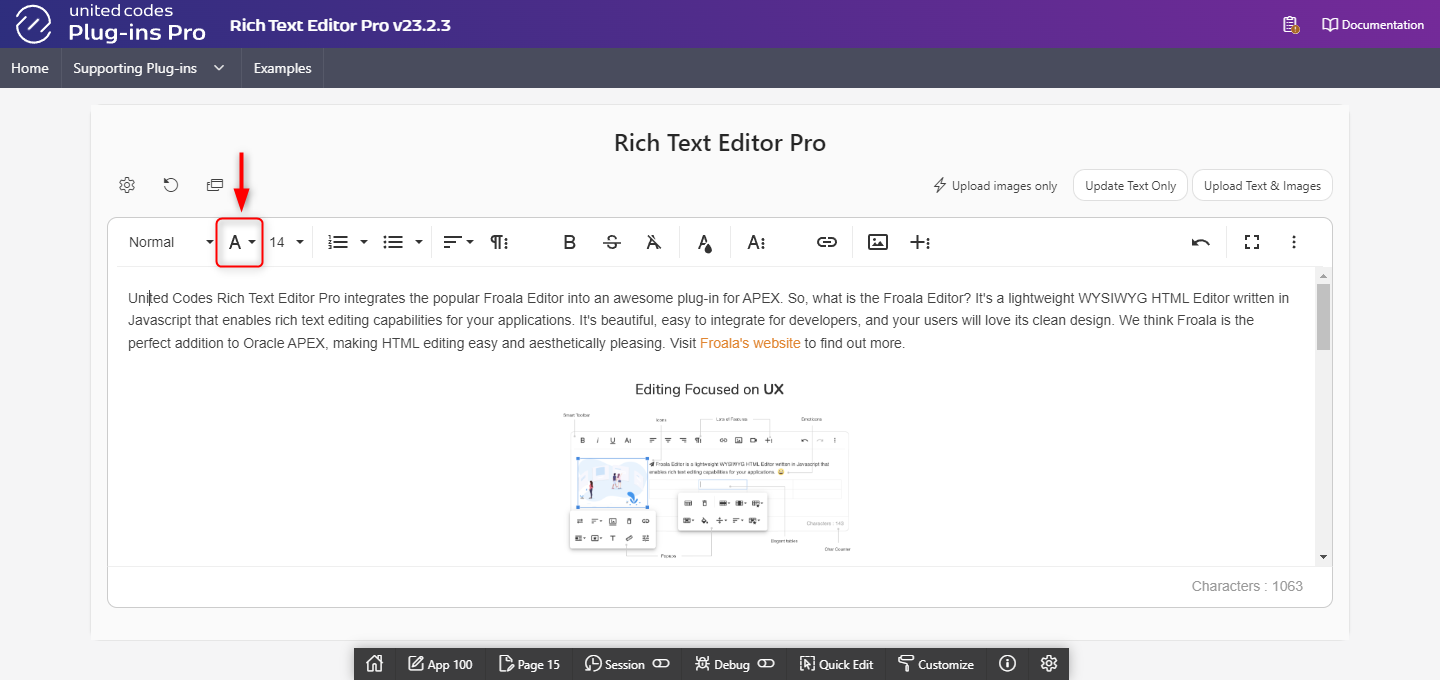
fontFamilySelection
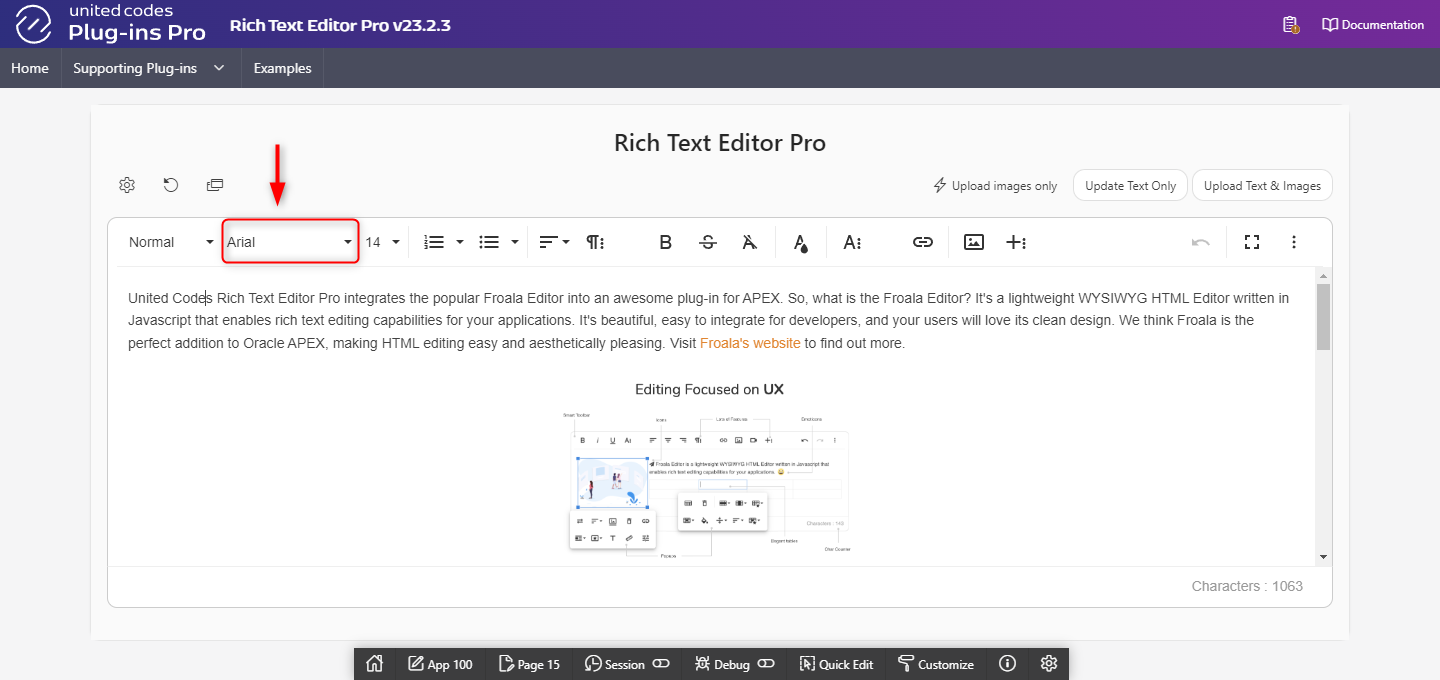
The option fontFamilySelection is a boolean flag enabling or disabling preview of the current font family in the toolbar for the currently focused paragraph.
- Initialization JavaScript Code
- Enabled
- Disabled
function( pOptions ){
  pOptions.fontFamilySelection = true;
  return pOptions;
}
fontFamilyDefaultSelection
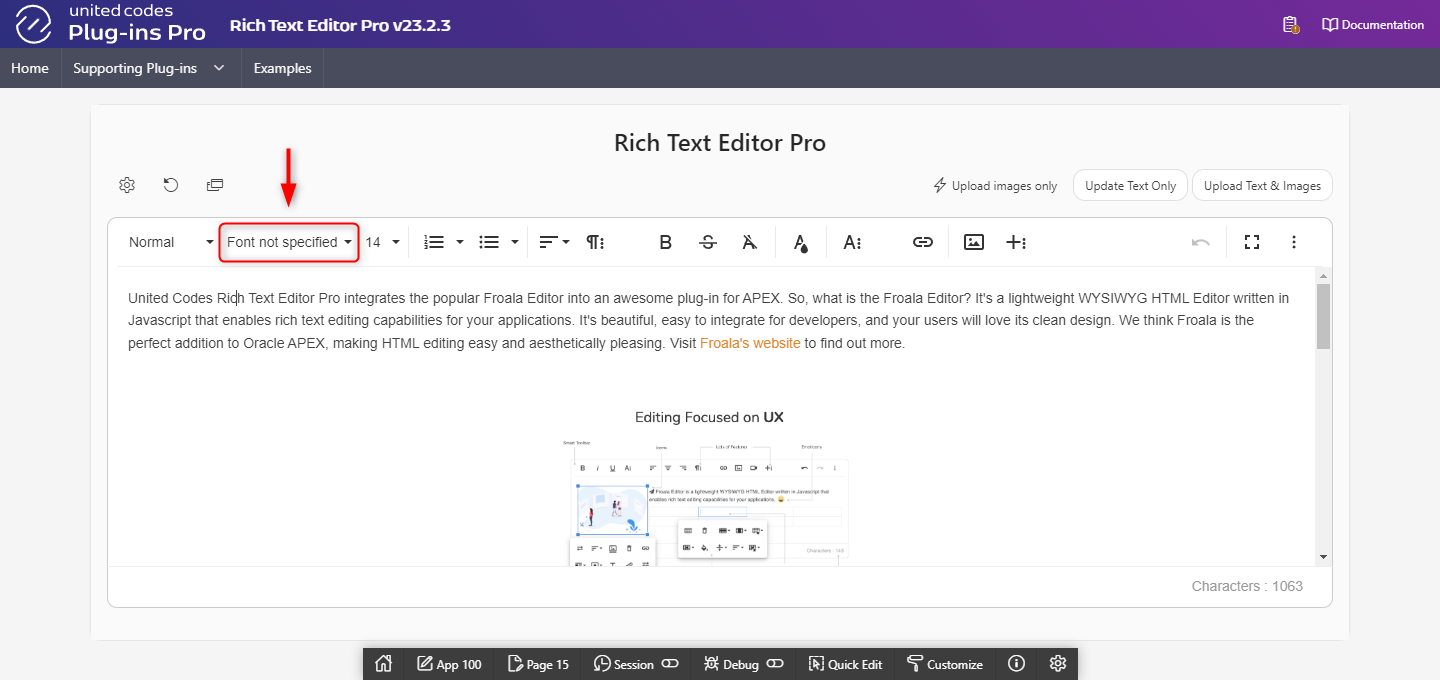
The option fontFamilyDefaultSelection defines what text is displayed when the font family is unknown or nothing is selected.
- Initialization JavaScript Code
- Preview
function( pOptions ){
  pOptions.fontFamilyDefaultSelection = 'Font not specified';
  return pOptions;
}
Font size
fontSize
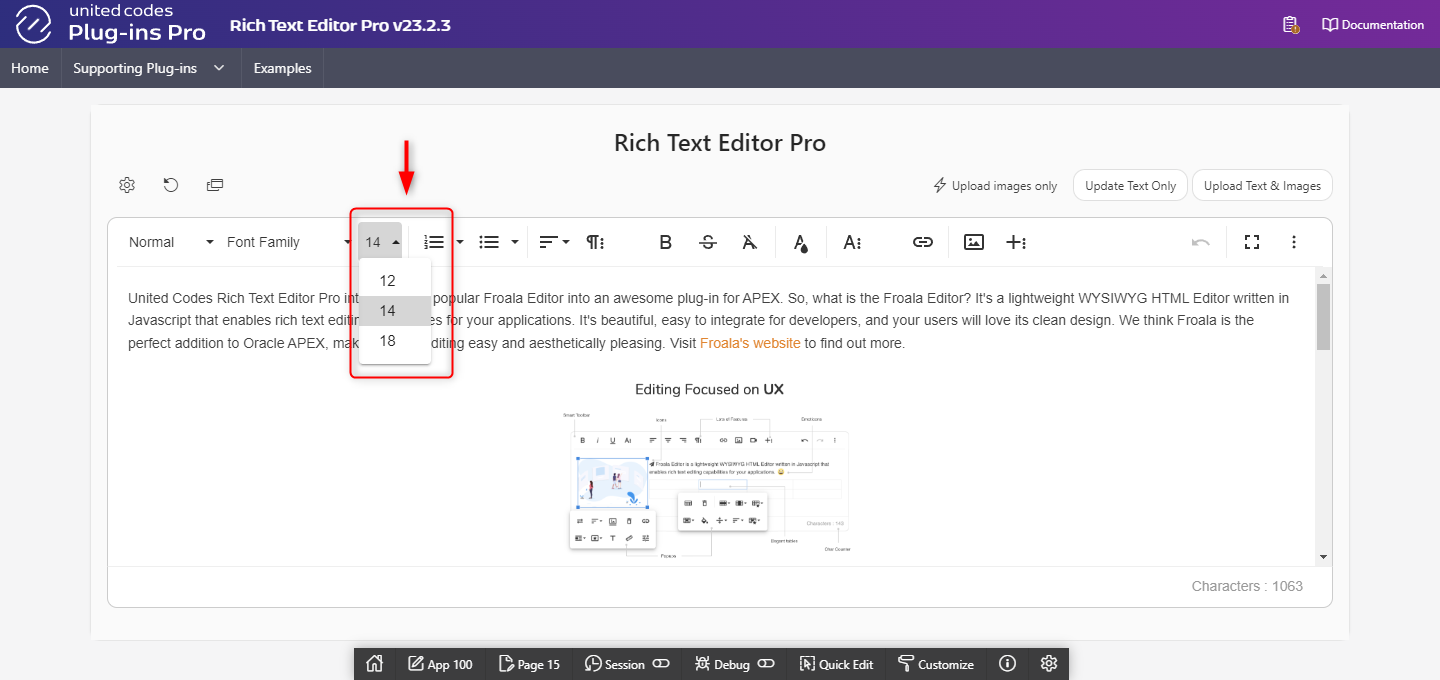
The option fontSize defines the font sizes that appear under the Font Size button from the rich text editor's toolbar.
- Initialization JavaScript Code
- Preview
function( pOptions ){
  pOptions.fontSize = ['12', '14', '18'];
  return pOptions;
}
fontSizeSelection
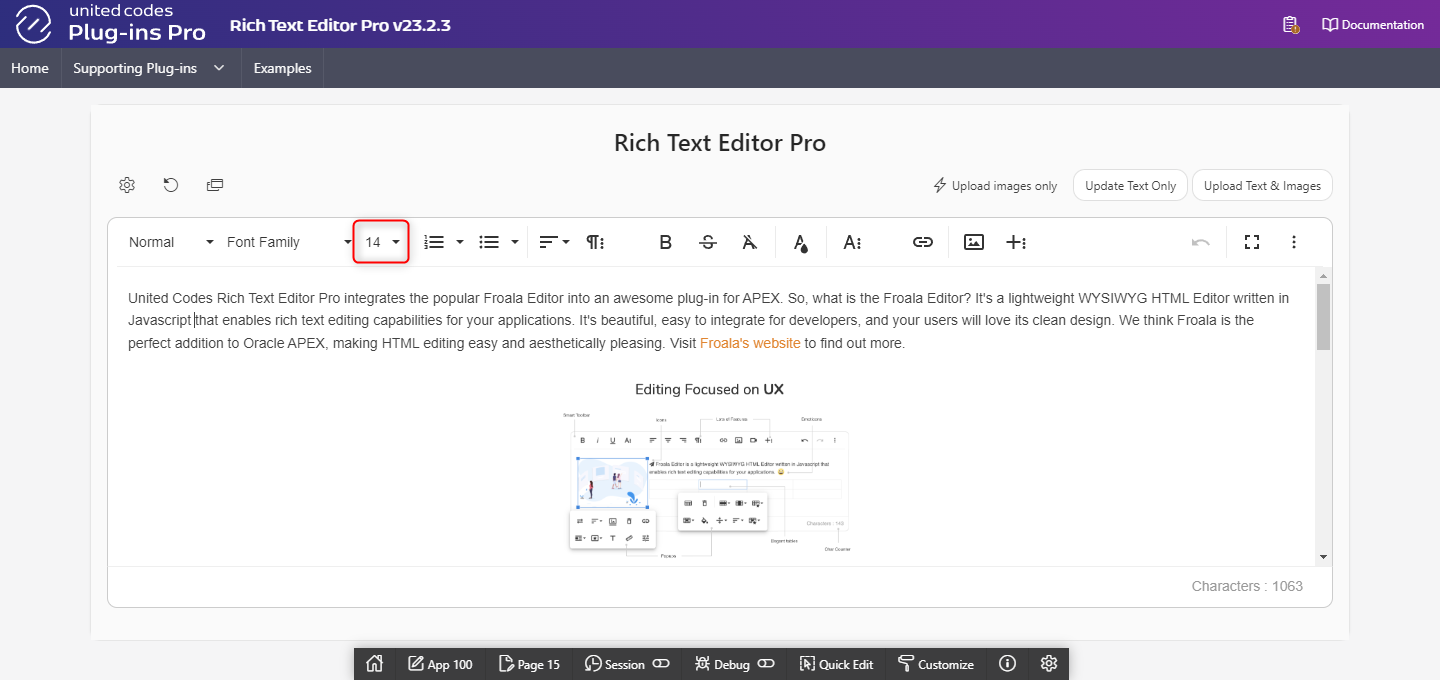
The option fontSizeSelection is a boolean flag enabling or disabling preview of the current font size in the toolbar for the currently focused paragraph.
- Initialization JavaScript Code
- Enabled
- Disabled
function( pOptions ){
  pOptions.fontSizeSelection = true;
  return pOptions;
}
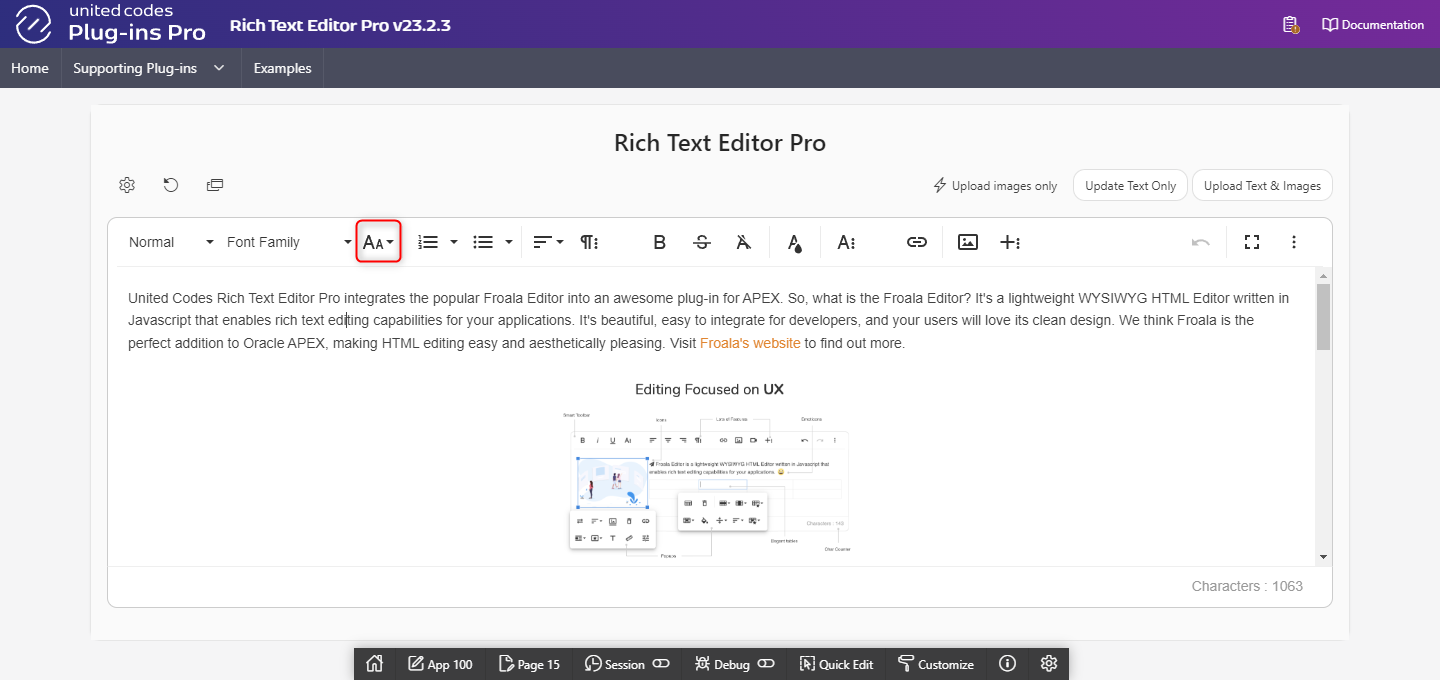
fontSizeDefaultSelection
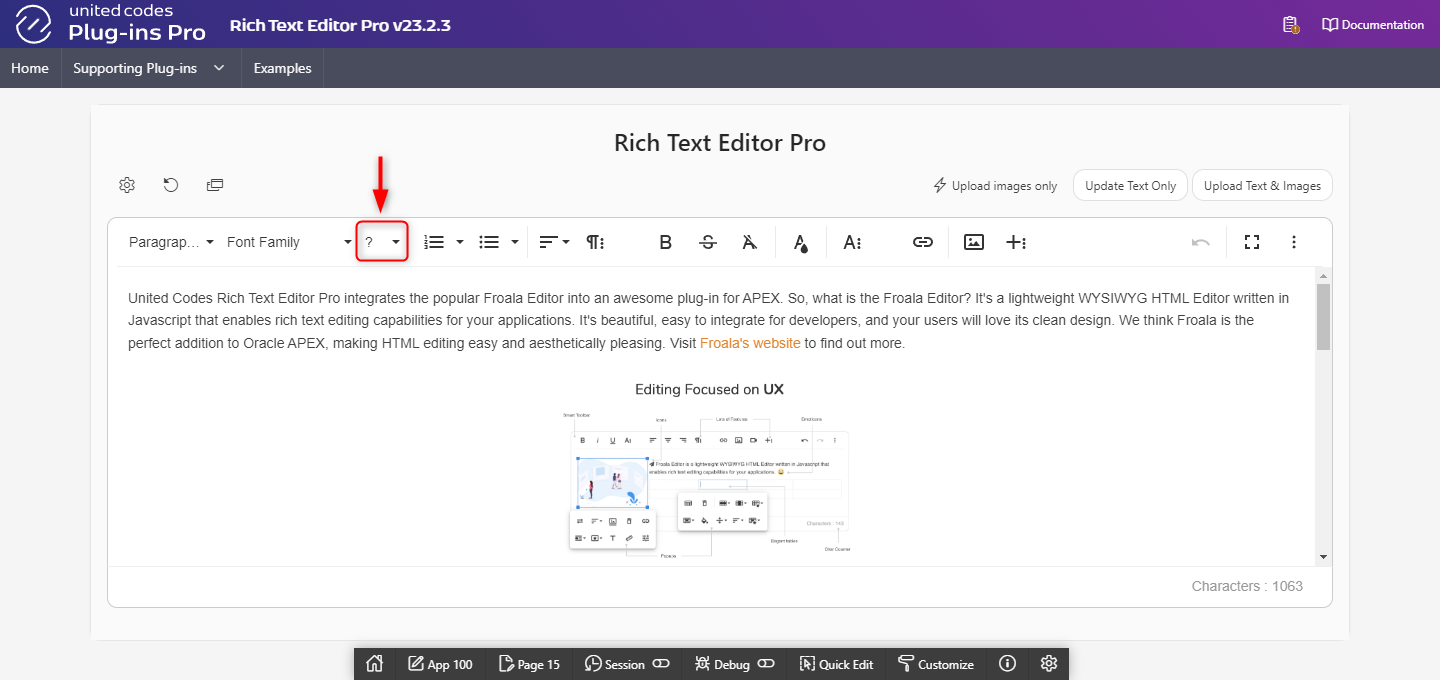
The option fontSizeDefaultSelection defines what text is displayed when the font size is unknown or nothing is selected.
- Initialization JavaScript Code
- Preview
function( pOptions ){
  pOptions.fontSizeDefaultSelection = '?';
  return pOptions;
}
fontSizeUnit
The option fontSizeUnit defines the unit to be used for the font size.
function( pOptions ){
  pOptions.fontSizeUnit = 'px';
  return pOptions;
}
Styling text
inlineStyles
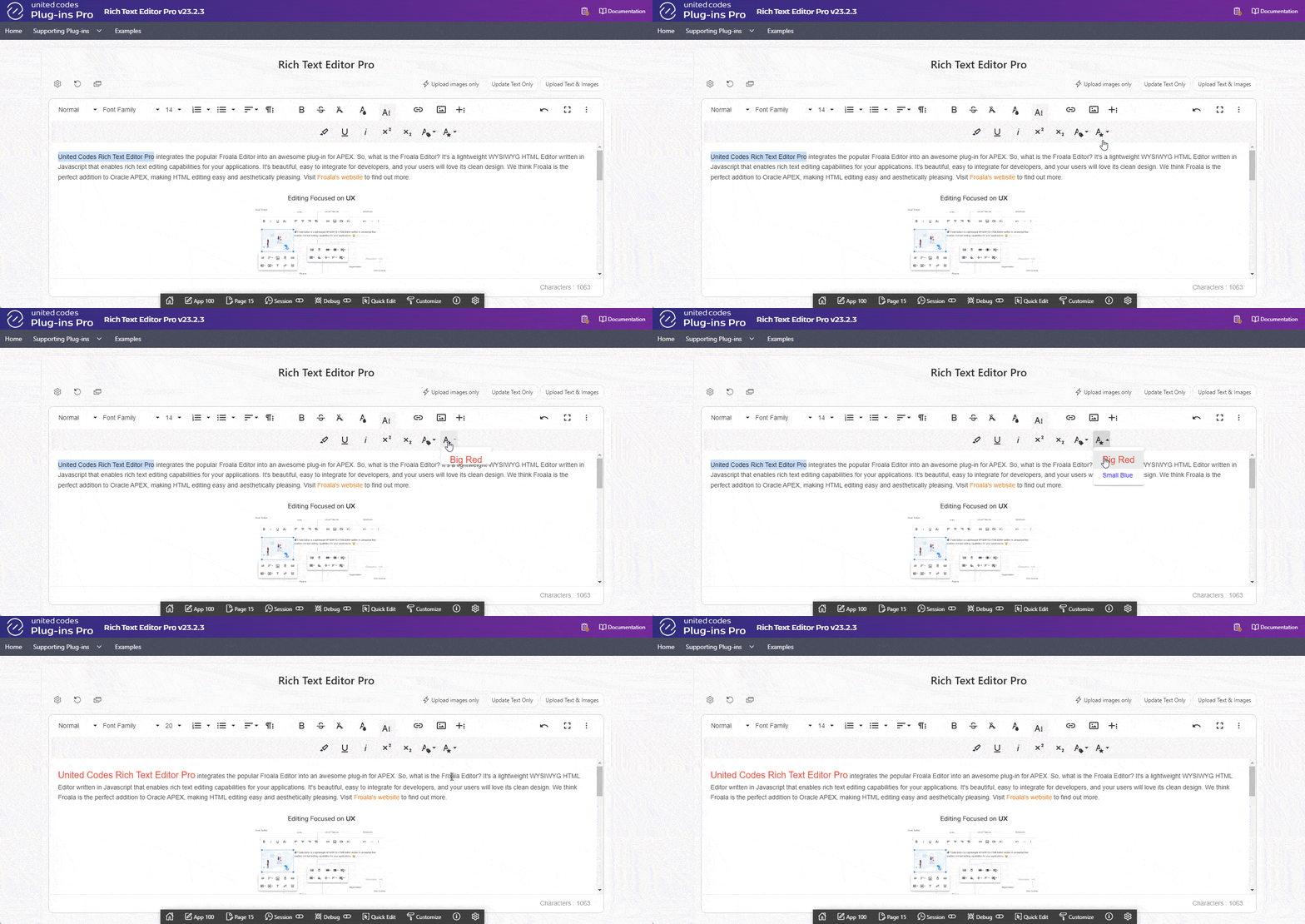
The option inlineStyles defines inline styles applicable to the currently selected text in a document. To remove inline style, the toolbar button clear formatting must be used.
For example, applying default style Big Red results in adding inline styles to currently selected text:
<span style="font-size: 20px; color: red;">United Codes Rich Text Editor Pro</span>
- Initialization JavaScript Code
- Preview
function( pOptions ){
  pOptions.inlineStyles = {
    "Big Red": "font-size: 20px; color: red;",
    "Small Blue":"font-size: 14px; color: blue;"
  };

  return pOptions;
}
inlineClasses
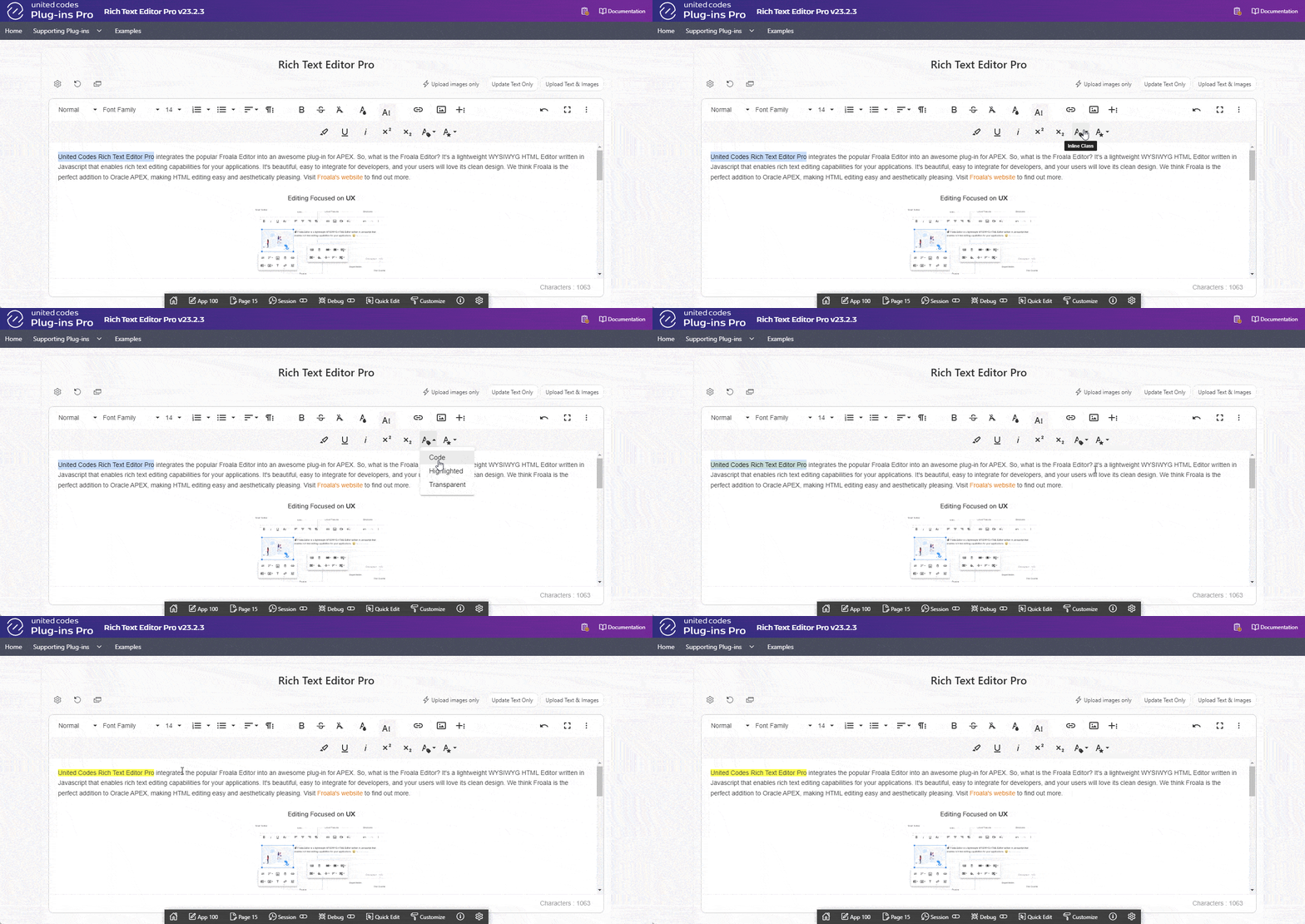
The option inlineClasses defines CSS class names applicable to the currently selected text in a document. To remove class, the toolbar button clear formatting must be used.
For example, applying default class Highlighted results in adding class fr-class-highlighted to currently selected text:
<span class="fr-class-highlighted">United Codes Rich Text Editor Pro</span>
Inline classes are only visible when a document is displayed along with a custom CSS rules.
- Initialization JavaScript Code
- Preview
function( pOptions ){
  pOptions.inlineClasses = {
    "fr-class-code":"Code",
    "fr-class-highlighted":"Highlighted",
    "fr-class-transparency":"Transparent"
  };

  return pOptions;
}
Colors
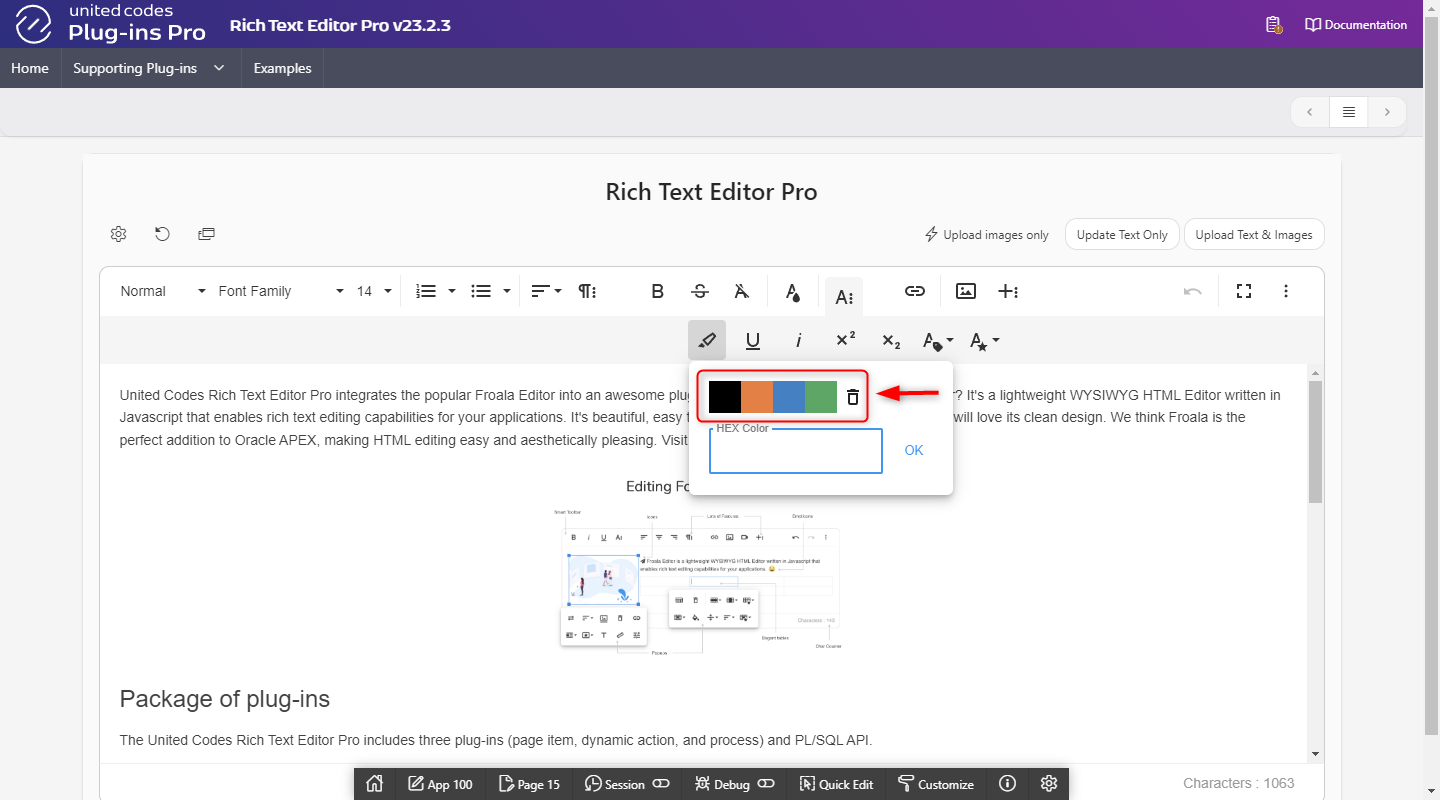
colorsBackground
The option colorsBackground defines colors available in color popup for text background.
- Initialization JavaScript Code
- Preview
function( pOptions ){
  pOptions.colorsBackground = [
    '#000000', '#F37934', '#2C82C9', '#41A85F',
    'REMOVE'
  ];
  return pOptions;
}
colorsText
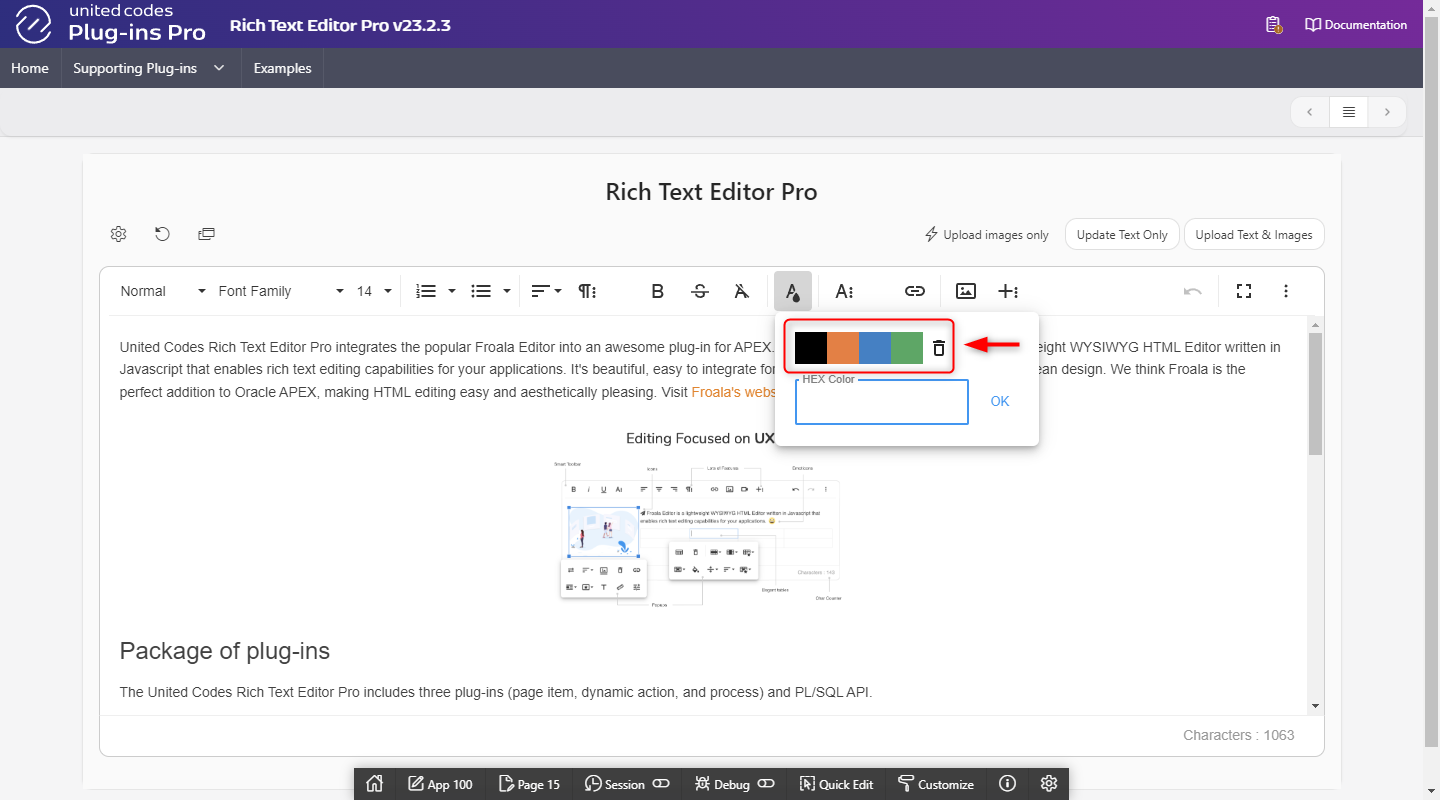
The option colorsText defines colors available in color popup for selected text.
- Initialization JavaScript Code
- Preview
function( pOptions ){
  pOptions.colorsText = [
    '#000000', '#F37934', '#2C82C9', '#41A85F',
    'REMOVE'
  ];
  return pOptions;
}
colorsStep
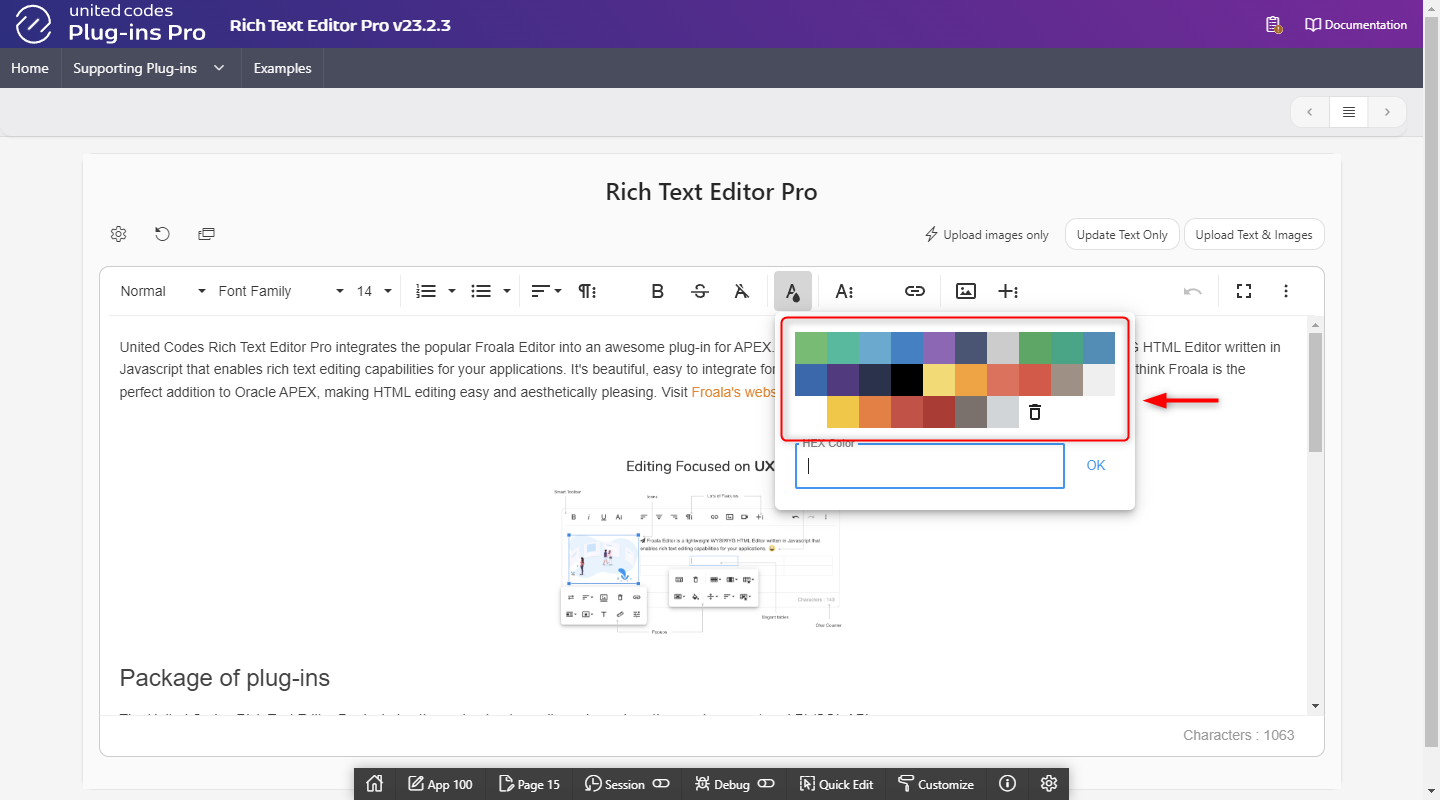
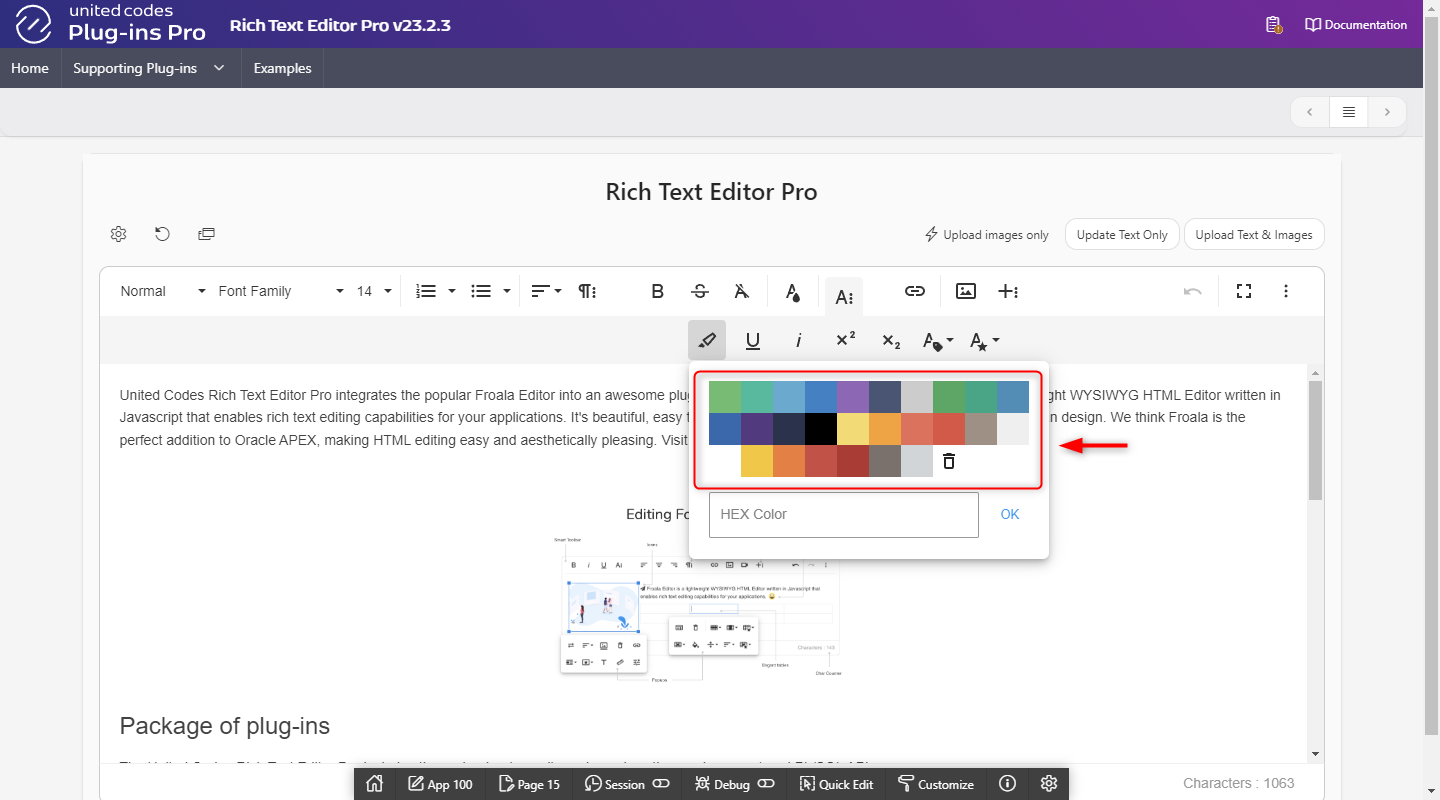
The option colorsStep defines how many colors are displayed in a row in popup for text and background.
- Initialization JavaScript Code
- Text Colors
- Background Colors
function( pOptions ){
  pOptions.colorsStep = 10;
  return pOptions;
}
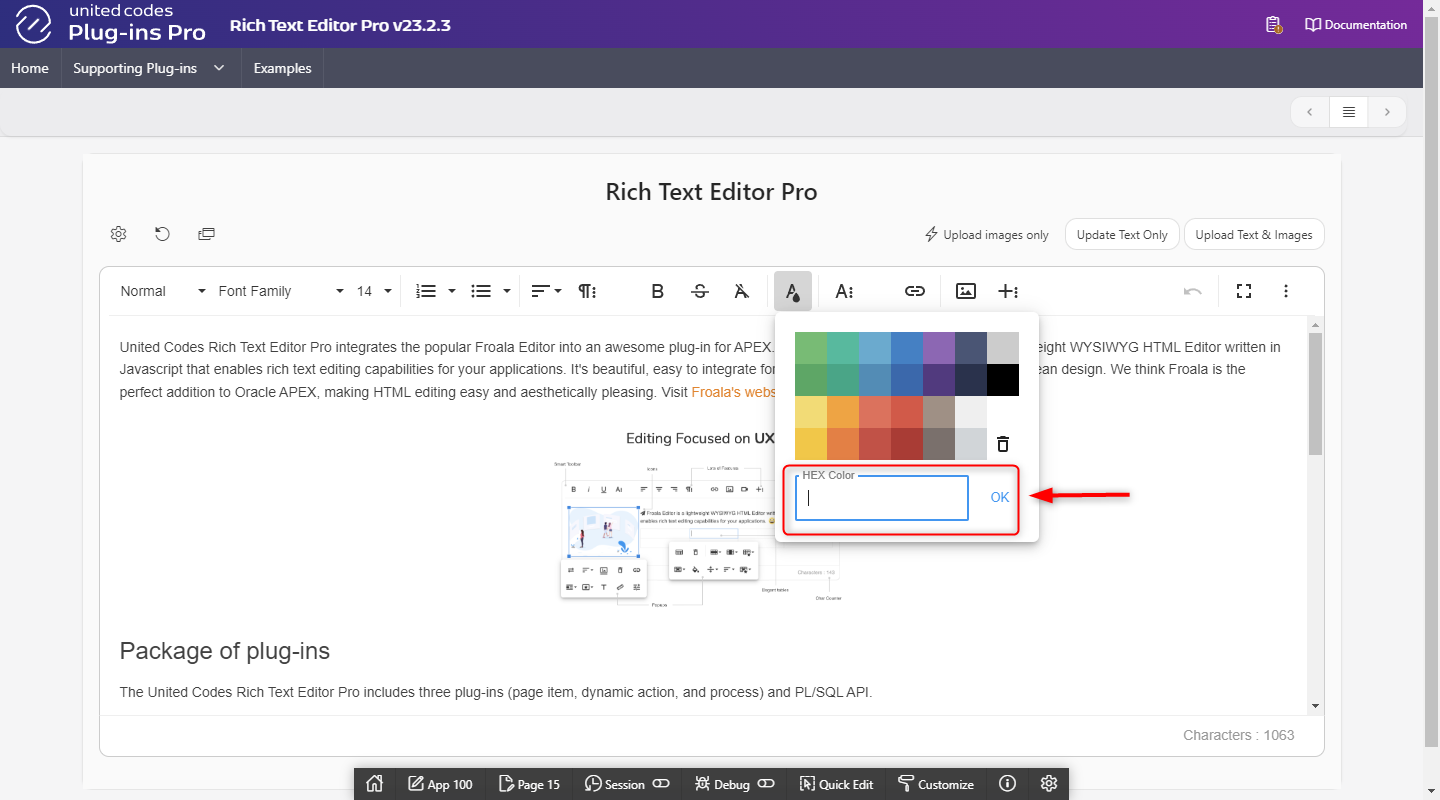
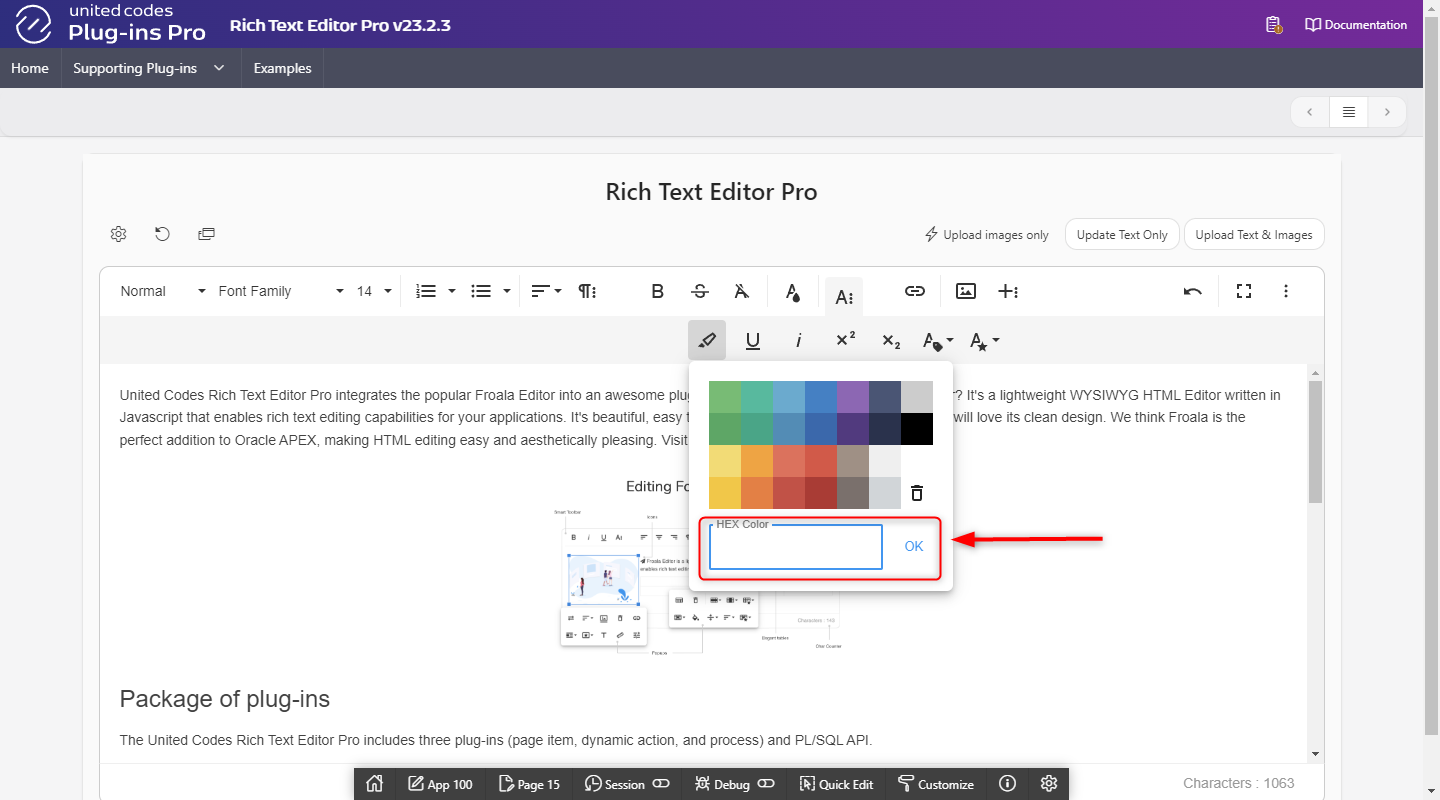
colorsHEXInput
The option colorsHEXInput allows applying custom HEX color through color popup input. When disabled, the color input is not available.
- Initialization JavaScript Code
- Text Colors
- Background Colors
function( pOptions ){
  pOptions.colorsHEXInput = true;
  return pOptions;
}