
Usage
This section describes an example implementation of United Code Gantt Pro in an example Oracle APEX application.
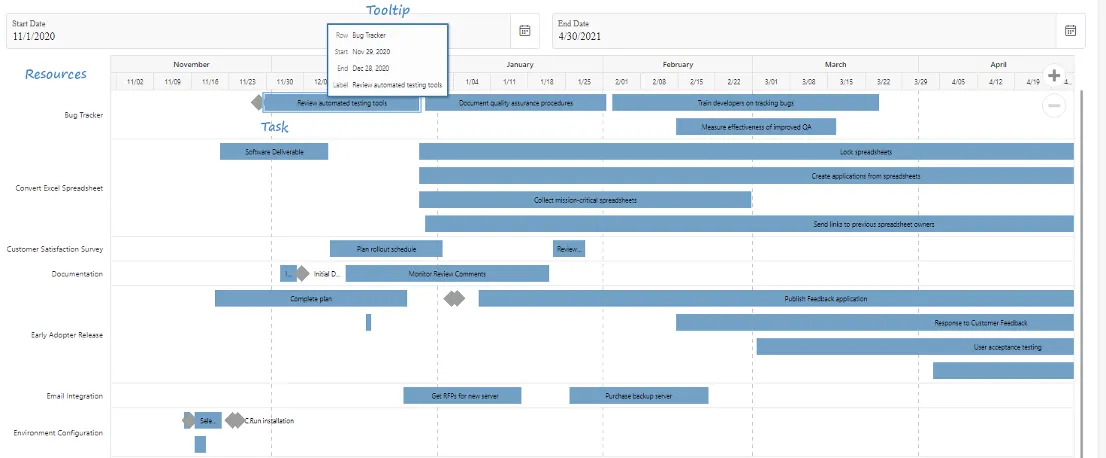
The usage guide shows the basic implementation of the plug-in.
Example for basic implementation.
Section titled “Example for basic implementation.”The initial state of page 2 in page designer is presented below:
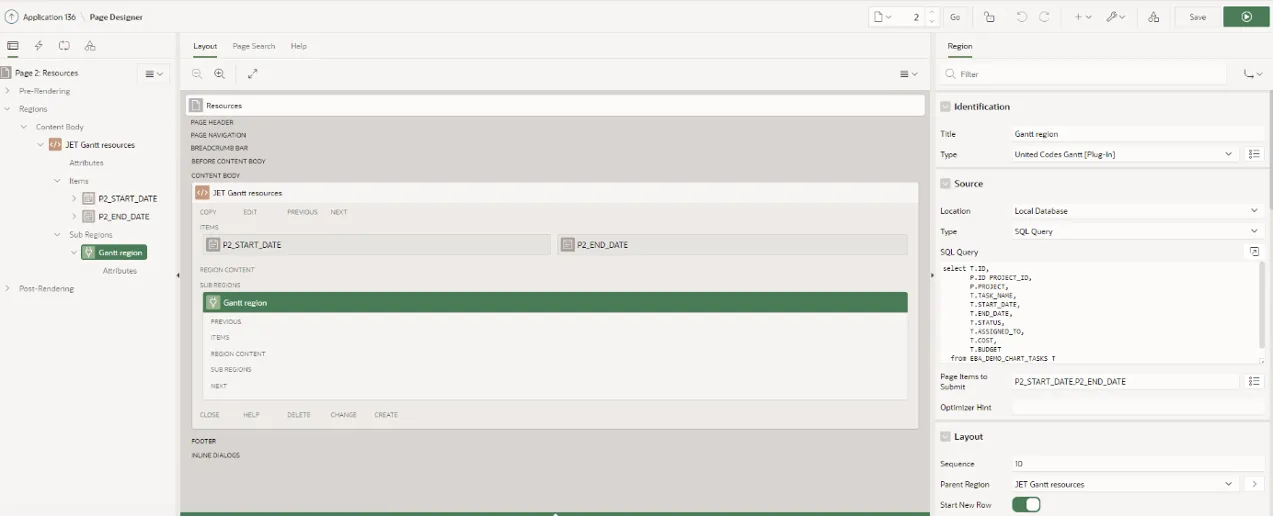
Implementation Steps
Section titled “Implementation Steps”-
Add new region of type »
Static Content« -
Add two date picker items (for example:
P2_START_DATE, P2_END_DATE). The gantt chart plug-in requires two date picker items in order to work. We also recommend specifying a default value for these two items. In this case even on the first load of the page the gantt chart will be nicely displayed. -
Add a new Region of type:
United Codes Gantt [Plug-In] -
The following region properties are mandatory in order the plug-in to work:
-
Source (in below example we use SQL query)
-
Page Items to Submit:
P2_START_DATE,P2_END_DATE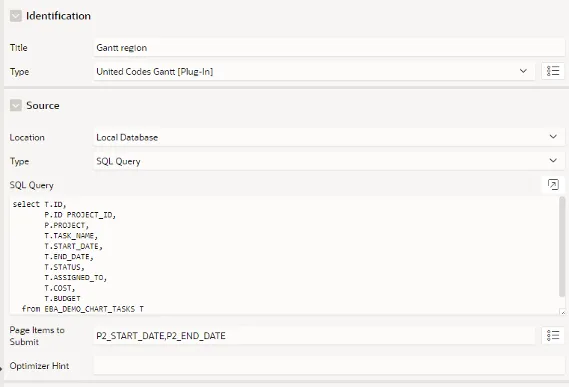
-
-
Under Attributes the following must be set:
-
Task ID
-
Task name
-
Task start date
-
Task end date
-
Viewpoint start date (P2_START_DATE)
-
Viewpoint end date (P2_END_DATE)
-
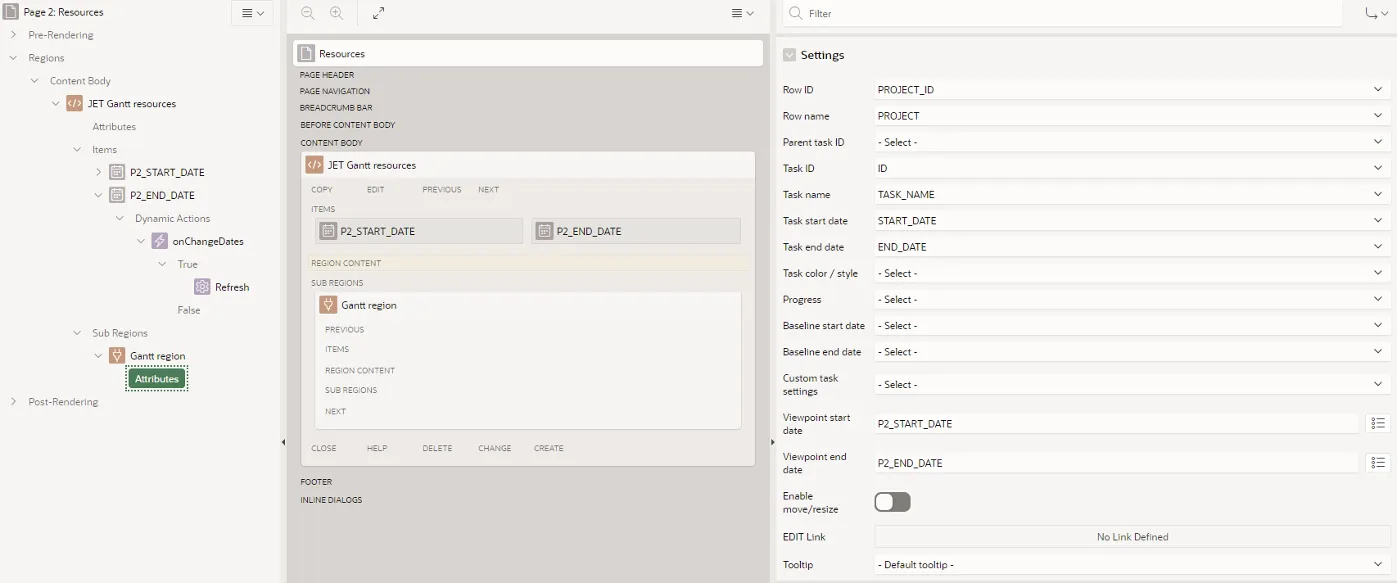
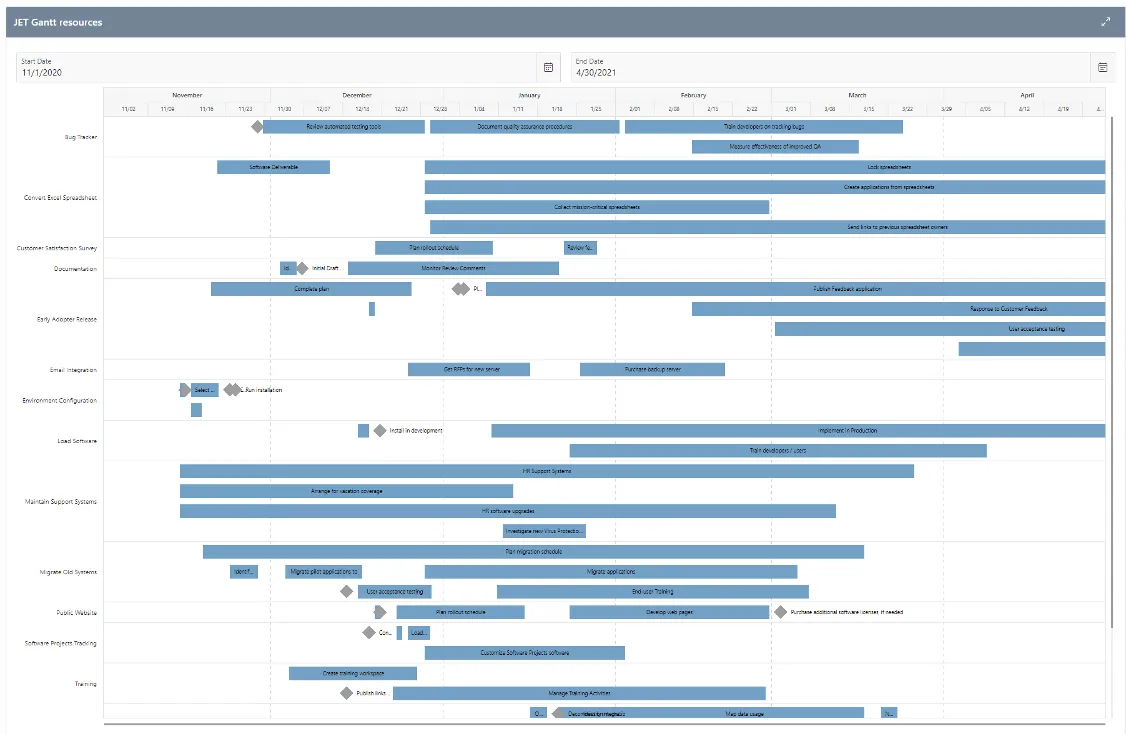
6/. Below is an example of the page after successfully setting up the plugin:
Advanced Settings (Attributes)
Section titled “Advanced Settings (Attributes)”-
Display events / tasks on timeline
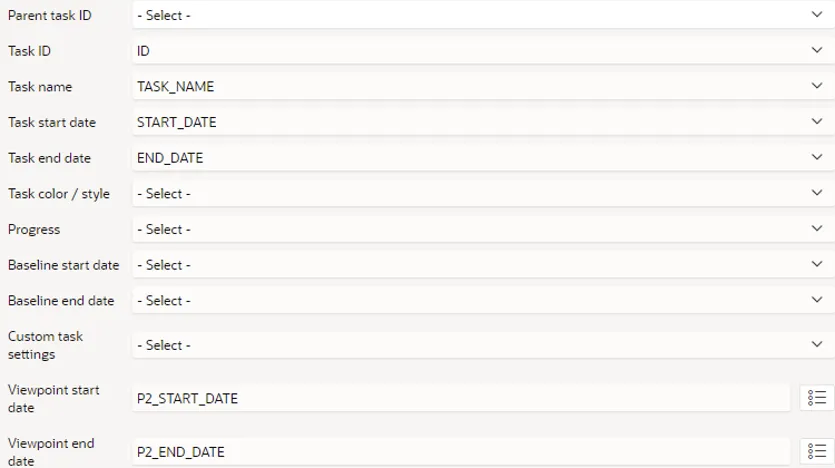
-
Event/Task Progress
-
SQL QUERY
select T.ID,P.ID PROJECT_ID,P.PROJECT,T.TASK_NAME ||case when T.STATUS is not nullthen '['||T.STATUS||']'else nullend TASK_NAME,T.START_DATE,T.END_DATE,T.STATUS,T.ASSIGNED_TO,T.COST,T.BUDGET,-- Range to have correct calculations is from 0 - 1. (0.50 is 50%)round(DBMS_RANDOM.VALUE(0,1),2) PROGRESS,case T.STATUSwhen 'On-Hold'then '#ed6647'when 'Closed'then '#68c182'else nullend COLORfrom EBA_DEMO_CHART_TASKS Tinner join EBA_DEMO_CHART_PROJECTS Pon ( P.ID = T.PROJECT ) -
ATTRIBUTES
 -
-
Show difference of planning / actual time value (Baseline)
-
SQL Query
select ID,PROJECT,PARENT_TASK,TASK_NAME,ROW_VERSION_NUMBER,START_DATE,END_DATE,STATUS,-- Start date of a planning the taskSTART_DATE - ROWNUM/ID BASE_START,-- End date of a planning the taskEND_DATE + ROWNUM/ID BASE_END,ASSIGNED_TO,COST,BUDGET,CREATED,CREATED_BY,UPDATED,UPDATED_BYfrom EBA_DEMO_CHART_TASKS -
Attributes
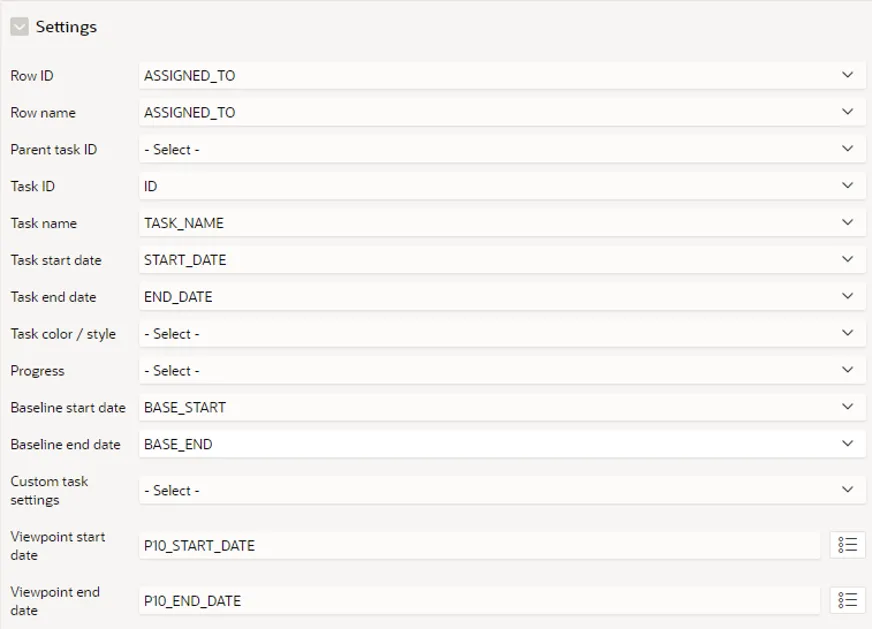
-
-
Drag and drop event/task option & Resize event/task option
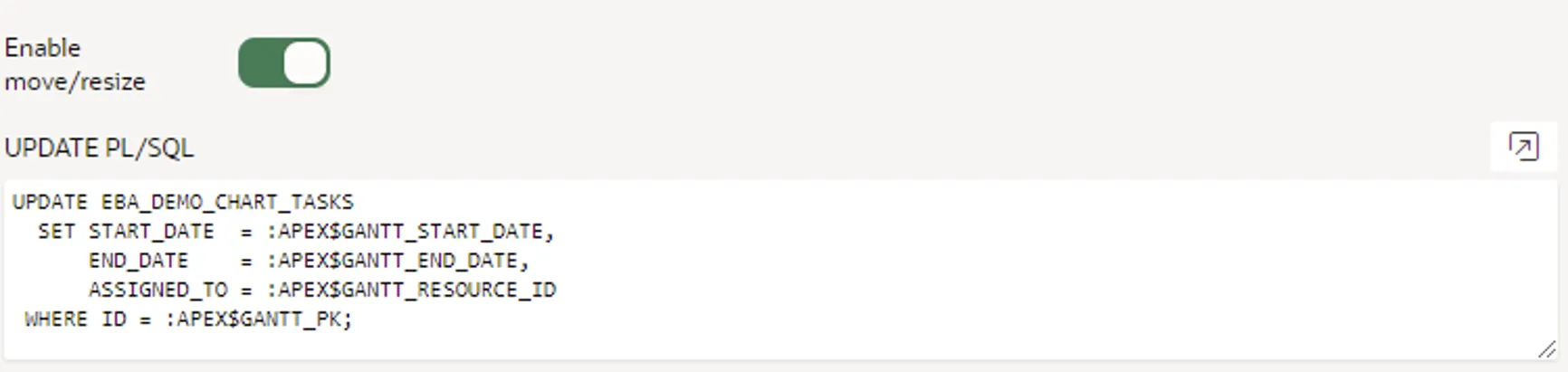
-
Dependency SQL specification
select ID, PREDECESSOR, SUCCESSOR, RELATION, STATUS, SHORTDESC from EBA_DEMO_CHART_TASKS_DEPEND_V;JSON options
{ "id": "5", "predecessor": "3", "successor": "2", "relation": "finishStart", // "finishStart" | "finishFinish" | "startStart" | "startFinish" "status": "critical", //used for customization "shortDesc": "My Description finishStart|critical"}-
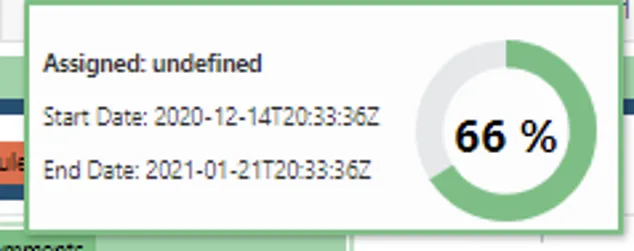
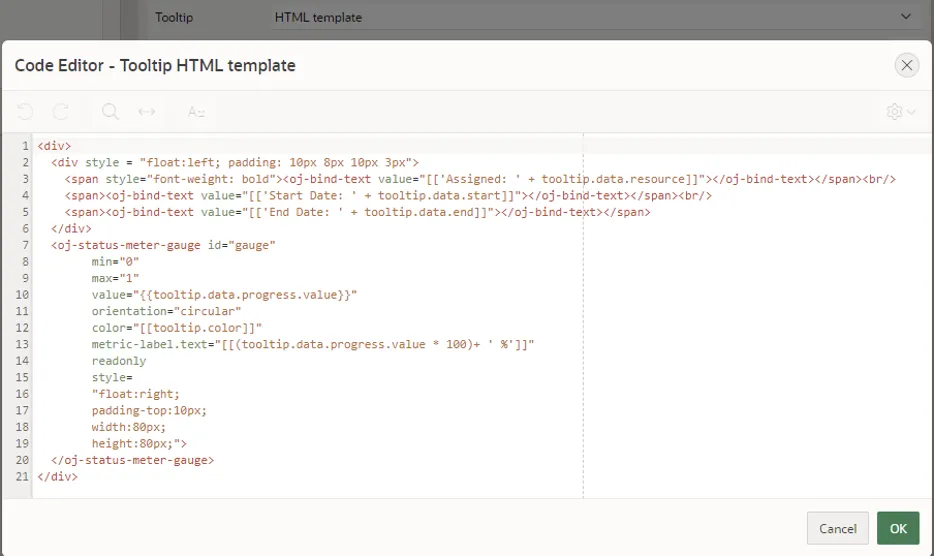
Additional event/task information (tooltip)
-
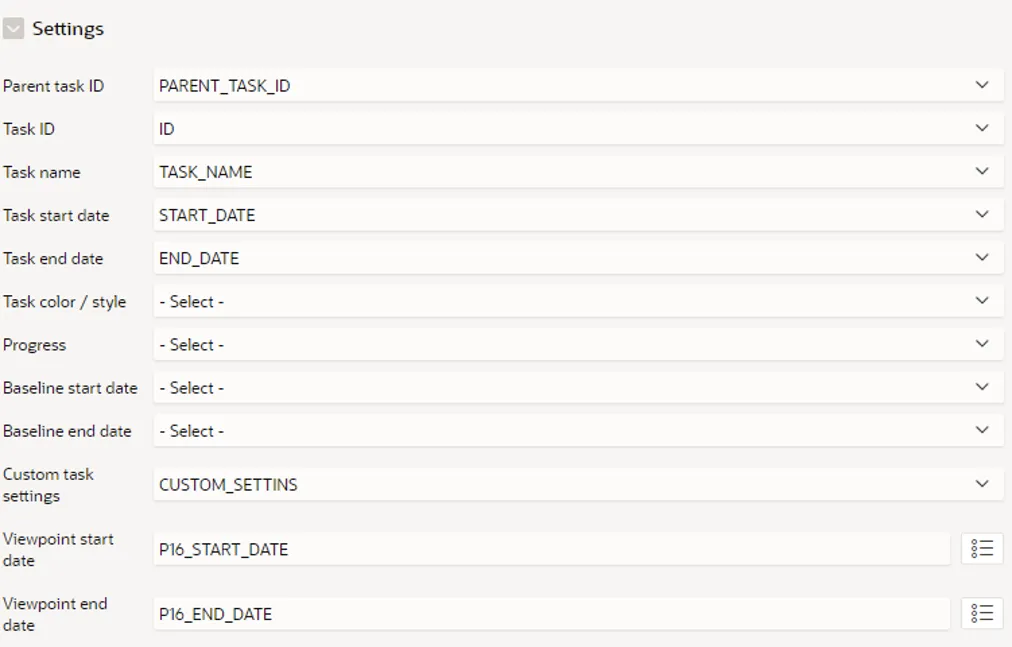
Hierarchical event/tasks view
-
SQL Query
select T.ID,T.PARENT_TASK PARENT_TASK_ID,P.ID PROJECT_ID,P.PROJECT,T.TASK_NAME,T.START_DATE,T.END_DATE,T.STATUS,T.ASSIGNED_TO,T.COST,T.BUDGET,'{"assigned":"'||T.ASSIGNED_TO||'","borderRadius":"10px","labelPosition":"start","type":"'|| case when T.PARENT_TASK is nullthen 'summary' else 'normal' end ||'"}' CUSTOM_SETTINSfrom EBA_DEMO_CHART_TASKS Tinner join EBA_DEMO_CHART_PROJECTS Pon P.ID = T.PROJECT -
Attributes
-
Automatic Time Zone
Section titled “Automatic Time Zone”Since Oracle APEX automatically parse date and timestamp into JavScript format (example: “2023-10-28T22:06:00Z”) browsers will automatically calculate offset and display it for you.
The ISO format support short notations where the string must only include the date and not time, as in the following formats: YYYY, YYYY-MM, YYYY-MM-DD.
The ISO format does not support time zone names. You can use the Z position to specify an offset from UTC time. If you do not include a value in the Z position, UTC time is used. The correct format for UTC should always include character ‘Z’ if the offset time value is omitted. The date-parsing algorithms are browser-implementation-dependent and, for example, the date string ‘2013-02-27T17:00:00’ will be parsed differently in Chrome vs Firefox vs IE.
More details can be found in the OJ GANTT documentation.
In order to avoid auto calculation you can disable that option in “Javascript Initialization Code”.
function (pOptions) {
    //Use browser TimeZone true/false    pOptions.automaticTimezone = false;
    return pOptions;}
Date Formats / Time Scales
Section titled “Date Formats / Time Scales”Date format is automatically picked up from application language setting. In case you need to change it you can do that in two ways.
- Change with ojConverter
More details about date/time can be found in the OJ GANTT documentation.
function (pOptions) {   pOptions.callback = function(ViewModdel, rowData, viewPoint, ko, ojconverter, TimeUtils) {       ViewModdel.weekConverter = new ojconverter.IntlDateTimeConverter({            pattern: 'd-M'       })   }
    pOptions.gantt = {        "minor-axis.converter.weeks": "[[weekConverter]]"    }
return pOptions;}- Crate a Custom Converter
function (pOptions) {    pOptions.gantt = {        "aria-label":"Custom Date Format",         "major-axis.scale":"weeks",         "major-axis.zoom-order":'["quarters", "months", "weeks", "days"]',         "major-axis.converter.weeks":"[[dateConverter]]",         "minor-axis.scale":"days",         "minor-axis.zoom-order":'["quarters", "months", "weeks", "days"]',         "minor-axis.converter.days":"[[diffDaysConverter]]"    };
    //pOptions.loadModules = ["ojs/ojdvttimecomponentscale"];
    pOptions.callback = function(ViewModel, rowData, viewPoint, ko, ojconverter, TimeUtils) {        ViewModel.dateConverter = ko.observable(new ojconverter.IntlDateTimeConverter({                  formatType: "date",                  dateFormat: "long",        }));        ViewModel.diffDaysConverter = {            format: (dateString) => {                const day = 24 * 60 * 60 * 1000;                const startDate = new Date(viewPoint.start);                const startTime = startDate.getTime();                const date = new Date(dateString);                return Math.round(Math.abs(date.getTime() - startTime) / day + 1);            },        };    };
return pOptions;}- Custom “Time Scales”
In this example you can find, 5 min Time Scale. Be sure you do not load to much data “Start - End date”, perhaps one day is enough. Time Scales are always executed, even if you do not zoom in, or zoom out from default setting.
function (pOptions) {    pOptions.gantt = {        "aria-label": "Custom Timescales",            "gridlines.vertical": "visible",            "major-axis.scale": "hours",            "major-axis.zoom-order": '[[ ["hours", FiveMScale, "minutes"] ]]',            "minor-axis.scale": "hours",            "minor-axis.zoom-order": '[[ ["hours", FiveMScale, "minutes"] ]]'    };
    pOptions.loadModules = ["ojs/ojdvttimecomponentscale"];
    pOptions.callback = function(ViewModel, rowData, viewPoint, ko, ojconverter, TimeUtils) {        //callback is executed after all task settings and it is highly customizable        class FiveMScale {          constructor(fiscalStart, fiscalEnd) {              this.name = 'FiveMinutes';               this.converter = new ojconverter.IntlDateTimeConverter({                        formatType: "time",                        timeFormat: "short"              });              const fiscalStartDate = new Date(fiscalStart);              const fiscalEndDate = new Date(fiscalEnd);              this.dates = [fiscalStartDate];              // Precompute the 4-4-5 weeks intervals              let nextDate;              while (this.dates[this.dates.length - 1] < fiscalEndDate) {                nextDate = new Date(this.dates[this.dates.length - 1]);                nextDate.setMinutes(nextDate.getMinutes() + 5);                this.dates.push(nextDate);              }          }          formatter(dateStr) {              return this.converter.format(dateStr);          }          getNextDate(dateStr) {              // Search for the date after the given date from the precomputed dates              let date = new Date(dateStr);              for (let i = 0; i < this.dates.length; i++) {                  if (this.dates[i] > date) {                      return this.dates[i].toISOString();                  }              }          }          getPreviousDate(dateStr) {              // Search for the date before the given date from the precomputed dates              let date = new Date(dateStr);              for (let i = 0; i < this.dates.length - 1; i++) {                  if (this.dates[i + 1] > date) {                      return this.dates[i].toISOString();                  }              }          }      }      ViewModel.FiveMScale = new FiveMScale(viewPoint.start, viewPoint.end);    };
    return pOptions;}
Sorting
Section titled “Sorting”By default we sort data in JavaScript section, so the resource data is sorted by labels. You can change sorting with the following action/s.
function (pOptions) {
    pOptions.methods = {        //Invert resource sort or create custom logic        sortData : function (data) {                return data.sort(function (a, b) {                    return a.resource < b.resource ? 1 : -1;                })        },        //Invert resource tree sort or create custom logic        sortDataTree : function (data) {            function sortTreeNodes(nodes) {                nodes.sort((a, b) => {                    const resourceA = a.resource.toLowerCase();                    const resourceB = b.resource.toLowerCase();                    return resourceA < resourceB ? 1 : -1;                });
                nodes.forEach(node => {                    if (node.subTasks && node.subTasks.length > 0) {                        sortTreeNodes(node.subTasks);                    }                });
                return nodes;            }
            const dataCopy = JSON.parse(JSON.stringify(data));            return sortTreeNodes(dataCopy);        }    };
    return pOptions;}
Sometimes you need to disable JavaScript sorting and use your own from the query. You can achieve that with disabling the JavaScript sorting.
function (pOptions) {
    pOptions.methods = {        //Disable sorting by label        sortData : function (data) {            //No sort            return data;        },        //Disable tree sorting        sortDataTree : function (data) {            //No sort            return data;        }    };
    return pOptions;}
Themes
Section titled “Themes”By default, this plug-in select “Redwood notag”. In order to be more open for developers to select one of the following theme we introduced new parameter “themeCSS”.
Options are :
- ‘/alta/oj-alta-min.css’
- ‘/alta/oj-alta-notag-min.css’
- ‘/alta-android/oj-alta-min.css’
- ‘/alta-ios/oj-alta-min.css’
- ‘/alta-windows/oj-alta-min.css’
- ‘/redwood/oj-redwood-min.css’
- ‘/redwood/oj-redwood-notag-min.css’
- ‘/stable/oj-stable-min.css’
To change default theme please set themeCSS in “Javascript Initialization Code”.
function (pOptions) {
    //Change theme    pOptions.themeCSS = '/stable/oj-stable-min.css';
    return pOptions;}
Timeline, Weekends and Time Buckets
Section titled “Timeline, Weekends and Time Buckets”By default, timeline and weekends are enabled and displayed out of the box. But sometimes there is a use case to disable coloring or remove timeline. That is possible with custom options via “Javascript Initialization Code”.
function (pOptions) {
    //disable timeline    pOptions.display.timeLine = false;
    //disable weekend coloring    pOptions.display.weekend = false;
    return pOptions;}
To be even more flexible with coloring timeline you can set current time, multiple times, and add a class on it.
function (pOptions) {
    //disable timeline    pOptions.display.timeLineData = [{                        value: new Date().toISOString(),                        shortDesc: "Current Date",                        svgClassName:'demo-current-time-indicator'                    }];
    return pOptions;}
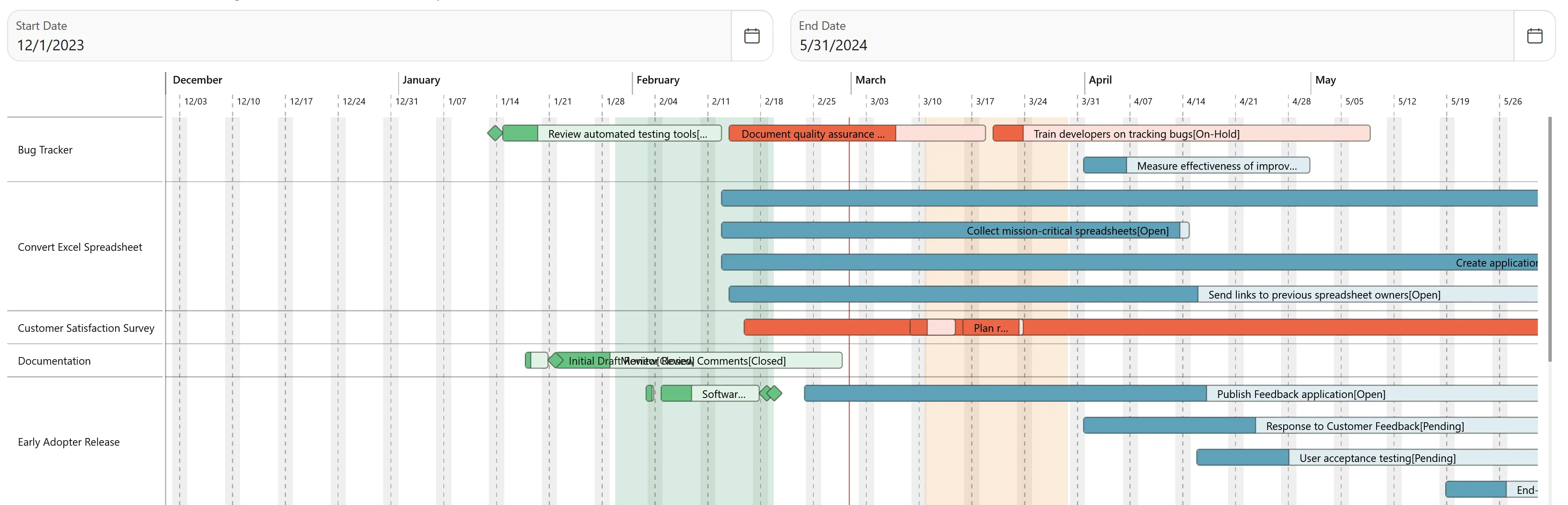
Sometimes there is a need to ave different Time Buckets, to display phase of project. You can use declarative option “Time Buckets” and put query in there. This can be useful for coloring sprints, adding holidays, or maybe just adding colored lines where needed.
select TYPE, START_TIME,-- transformed to "start" used only when type = area END_TIME, -- transformed to "end" used only when type = area LINE_TIME, -- transformed to "value" used only when type = line SHORTDESC, SVGSTYLE from YOUR_HOLIDAY_DATES_TABLE;Or if there specific use case you can also go with setting up Time Bucket JSON in “Javascript Initialization Code”.
function (pOptions) {
    let firstStart = new Date();    let firstEnd   = new Date();    let secondStart = new Date();    let secondEnd   = new Date();
    firstStart.setMonth(firstStart.getMonth() - 1);    firstEnd.setDate(firstEnd.getDate() - 10);    secondStart.setDate(secondStart.getDate() + 10);    secondEnd.setMonth(secondEnd.getMonth() + 1);
    pOptions.display.timeBucketsData = [        {            type: "area",            start: firstStart.toISOString(),            end: firstEnd.toISOString(),            svgStyle: { fill: "#32925e", opacity: "0.18" },            shortDesc: "Time Bucket 1",        },        {            type: "area",            start: secondStart.toISOString(),            end: secondEnd.toISOString(),            svgStyle: { fill: "#eb9632", opacity: "0.18" },            shortDesc: "Time Bucket 2",        },    ];
    return pOptions;}
Result:
Javascript Initialization Code
Section titled “Javascript Initialization Code”Sometimes you can hit charters imit. In that case declare variable in page “Function and Global Variable Declaration” and reference on it within plug-in “Javascript Initialization Code”.
function (pOptions) {    pOptions.gantt = {        "gridlines.horizontal":"visible",        "gridlines.vertical":"visible",        "major-axis.scale":"weeks",        "major-axis.zoom-order":'["quarters", "months", "weeks", "days"]',        "major-axis.converter.weeks":"[[dateConverter]]",        "minor-axis.scale":"days",        "minor-axis.zoom-order":'["quarters", "months", "weeks", "days"]',        "minor-axis.converter.days":"[[diffDaysConverter]]"        "selection-mode":"multiple",        "dnd.move.tasks":"enabled",        "task-defaults.resizable":"enabled",        "style":"width:100%;height:70vh",        "translations.component-name":"Component Name !",        "translations.label-invalid-data":"Something wrong with date fields!",        "task-defaults.height":40,        "task-defaults.border-radius":5,        "task-defaults.label-position":"innerStart",        "task-defaults.type":"summary",        "task-defaults.svg-style":{"fill":"#b366ff"},        "task-defaults.overlap.behavior":"stack"    };
    //Use browser TimeZone true/false    pOptions.automaticTimezone = false;
    //load additional modules    pOptions.loadModules = ["ojs/ojmenu", "ojs/ojdvttimecomponentscale", "ojs/ojavatar"];
    pOptions.methods = {        //Invert resource sort        sortData :            function (data) {                return data.sort(function (a, b) {                    return a.resource < b.resource ? 1 : -1;                })        },        // Custom validation, for more details check "Custom validations section"        validateClick : function(task) {            console.log("Validate CLICK on", task);            return false;        },        validateMove : function(task, moveData) {            console.log("Validate MOVE on", task, moveData);            return true;        },        validateResize : function(task, resizeData) {            console.log("Validate RESIZE on", task, resizeData);            return true;        }        /*        sortData : function (data) {            //No sort            return data;        },*/
    };
    //add elements in region before oj-gantt element    pOptions.elements = [        `<svg height="0" width="0"><defs><marker                  id="demoCircleMarker"                  viewBox="0 0 12 12" refX="6" refY="6" markerWidth="12" markerHeight="12"                  orient="auto"                  markerUnits="userSpaceOnUse">                  <circle class="demo-circle-marker" cx="6" cy="6" r="5" />                </marker>                <marker                  id="demoArrowMarker"                  viewBox="0 0 10 10" refX="10" refY="5" markerWidth="12" markerHeight="12"                  orient="auto-start-reverse"                  markerUnits="userSpaceOnUse">                  <path class="demo-arrow-marker" d="M 0 0 L 10 5 L 0 10 z" />                </marker>                <marker                  id="demoArrowMarkerCritical"                  viewBox="0 0 10 10" refX="10" refY="5" markerWidth="12" markerHeight="12"                  orient="auto-start-reverse"                  markerUnits="userSpaceOnUse">                  <path class="demo-arrow-critical-marker" d="M 0 0 L 10 5 L 0 10 z" />                </marker>                </defs></svg>`    ];
    //add templates and elements inside oj-gantt element    pOptions.templates = [          `<template slot="rowAxisLabelTemplate" data-oj-as="rowAxisLabel">              <svg class="demo-gantt-row-label">                <g>                <foreignobject :x="0" y="0" width="32" height="32">                    <oj-avatar                      src="[[rowAxisLabel.data.resourceData.profile]]"                      size="xxs"></oj-avatar>                  </foreignobject>                  <text :x="25" y="19">                    <oj-bind-text value="[[rowAxisLabel.data.resource]]"></oj-bind-text>                  </text>                </g>              </svg>            </template>`,            `<oj-menu                id="ctxMenu"                slot="contextMenu"                aria-label="Match Edit"                on-oj-menu-action="[[menuItemAction]]"                on-oj-before-open="[[beforeOpenFunction]]">                <oj-option value="Action 1">Action 1</oj-option>                <oj-option value="Action 2">Action 2</oj-option>                <oj-option value="Action 3">Action 3</oj-option>                </oj-menu>            </oj-gantt>`    ];
    pOptions.callback = function(ViewModel, rowData, viewPoint, ko, ojconverter, TimeUtils) {        // add additional logic and handlers after data is assigned to te ViewModel        ViewModel.dateConverter = ko.observable(new ojconverter.IntlDateTimeConverter({                  formatType: "date",                  dateFormat: "long",        }));        ViewModel.diffDaysConverter = {            format: (dateString) => {                const day = 24 * 60 * 60 * 1000;                const startDate = new Date(viewPoint.start);                const startTime = startDate.getTime();                const date = new Date(dateString);                return Math.round(Math.abs(date.getTime() - startTime) / day + 1);            }        };
    };
    return pOptions;}