Usage
This section describes three basic examples of implementing the plug-in to validate a simple form and interactive grid columns. The usage guide shows a basic implementation of the plug-in but does not describe the plug-in attributes or ideas on how the plug-in can be used.
Examples of how the plug-in attributes can be used to enrich the validation process are shown and described in the Client-side Validation Pro sample application.
Validation on Button Click
Section titled “Validation on Button Click”This guide describes the plug-in validation performed after clicking the BTN/_PLUGIN/_VALIDATION button. The dynamic action implementing the plug-in only performs validation without submitting the page and doesn’t implement any fancy features of the plug-in.
Introduction
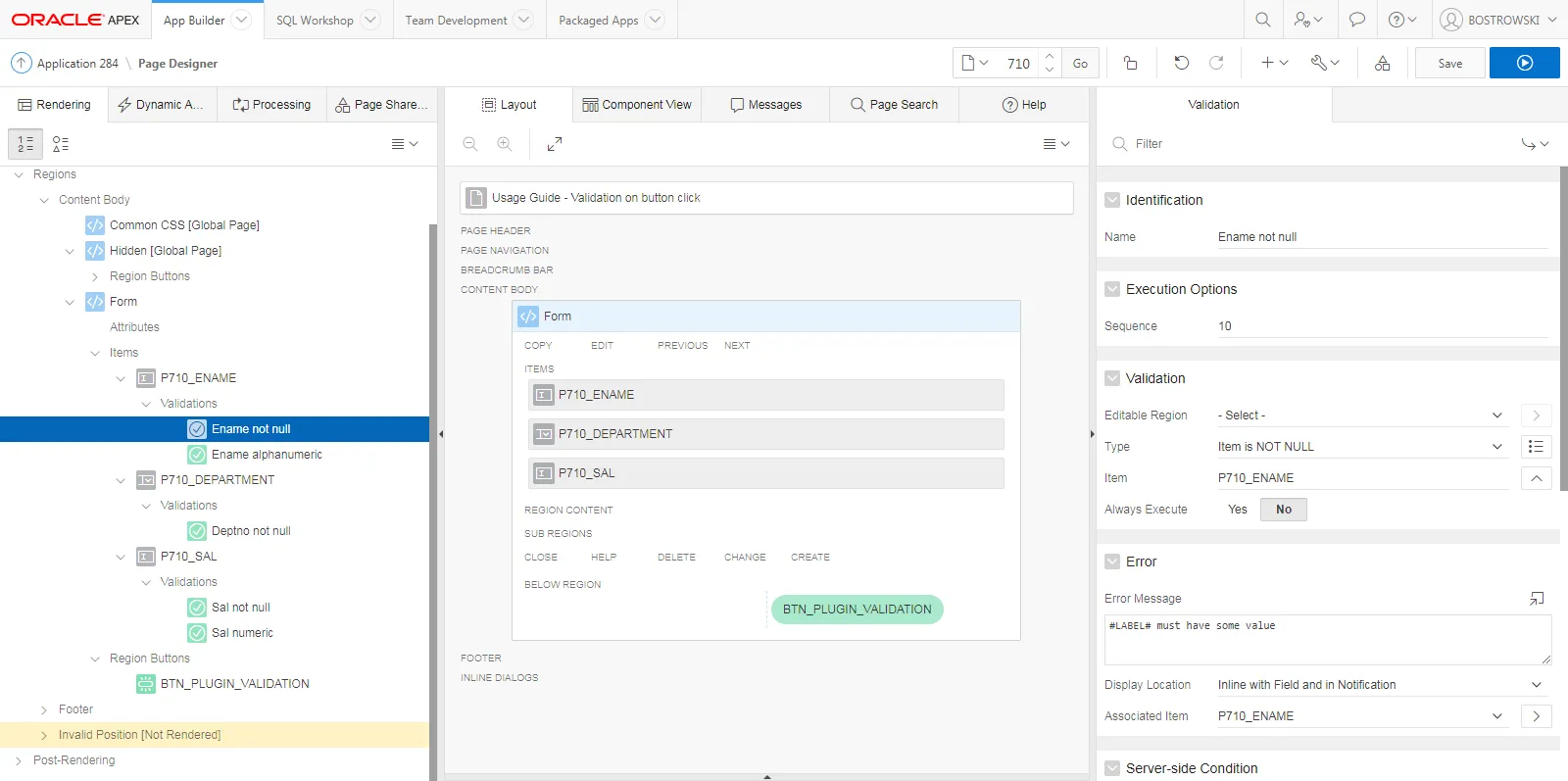
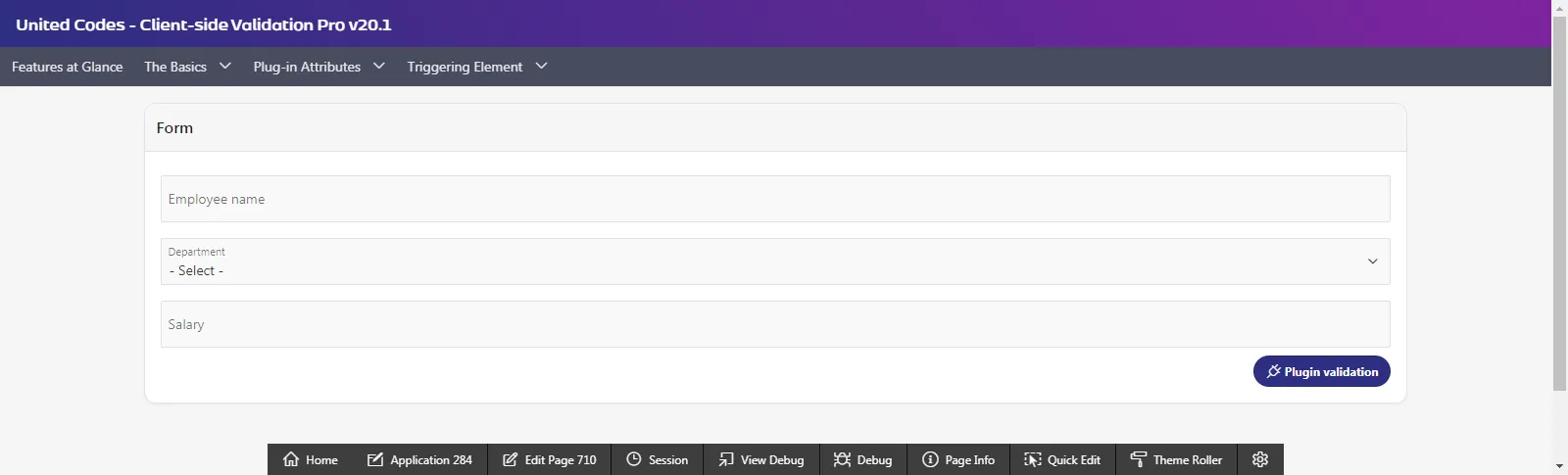
Section titled “Introduction”In an example application, page 710 is defined. On the page, a region called Form is created and contains 3 items and 1 button.
Oracle APEX items:
- P710/_ENAME
- P710/_DEPARTMENT
- P710/_SAL
Oracle APEX buttons:
- BTN/_PLUGIN/_VALIDATION
The BTN/_PLUGIN/_VALIDATION button has it’s behavior set to Defined by Dynamic Action and it will be used to trigger the plug-in validation.
Each item has a native Oracle APEX validation defined which is described in the table below:
| Item | Validation |
|---|---|
| P710/_ENAME | Item is NOT NULL |
| P710/_ENAME | Item is alphanumeric |
| P710/_DEPARTMENT | Item is NOT NULL |
| P710/_SAL | Item is NOT NULL |
| P710/_SAL | Item is numeric |
Page 710 in page designer is presented below:
The resulting page will look as follows:
Implementing the Plug-in
Section titled “Implementing the Plug-in”To implement the plug-in, creating a new dynamic action is required. Follow the steps below:
Dynamic Action
Section titled “Dynamic Action”- Create a new dynamic action
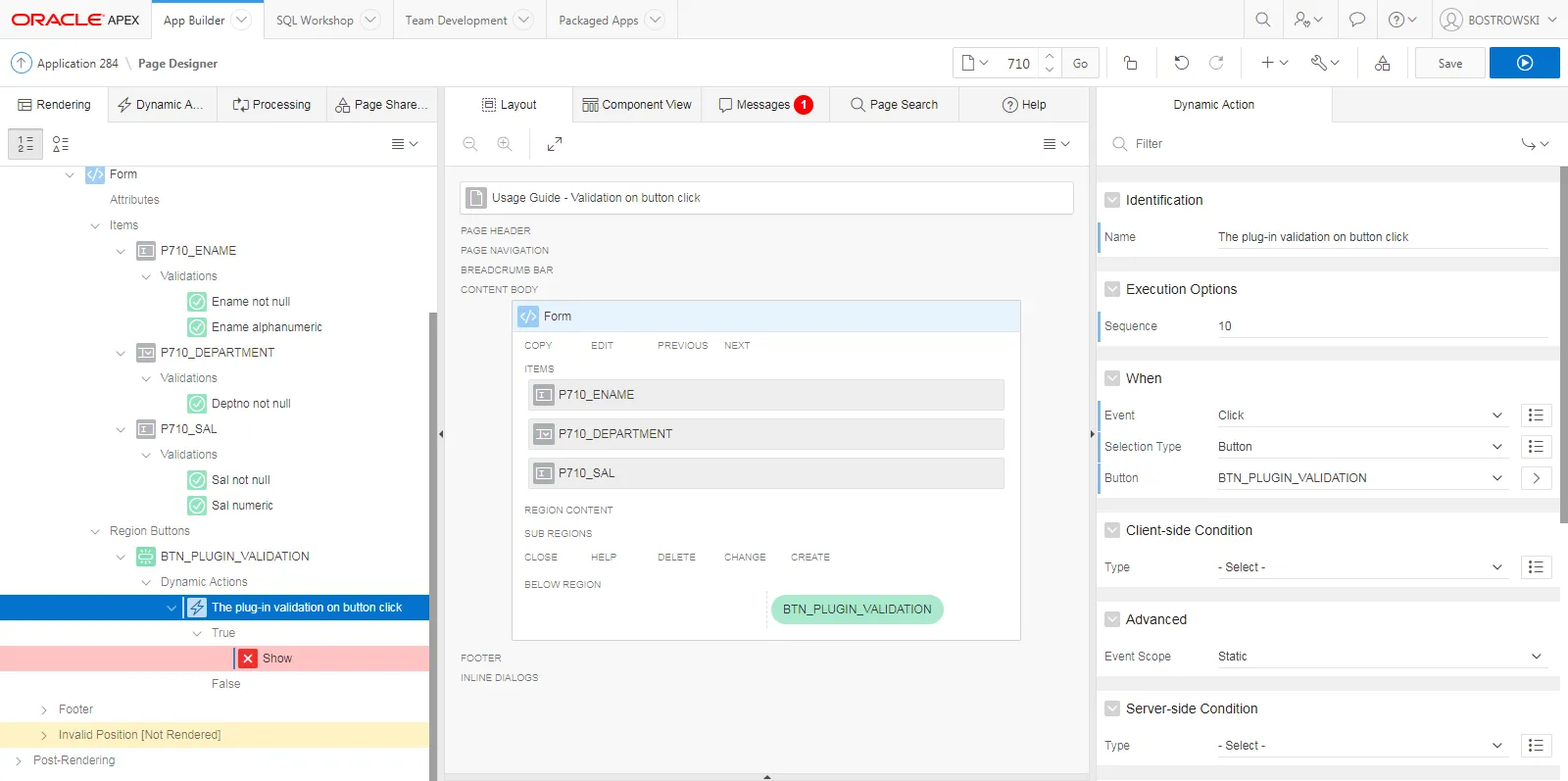
- Change the dynamic action’s name to The plug-in validation on button click
- Set When // Event to Click
- Set When // Selection Type to Button
- Set When // Button to BTN/_PLUGIN/_VALIDATION
The dynamic action definition in the page designer is presented below:
Dynamic Action - True Action
Section titled “Dynamic Action - True Action”The default true action of the newly defined dynamic action is Show.
- Select the default true action Show
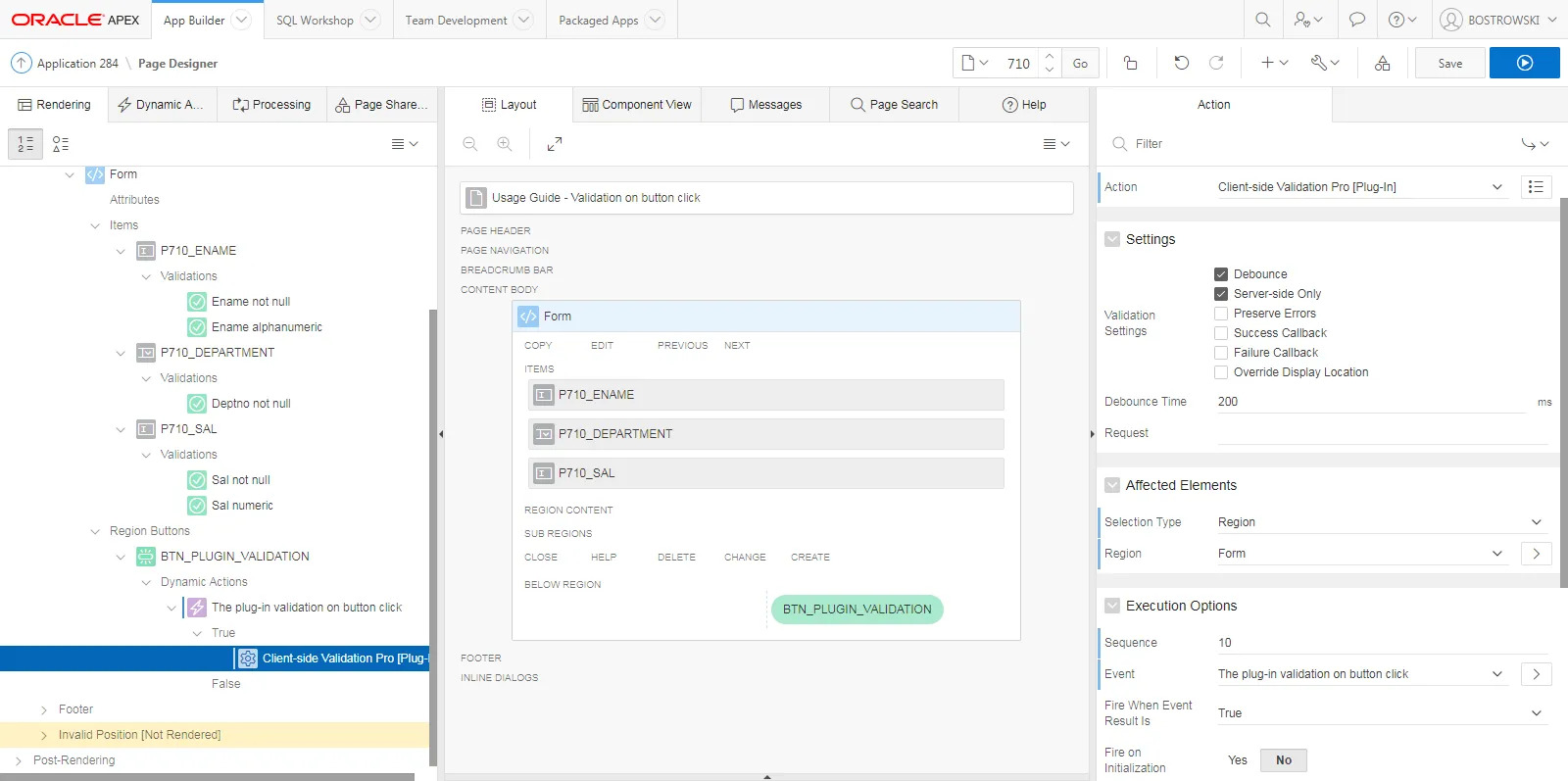
- Change Identification // Action to Client-side Validation Pro /[Plug-in/]
- (Optional) Configure the plug-in using the Settings attributes
- Set Affected Elements // Selection Type to Region
- Set Affected Elements // Region to Form
- Set Execution Options // Fire on Initialization to No
- Save the page
The plug-in dynamic true action is presented below:
Test the Implementation
Section titled “Test the Implementation”- Open page 710 in browser
- Click button BTN/_PLUGIN/_VALIDATION (plug-in validation)
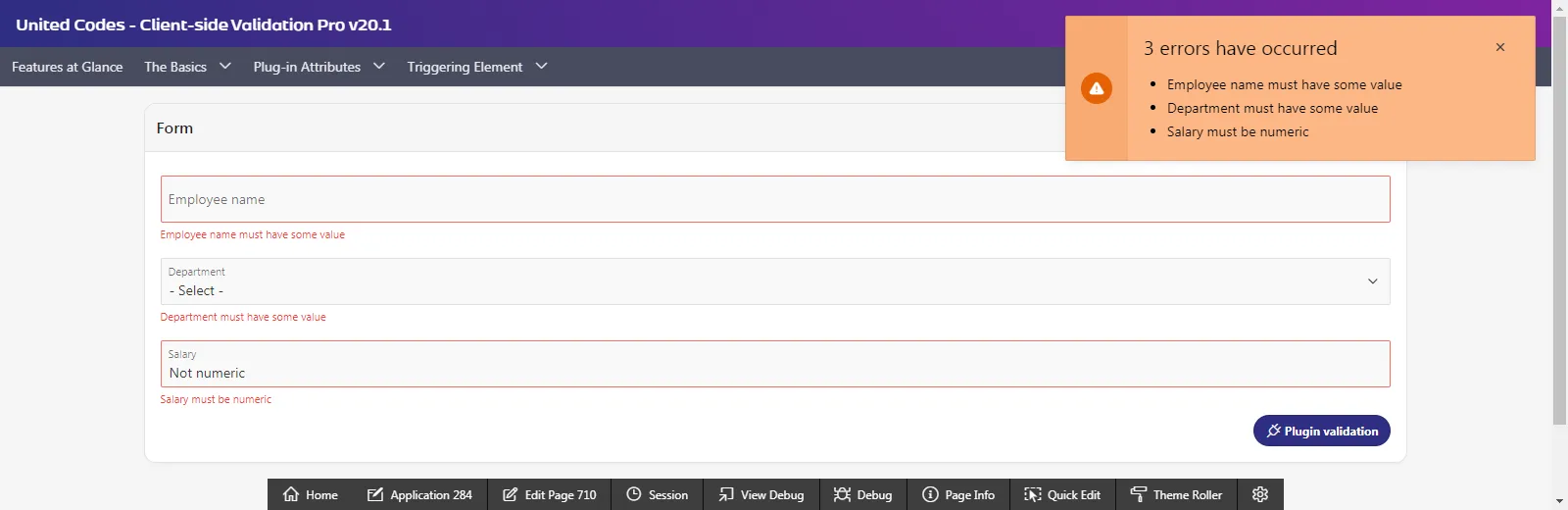
The result after clicking the BTN/_PLUGIN/_VALIDATION button is presented below:
Validation on Item Event
Section titled “Validation on Item Event”This guide describes the plug-in validation performed each time the Lose Focus event is triggered on any item in the specified form. The dynamic action implementing the plug-in performs only the defined validations without implementing any fancy features of the plug-in.
Examples of how the plug-in attributes can be used are shown and described in the Client-side Validation Pro sample application.
Introduction
Section titled “Introduction”In an example application, page 720 is created. On the page, a region called Form is created and contains 3 items.
Oracle APEX items:
- P720/_ENAME
- P720/_DEPARTMENT
- P720/_SAL
Each item has a native Oracle APEX validation defined which is described in the table below.
| Item | Validation |
|---|---|
| P720/_ENAME | Item is NOT NULL |
| P720/_ENAME | Item is alphanumeric |
| P720/_DEPARTMENT | Item is NOT NULL |
| P720/_SAL | Item is NOT NULL |
| P720/_SAL | Item is numeric |
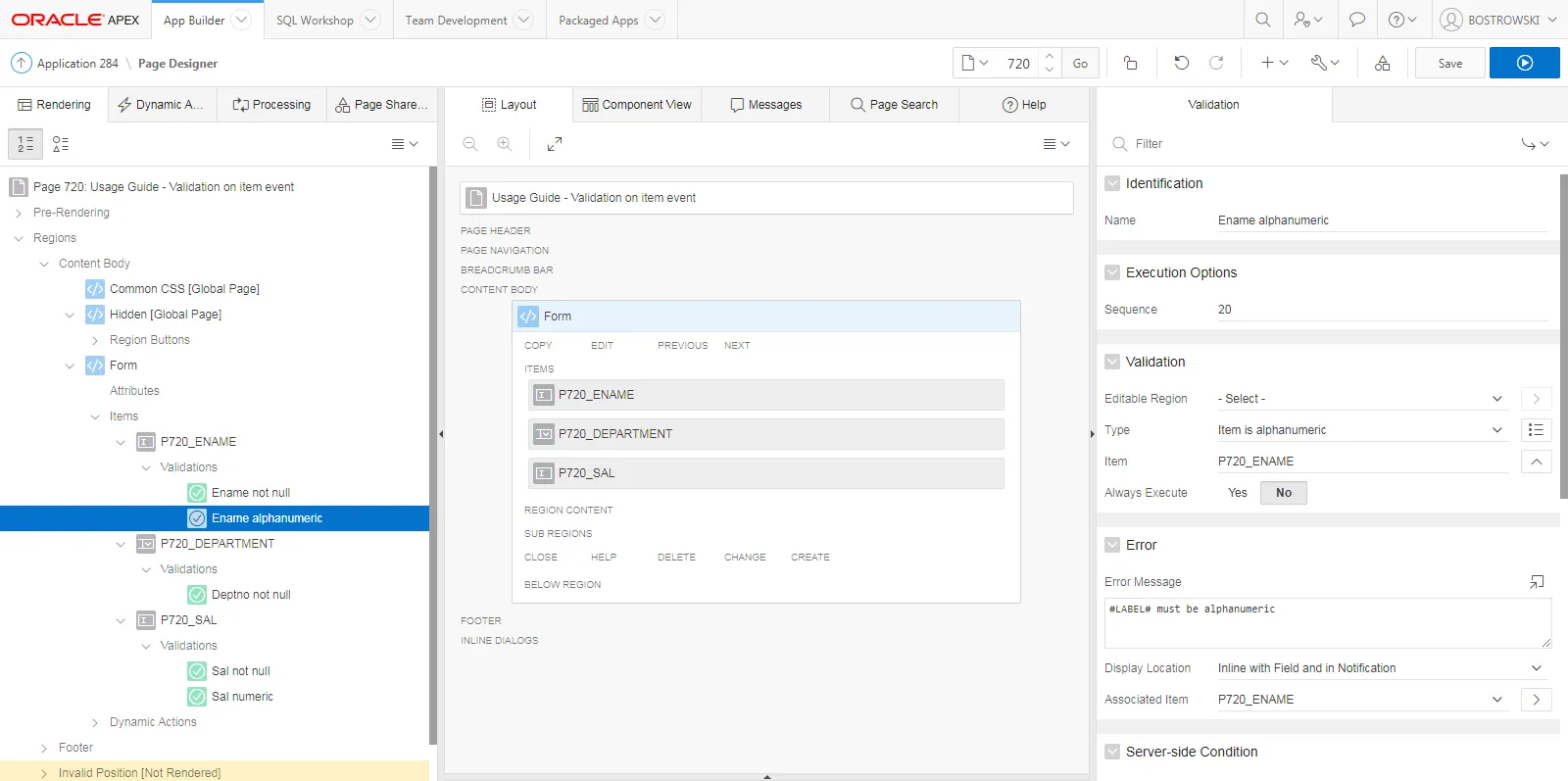
Page 720 in page designer is presented below:
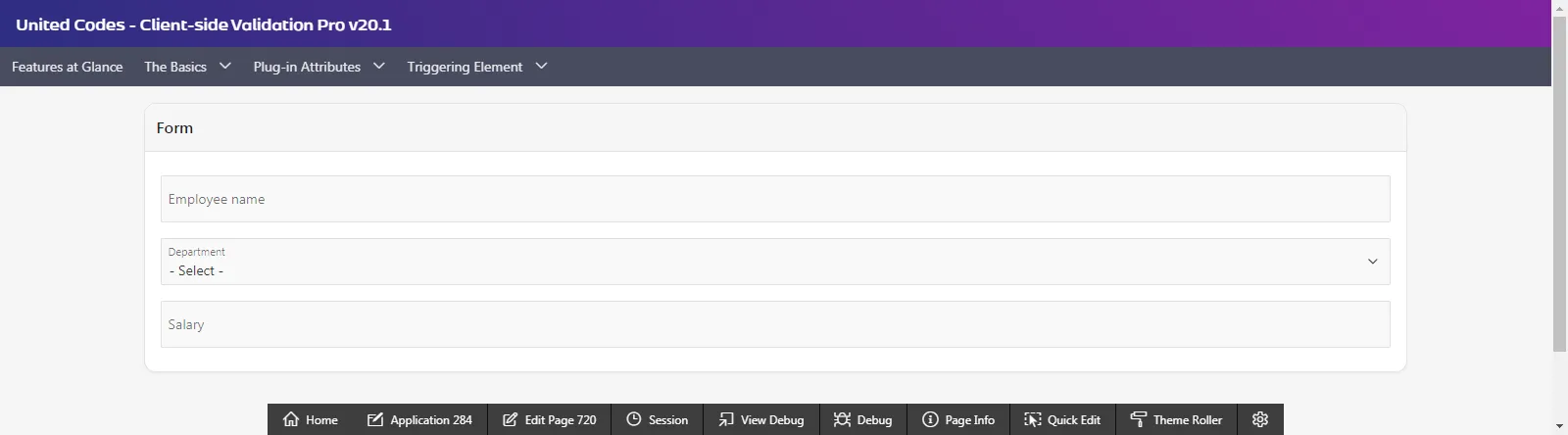
The resulting page will look as follows:
Implementing the Plug-in
Section titled “Implementing the Plug-in”To implement the plug-in, creating new dynamic action is required. Follow the steps below:
Dynamic Action
Section titled “Dynamic Action”- Create a new dynamic action
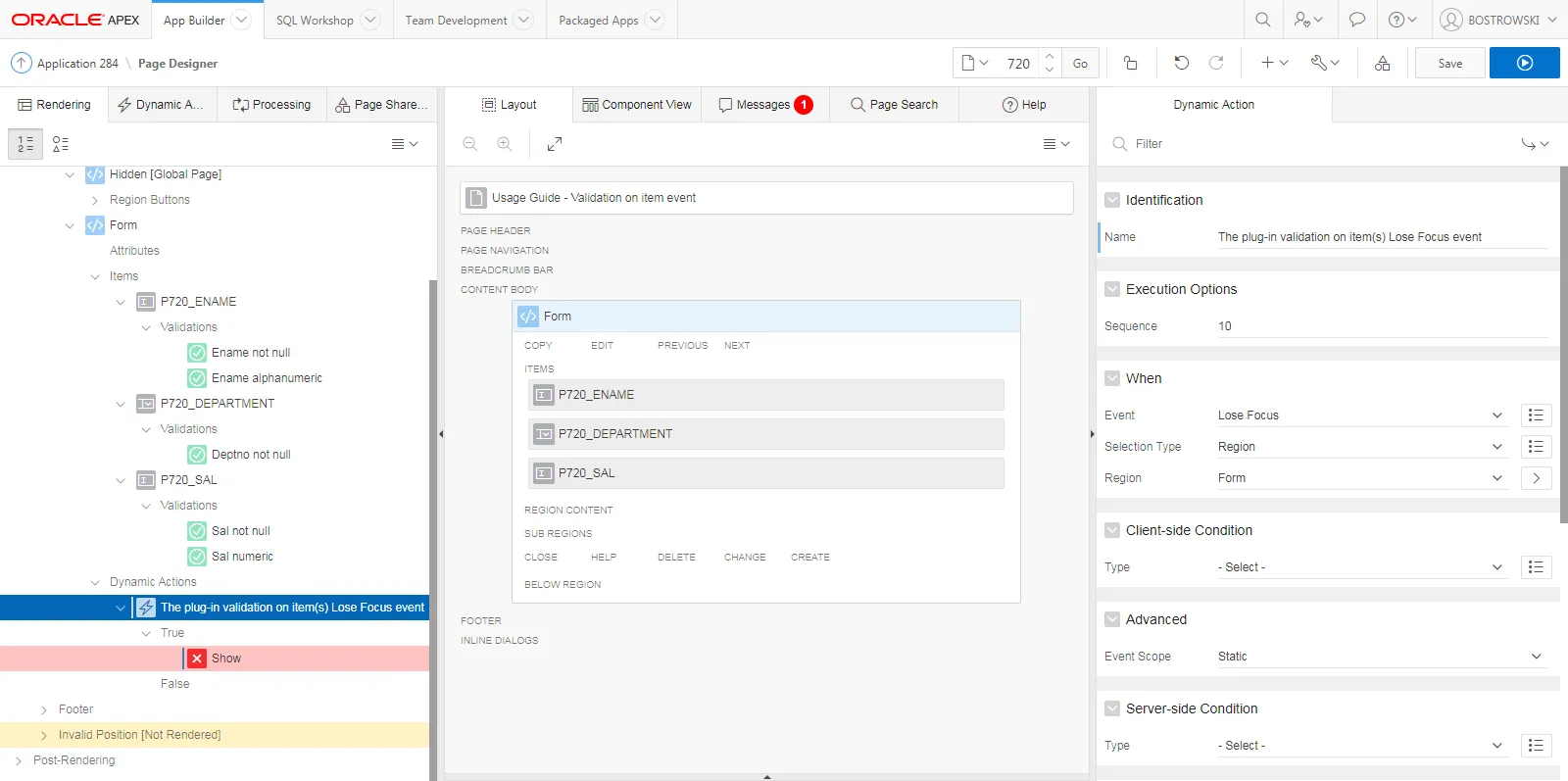
- Change the dynamic action’s name to The plug-in validation on item(s) Lose Focus event
- Set When // Event to Lose Focus
- Set When // Selection Type to Region
- Set When // Region to Form
The dynamic action definition in the page designer is presented below:
Dynamic Action - True Action
Section titled “Dynamic Action - True Action”The default true action of the newly defined dynamic action Show.
- Select the default true action, Show
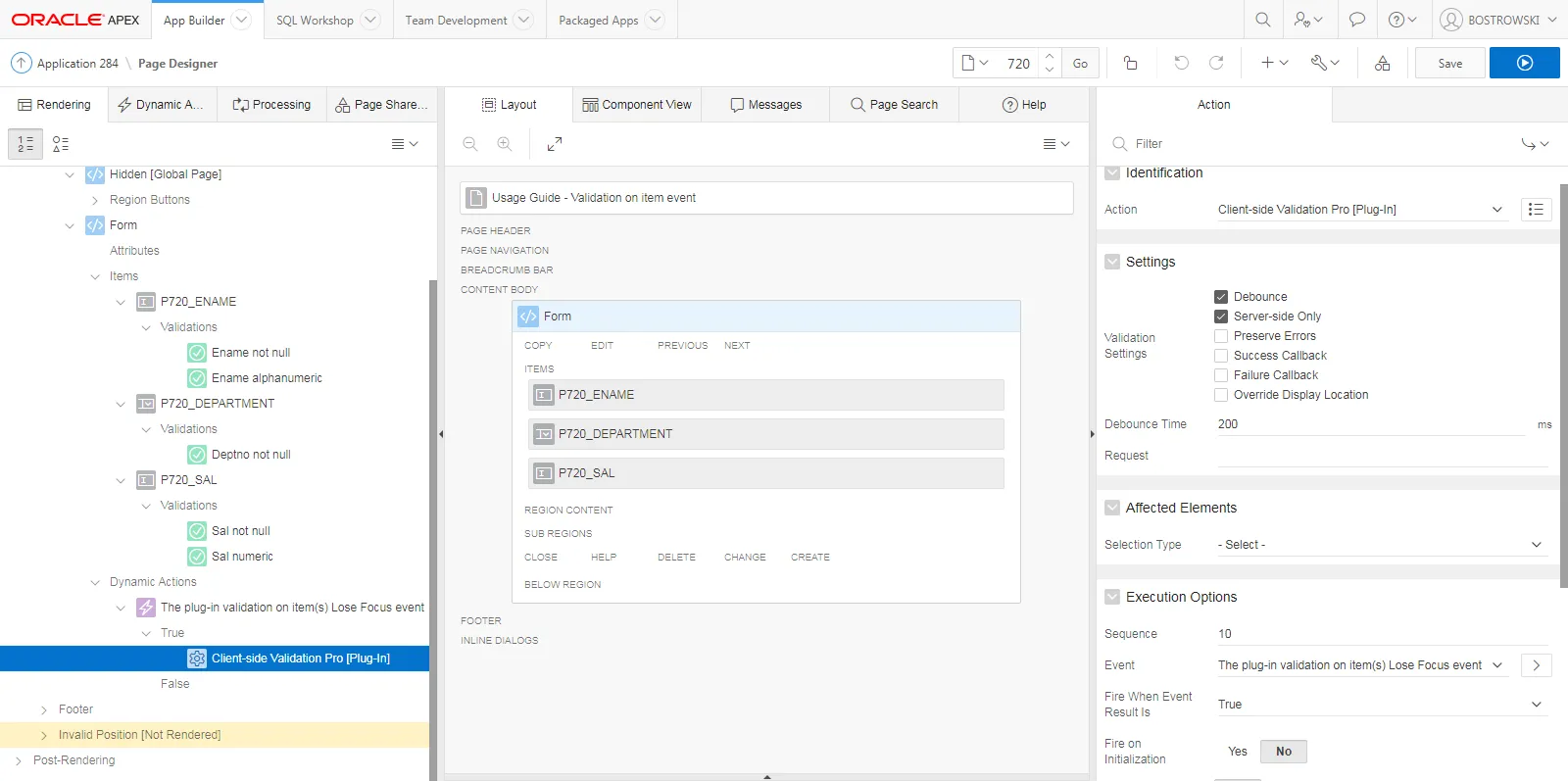
- Change Identification // Action to Client-side Validation Pro /[Plug-in/]
- (Optional) Configure the plug-in using the Settings attributes
- Empty the Affected Elements // Selection Type attribute (set value to /- Select -)
- Set Execution Options // Fire on Initialization to No
- Save the page
The plug-in dynamic true action is presented below:
Test the Implementation
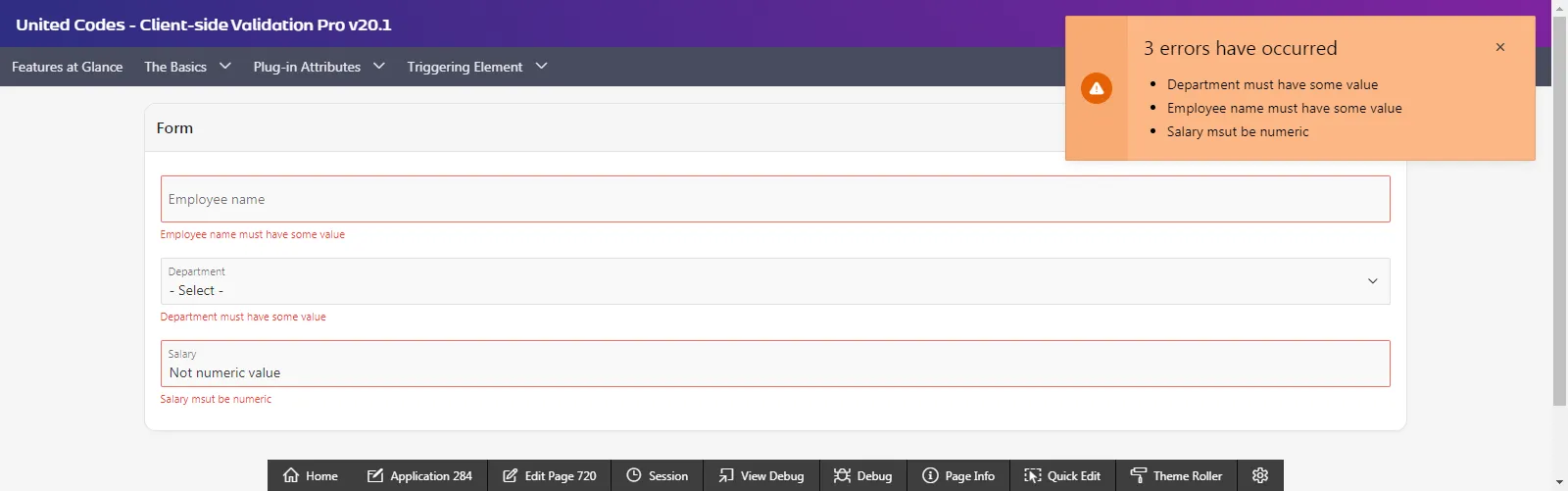
Section titled “Test the Implementation”The plug-in validation is executed when the end-user leaves the input (event Lose Focus is triggered)
- Open page 720 in a browser
- For item P720/_ENAME
- when the field is empty, focus it and click outside of it - validation Ename not null error message is displayed
- input non-alphanumeric values and click outside of the item - validation Ename alphanumeric error message is displayed
- For item P720/_DEPTNO
- when the field is empty ( - Select - ), focus it and click outside of it - validation Deptno not null error message is displayed
- select any value that is not - Select -, no validation errors are displayed for this field
- For item P720/_SAL
- when the field is empty, focus it and click outside it - validation Sal not null error message is displayed
- input a non-numeric value and click outside of the item - validation Sal numeric error message is displayed
Example validation result after providing invalid values is presented below:
Validation on Interactive Grid Columns
Section titled “Validation on Interactive Grid Columns”This guide describes the plug-in validation performed each time the Change event is triggered on interactive grid ENAME, JOB, and SAL columns. The dynamic action implementing the plug-in performs only the defined validations without implementing any fancy features of the plug-in.
Examples of how the plug-in attributes can be used are shown and described in the Client-side Validation Pro sample application.
Introduction
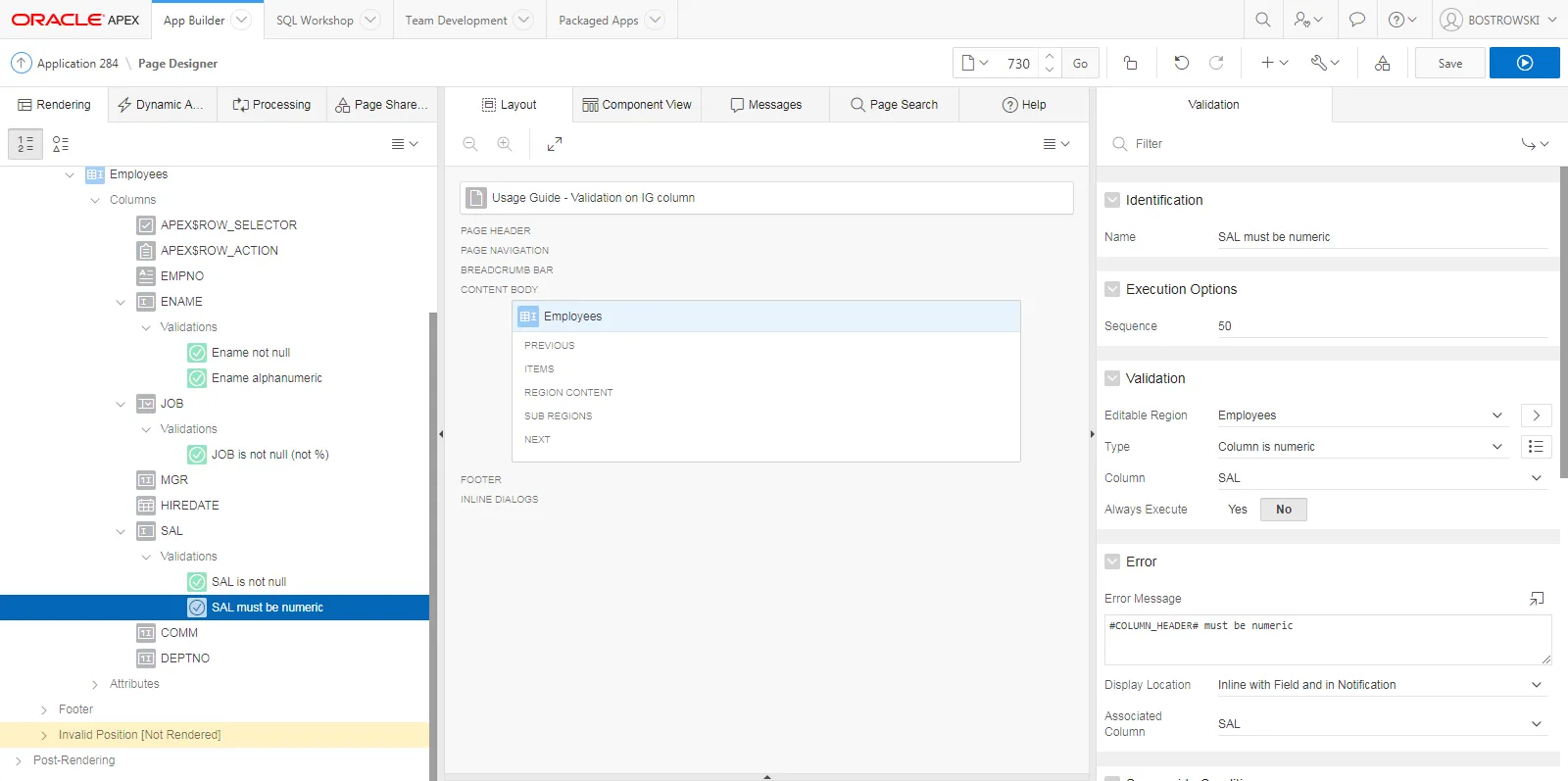
Section titled “Introduction”In an example application, page 730 is defined. On the page, an interactive grid region called Employees is created on the emp table. Columns ENAME, JOB and SAL have native Oracle APEX validations defined as described in the table below:
| Column | Validation |
|---|---|
| ENAME | Column is not null |
| ENAME | Column is alphanumeric |
| JOB | Column is not null |
| SAL | Column is not null |
| SAL | Column is numeric |
Page 730 in page designer is presented below:
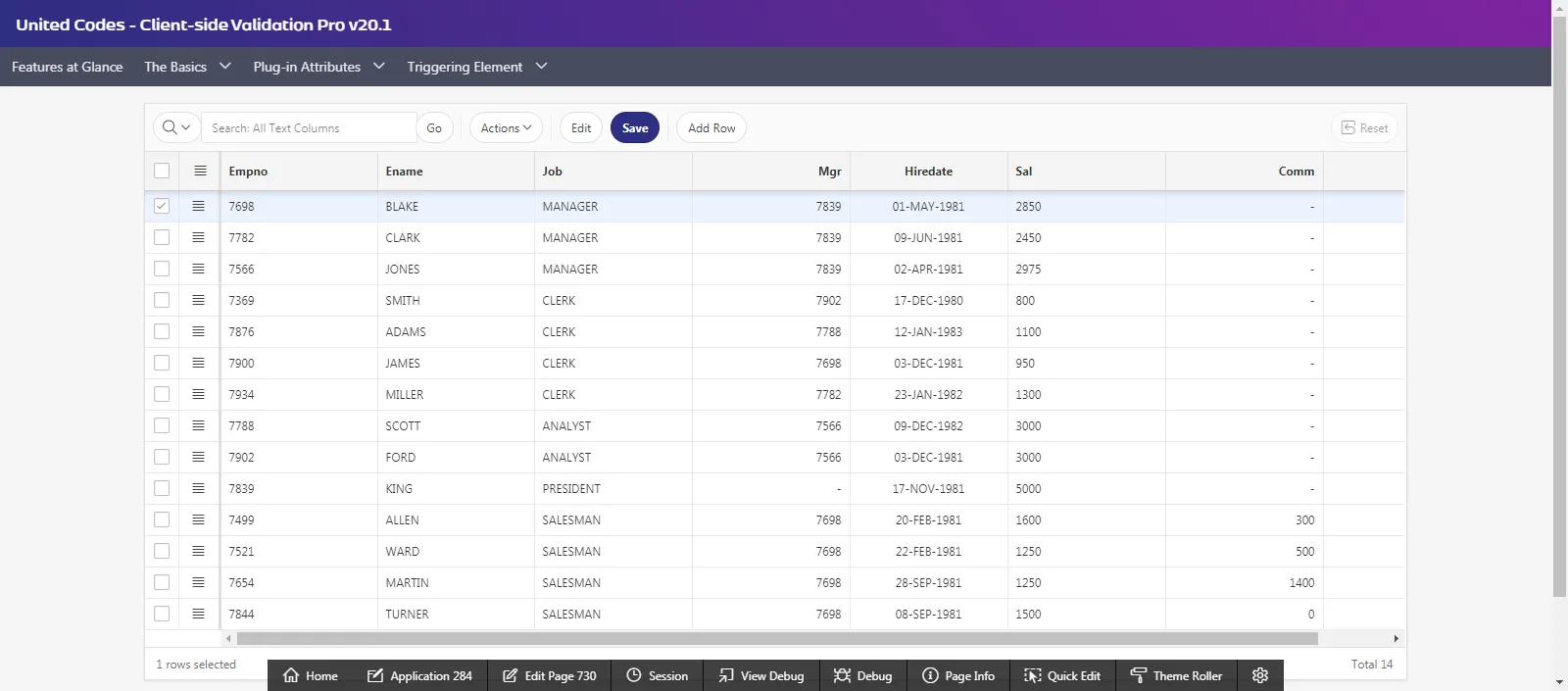
The resulting page will look as follows:
Implementing the Plug-in
Section titled “Implementing the Plug-in”To implement the plug-in, creating a new dynamic action is required. Follow the steps below:
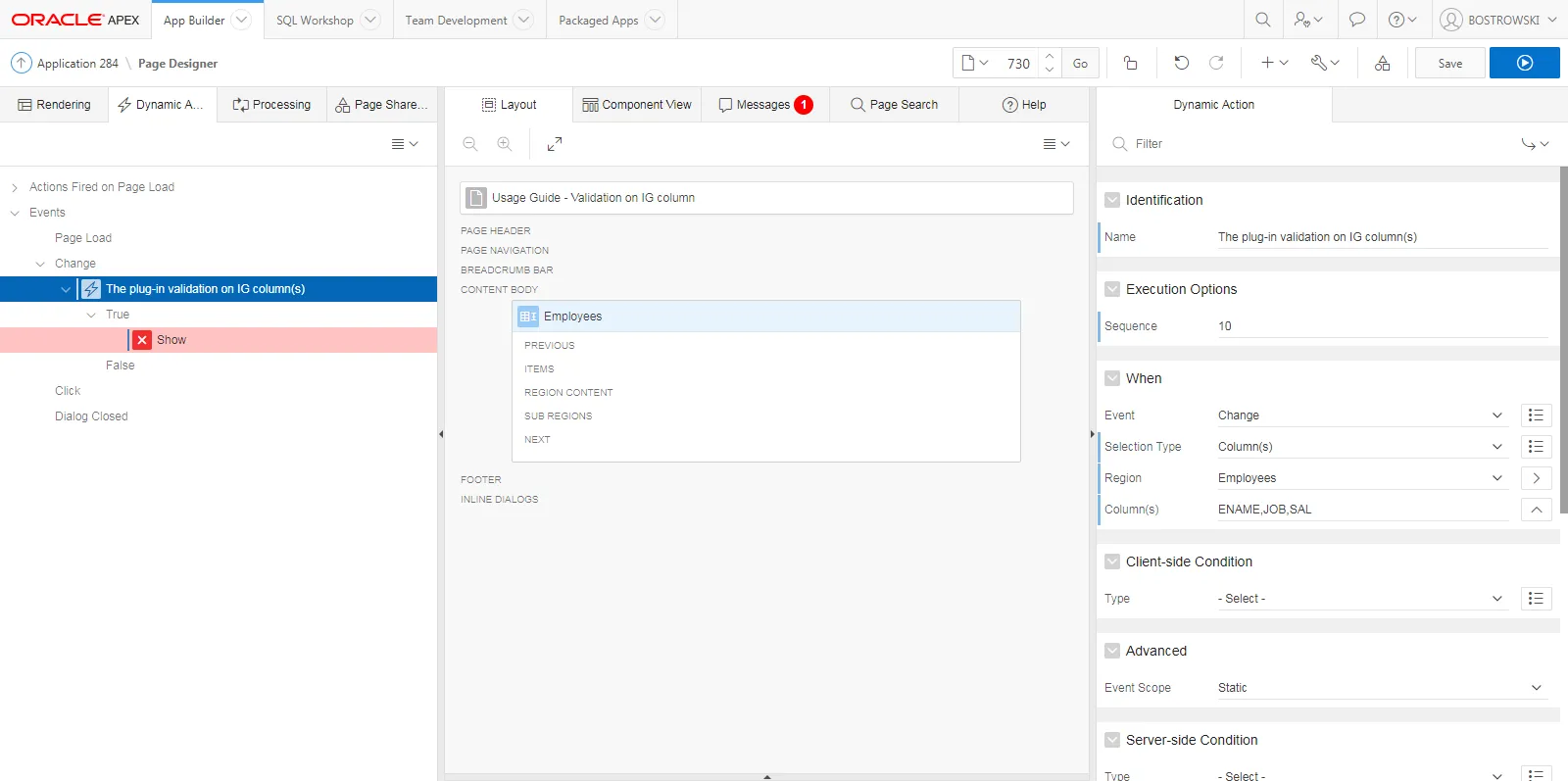
Dynamic Action
Section titled “Dynamic Action”- Create a new dynamic action
- Change the dynamic action’s name to The plug-in validation on IG column(s)
- Set When // Event to Change
- Set When // Selection Type to Column(s)
- Set When // Region to Employees
- Set When // Column(s) to ENAME,JOB,SAL
The dynamic action definition in the page designer is presented below:
Dynamic Action - True Action
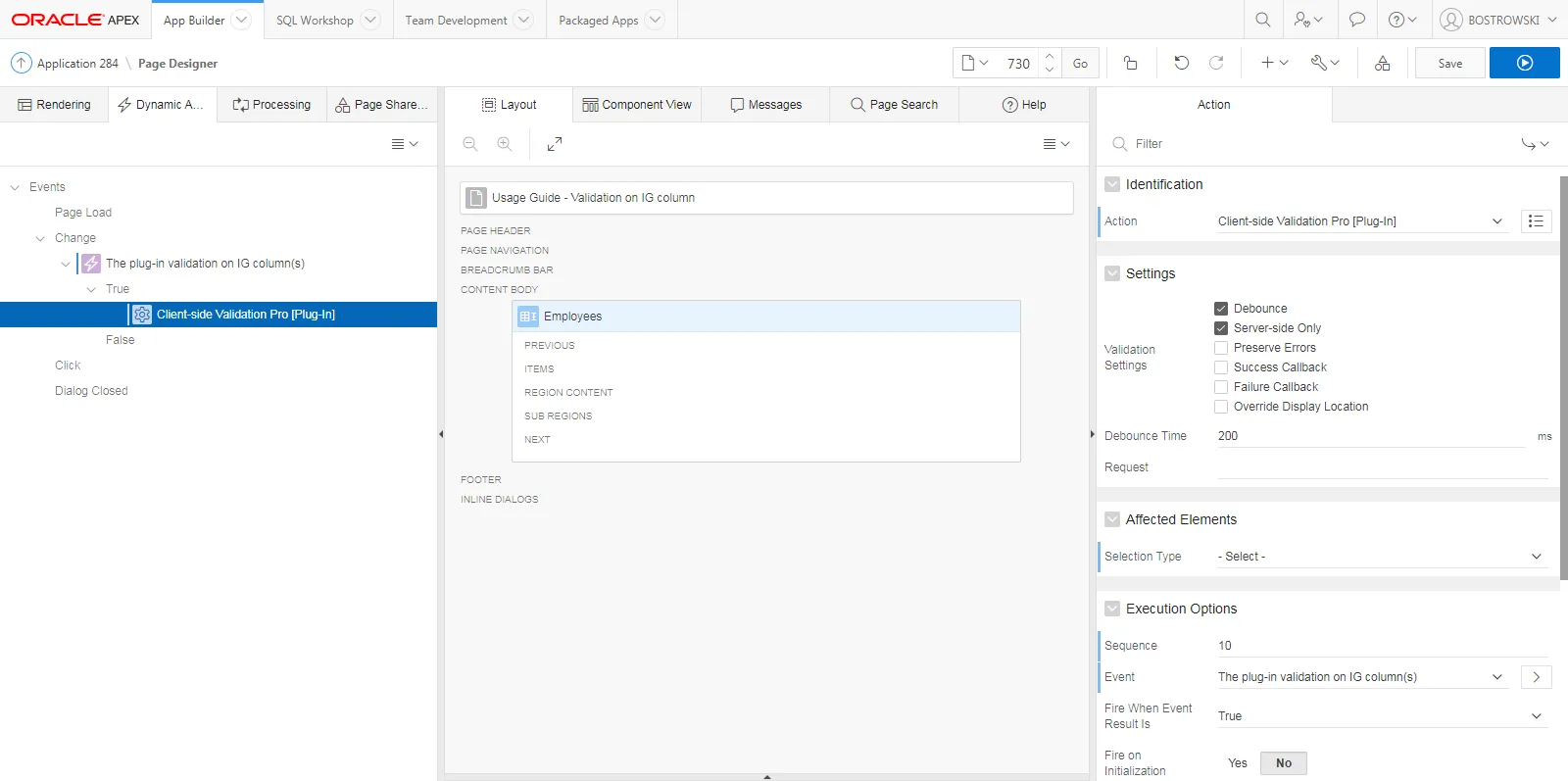
Section titled “Dynamic Action - True Action”The default true action of the newly defined dynamic action is Show.
- Select the default true action, Show
- Change Identification // Action to Client-side Validation Pro /[Plug-in/]
- (Optional) Configure the plug-in using the Settings attributes
- Empty the Affected Elements // Selection Type attribute (set value to /- Select -)
- Set Execution Options // Fire on Initialization to No
- Save the page
The plug-in’s true action is presented below:
Test the Implementation
Section titled “Test the Implementation”- Open page 730 in a browser
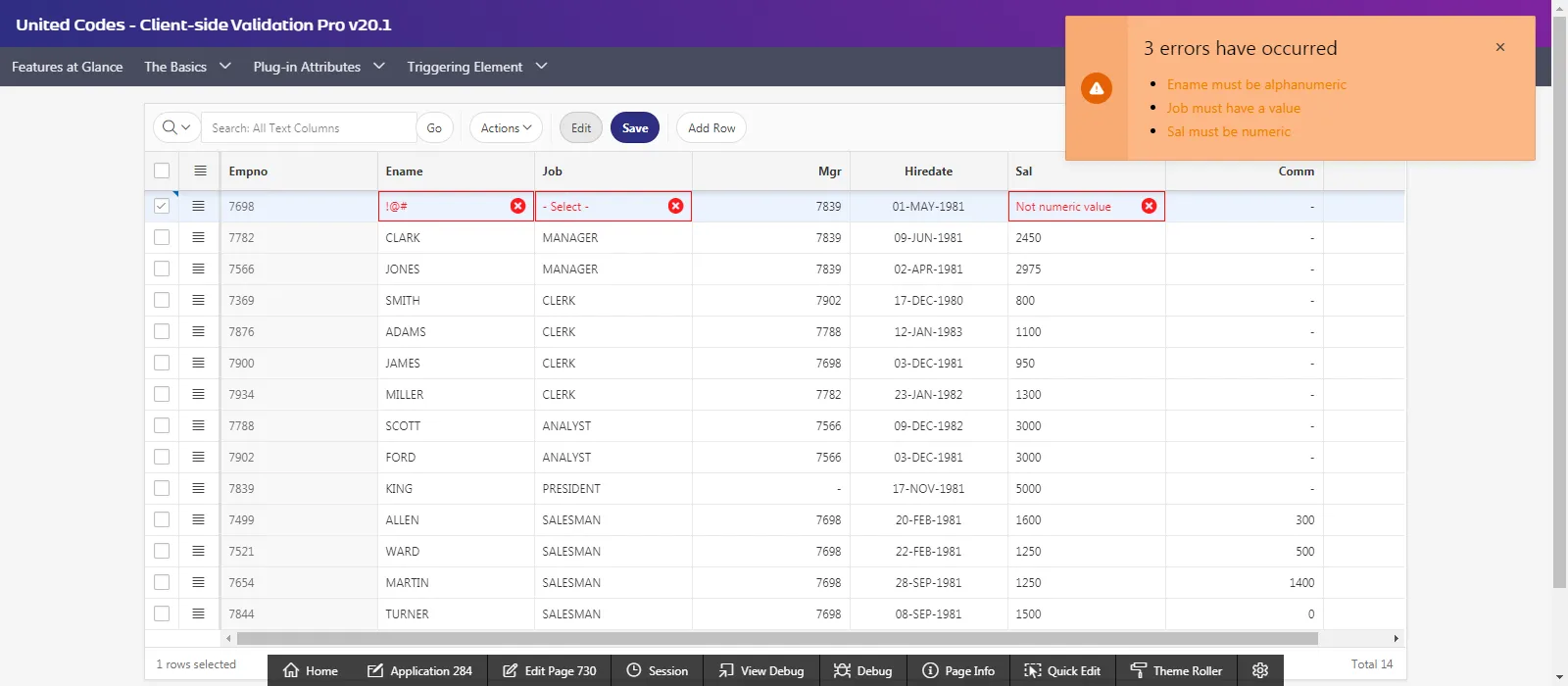
- For the ENAME column, insert invalid characters (out of alphanumeric scope). For example !@#.
- For the JOB column, select the null value (- Select -)
- For the SAL column, insert invalid characters (out of numeric characters). For example Not numeric value.
The validation result will be visible after you leave the currently edited column. Example validation errors are presented below: